
Table of Contents
- Setup and General Questions
- New Inventory Audits
- Vendors
- Receivings/Reductions
- Adjusting Product Logs
- Exporting Logs and Audits
- Wholesale Costs and Products
What is Cost of Goods Sold (COGS)?
 Costs of Goods Sold (COGS) is an important inventory management tool that represents the direct costs associated with obtaining goods that a company sells during a specific period.
- Includes the costs of purchasing inventory from suppliers, which is then resold to customers.
- This is a critical measure and data point for retailers as it directly impacts the gross profit and overall profitability of the business.
Do I need to do anything to enable COGS?
Nope! All you need to do is enable Inventory for a product to activate COGS. Existing inventory will carry over, and your next Receiving will establish your new average cost.
Can I still track items without using COGS?
Yes, you can still use inventory counts and product management. COGS simply adds the ability to see your true costs and margins for better reporting!
If you have custom staff roles, these must be adjusted to your gym's needs. Staff (a protected role) will not have access to the section. Admin and Owner roles have this automatically. Staff Permissions
Inventory Audits: A Streamlined Way to Manage Stock Adjustments
Inventory Audits (formerly Inventory Logs) ensures accurate stock management while improving usability and control for managers.
Creating an Inventory Audit:
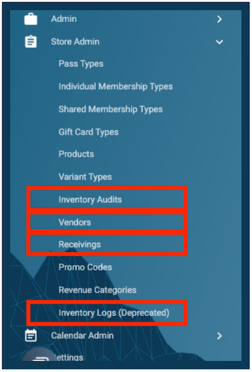
- Go to Store Admin.
- Navigate to Inventory Audits.
- Select Add Inventory Audit.
- Fill in necessary details: Date and Description.
- Add Products using the Add Product component.
Once this is complied, there will be 2 options for saving the audit.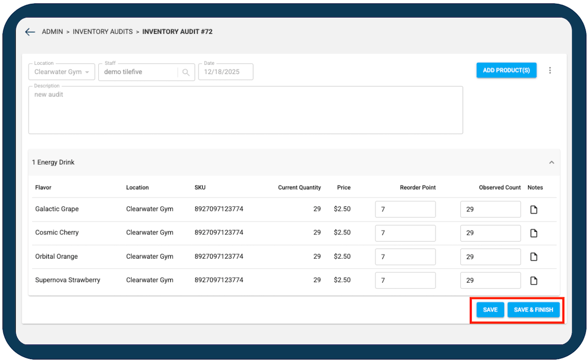
- "Save"
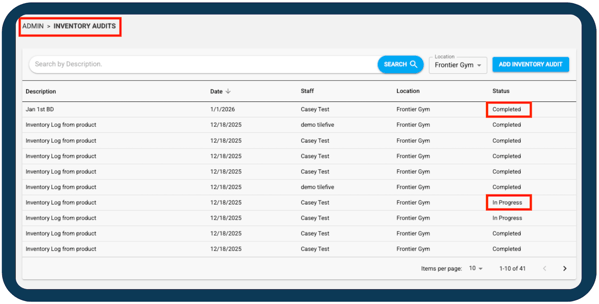
- This will save the audit with an "In Progress" status. This will not yet update the Inventory on the Products.
- Intended for adding Purchase Order (PO number) once Products are ordered but not yet delivered.
- Allows going back in and updating the audit.
- "Save and Finish"
- This will save the audit, update Product Inventory, and mark a "Completed" status.
- This will not appear until at least one Product is added to the audit.
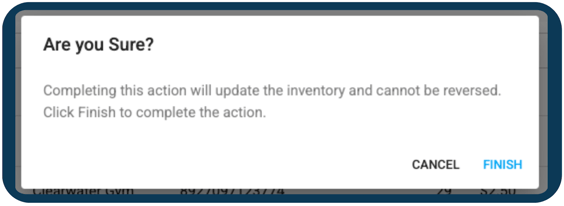
Once an Inventory Audit is Completed, it cannot be edited, only viewed.
Creating and Managing Vendors
The Vendors feature helps you store supplier information and link vendors to inventory items for optimal purchasing workflows.
To manage Vendors: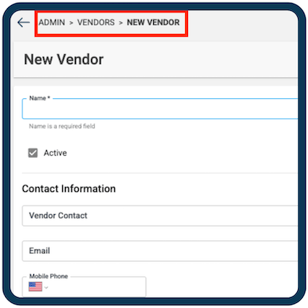
- Navigate to Store Admin.
- Select Vendors tab.
- Click Add Vendor.
- Fill in necessary details: Name, Status, Contact Information, Internal Notes
Linking Vendors to Products:
- Navigate to Store Admin
- Select Products
- Open the Product you'd like to edit
- Select the Vendor field dropdown
Receivings & Reductions: Accurate Inventory and Costing with WCA
Use Receivings to record incoming (Receiving) or outgoing (Reduction) inventory, capture related costs, and automatically update COGS using Weighted Cost Averaging (WCA) once the record is completed.
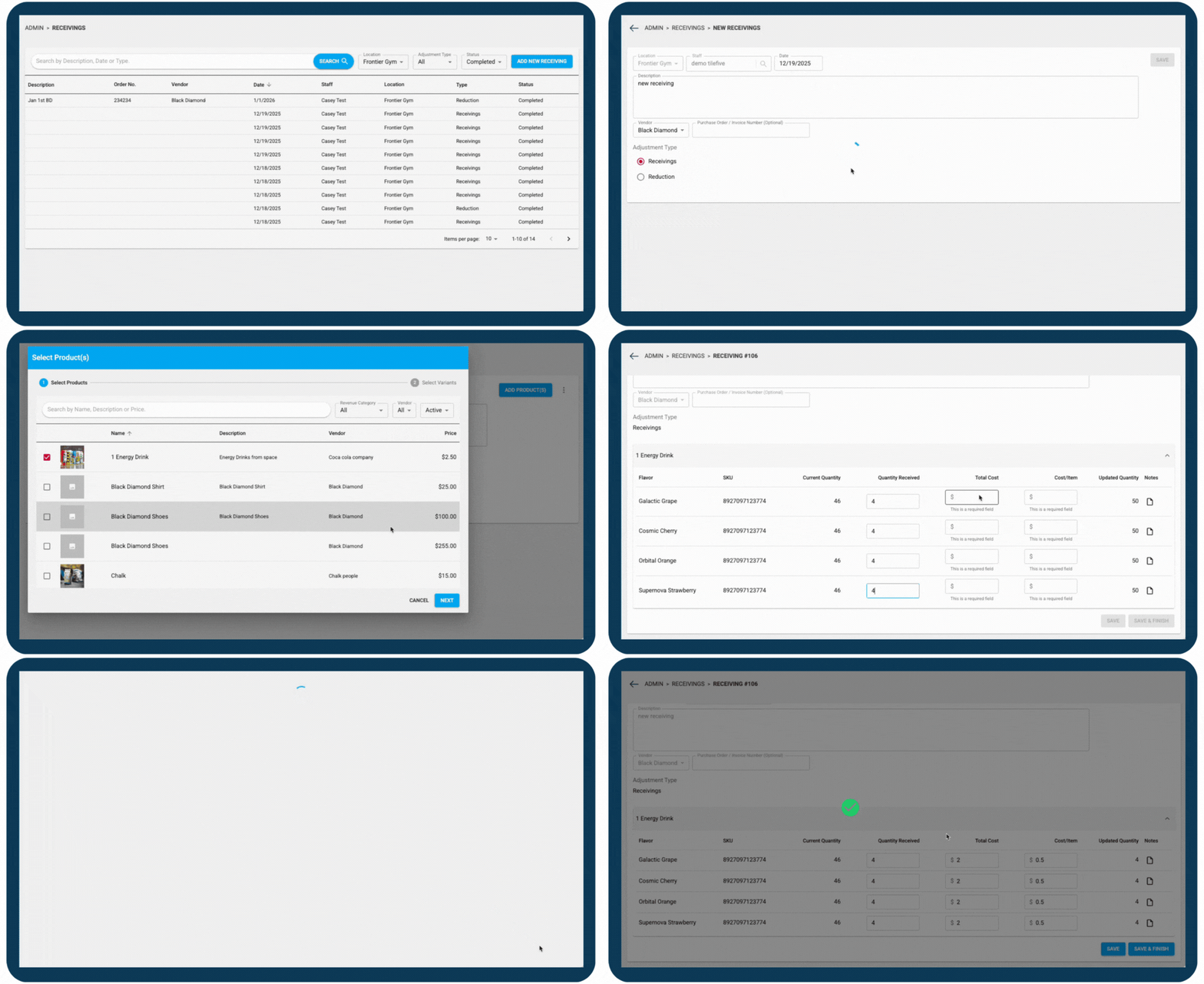
Create a new Receiving/Reduction record:
- Go to Store Admin.
- Select Receivings.
- View record details Description, Purchase Order No., Vendor, Date, Staff, Location, Type (Receiving or Reduction), Status (In Progress or Completed).
- Click Add New Receiving/Reduction to open a new form.
- Fill in necessary details: Date, Description, Vendor, Purchase Order Number, Adjustment Type (Receiving or Reduction).
- Hit Save.
- Click Add Products.
- Select Products and their Variants for the receiving/reduction.
- Fill in necessary details: Quantity Received, Total Cost, Cost/Item (Cost per Item).
Receiving and Reductions require cost and quantity for each product.
- Enter the Quantity of Received or Reduced items.
- Enter one of the cost fields:
- Total Cost or Cost per Item.
- Only fill out one or the other; Approach will calculate the other field automatically.
- Example: Quantity of 10 and $100 total cost, the cost per item will calculate with $10.
- Total Cost or Cost per Item.
Adjusting Product Inventory from Product page
We’ve updated the product inventory update flow in the Product page. You will only be able to update the observed count of a product. Adding new quantity has been removed and will be managed in the Receiving page.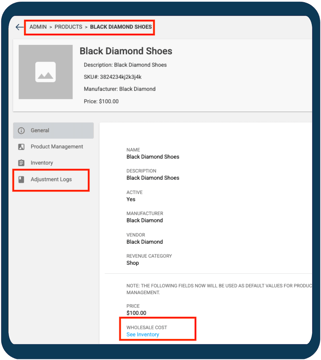
In Products page:
- Select the Product you'd like to edit.
- Navigate to the Inventory section.
- Click Add/Update Inventory and adjust quantity as needed.
Approach will automatically update the product's inventory and create a new Product Adjustment Log entry with, Type: Adjustment, Description: Product Edit, Details: Variant Name, Location, Staff, and Quantity.
Product Adjustment Log
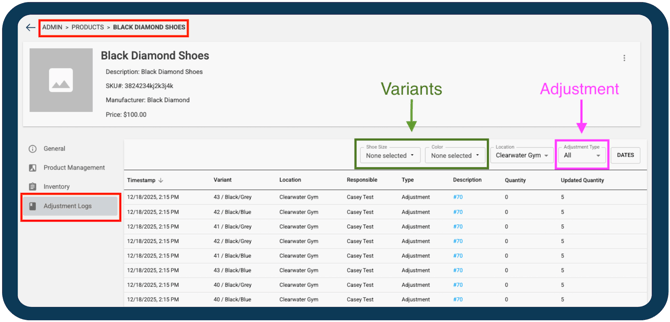
Approach has added a new Log to Products that will track the increase and decrease of Inventory Quantities, when they happened, how they happened, and the staff that was part of the quantity changed. Inventory must be enabled for the Product. The log will include an entry for the following reasons referencing quantity Adjustment Type:
-
Purchase: When inventory is reduced from a purchase.
-
Return: When inventory is increased from a return.
-
Adjustment: When inventory is increased or reduced from an Inventory Audit. This includes quantity changes made from the Product page “Add/Update Inventory” flow.
-
Receiving: When inventory is increased from a receiving.
-
Reduction: When inventory is decreased from a reduction.
-
Legacy Log: References Inventory Logs (Depreciated).
Exporting Product and Audit Logs
We’ve added a PDF download option for Inventory Audits and Receivings so you can easily keep records for compliance, reporting, or internal documentation.
Where to download PDF
- Navigate to Store Admin.
- Select Inventory Audits or Receivings.
- Click the three-dot menu next to record.
- Select Download PDF.
The PDF file will be named from the audit or receiving and unique ID found in the URL (ex. InventoryAudit_123.pdf). These will include all the content added into the audit or receiving.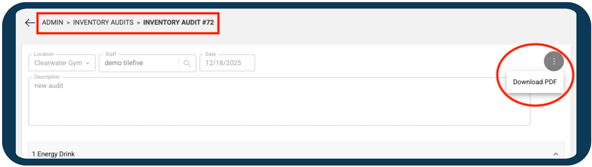
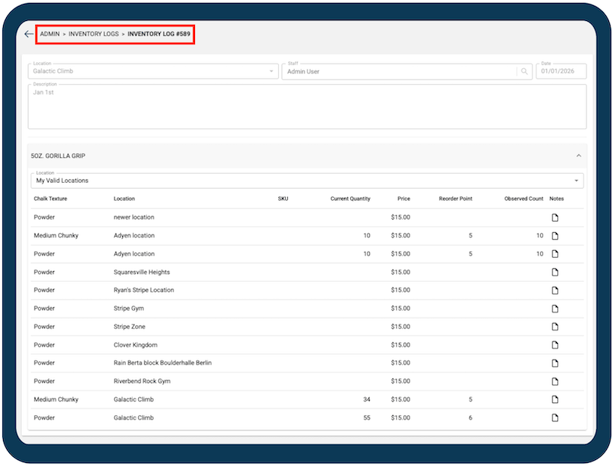
Any previously created Inventory Logs will be read-only and not editable. They can be found in "Inventory Logs (Depreciated)" under Store Admin.
Wholesale Costs and Products
Here is how cost information is displayed in product screens to ensure accuracy when Inventory Management is enabled. This aligns product cost with COGS (Cost of Goods Sold) calculations. This ensures cost accuracy by using Weighted Cost Averaging (WCA) from inventory transactions.
When Inventory is turned ON:
- The Wholesale Cost field on product detail pages displays See Inventory, which links to the Inventory page for detailed cost information.
The Product Management page:
- Updates the Wholesale Cost column to show the COGS cost average.
- The column label changes to Cost when inventory is enabled.
The Inventory page:
- Wholesale Cost is set here.
- Adds a Cost column showing the COGS cost average for each product.
Cost cannot be edited directly on the product page, it will be available for updates through Receivings.
Helping Hands:
Do you still have more questions? We want to make our Knowledge Base as accurate and as in-depth as possible. If you think this article is missing anything, please let us know here. We will update the article and let you know we have done so!