Skip to content
English
  • There are no suggestions because the search field is empty.

Creating and Reserving Invoiced Events

In this guide, you will learn how to create and book an invoiced event.

Table of Contents

What is an invoiced event?

An invoiced event is where a single user pays for the event. Common examples of these would be birthday parties and group events with one host/buyer.

Creating a singular Invoice Event Booking
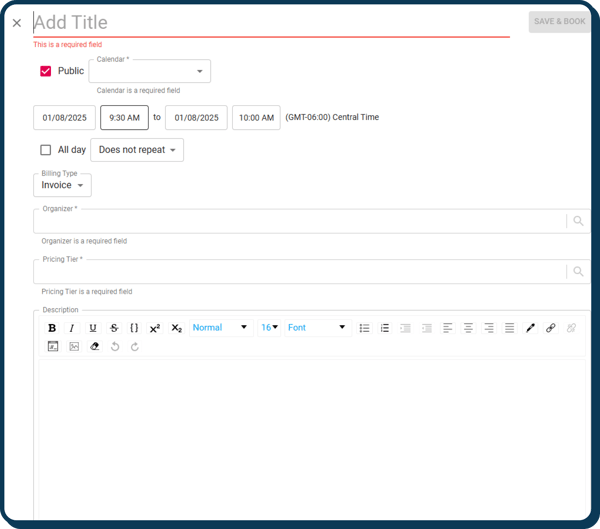
A singular invoice event booking does NOT allow customers to book parties from the customer portal. Rather, the singular booking will be created with the organizer (buyer) set. 
 
After you click Create Event on the Calendar you will be prompted to this screen: 
 

Next, fill out the needed fields as described below:

  • Title and Calendar

Title the booking and select the calendar to which this booking will display on. It’s important to remember that calendars are an internal sorting tool and will not be available to the public for sorting on the Portal.
Uncheck "Public".  This way it will not show up online to other customers.
  • Date, Time, and Recurrence

Define the date and time for this booking. Example in the screenshot shows "01/08/2025 at 9:30Am to 01/08/2025 10AM". This means the booking will take place on 1/08/2025 from 9:30-10AM. 
Set the recurrence. Because this is a one off single booking, it’s important that the recurrence if set to "Does not repeat" (as seen in the screenshot).
  • Billing Type, Organizer, Pricing Tier

Select "Invoice" in the Billing Type drop-down menu.
Add the organizer for the event.  This must be a customer with a profile. The Organizer is the person paying for the event.
Select the pricing tier for this booking. If you have not set up pricing tiers, please click here
  • Description, Photo, Staff, and Form

Feel free to add a description of the event booking.  
Add a photo to the booking if desired. Because this booking will not display on the Portal, the photo would just be seen internally (in the Main App). 
Feel free to add the staff member scheduled to work the event booking. 
Select "If a form is attached, automatically email form on registration or when customer is added to guest list" if you would like the organizer to receive a Form to fill out after the booking is "Saved/Booked". To learn how to create a Form, click here.
 
Finally, click "Save and Book" in the top right corner of the page.

Creating an Invoice Event Recurring Schedule

An Invoice Event Schedule allows customers to book parties from the customer portal. It'll be located under the "Book a Party" section.
There are two requirements when creating the event:
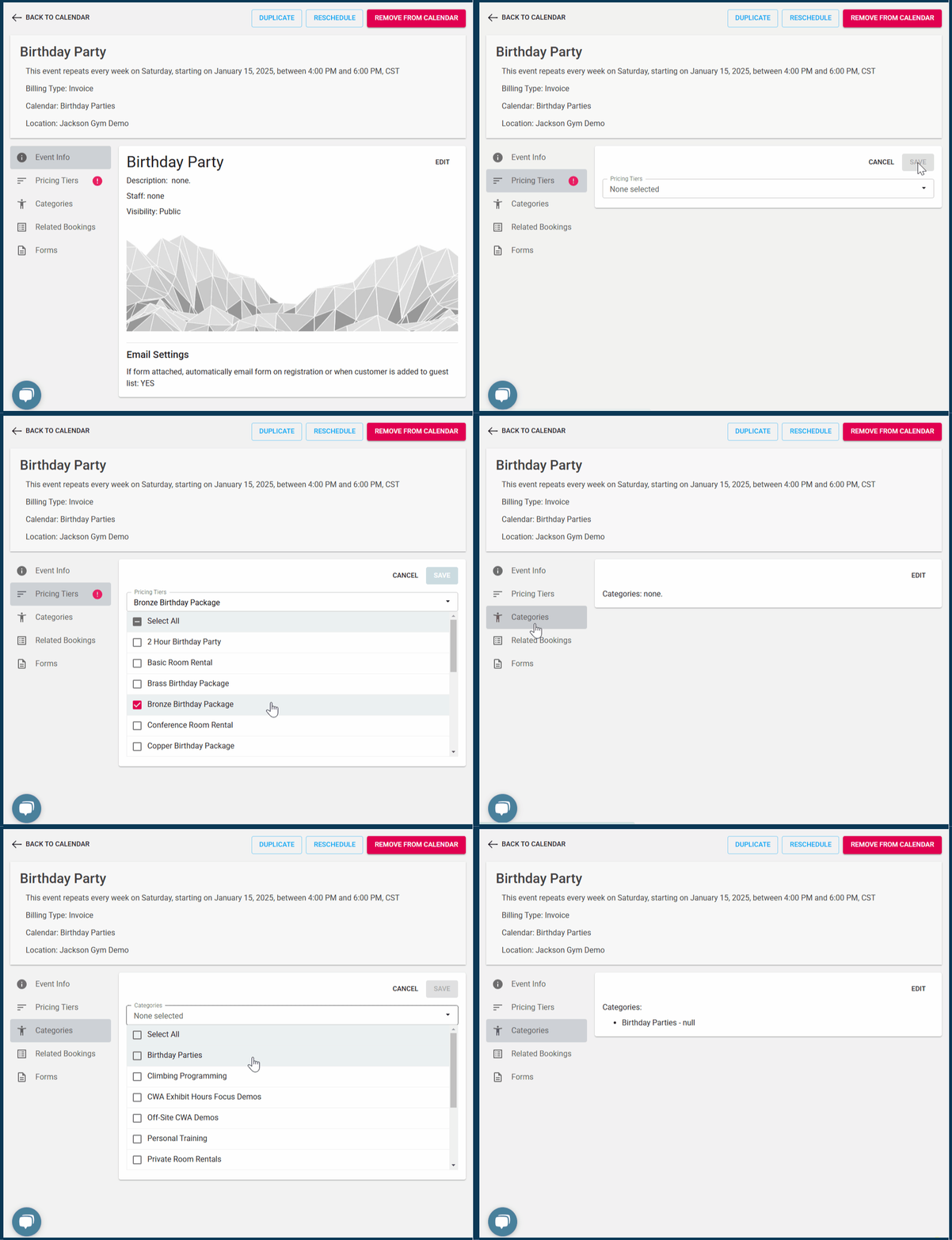
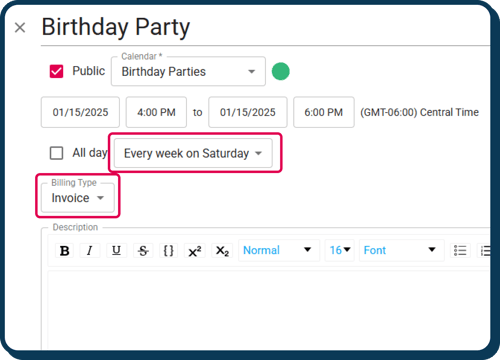
  • It has to be recurring and NOT a singular event (in the image below, the event repeats every Saturday)
  • It has to be an "Invoice Event" (see 2nd red box in the image below)

After these two criteria have been met you can change the rest of the fields to your liking.
After you save, apply pricing tiers and categories to this schedule as seen below: 
bday party
Note: Only Pricing Tiers can be applied to Invoice Events and Categories are a public sorting tool that customers use on the Portal.


Reserving & Paying for an Invoice Event Booking
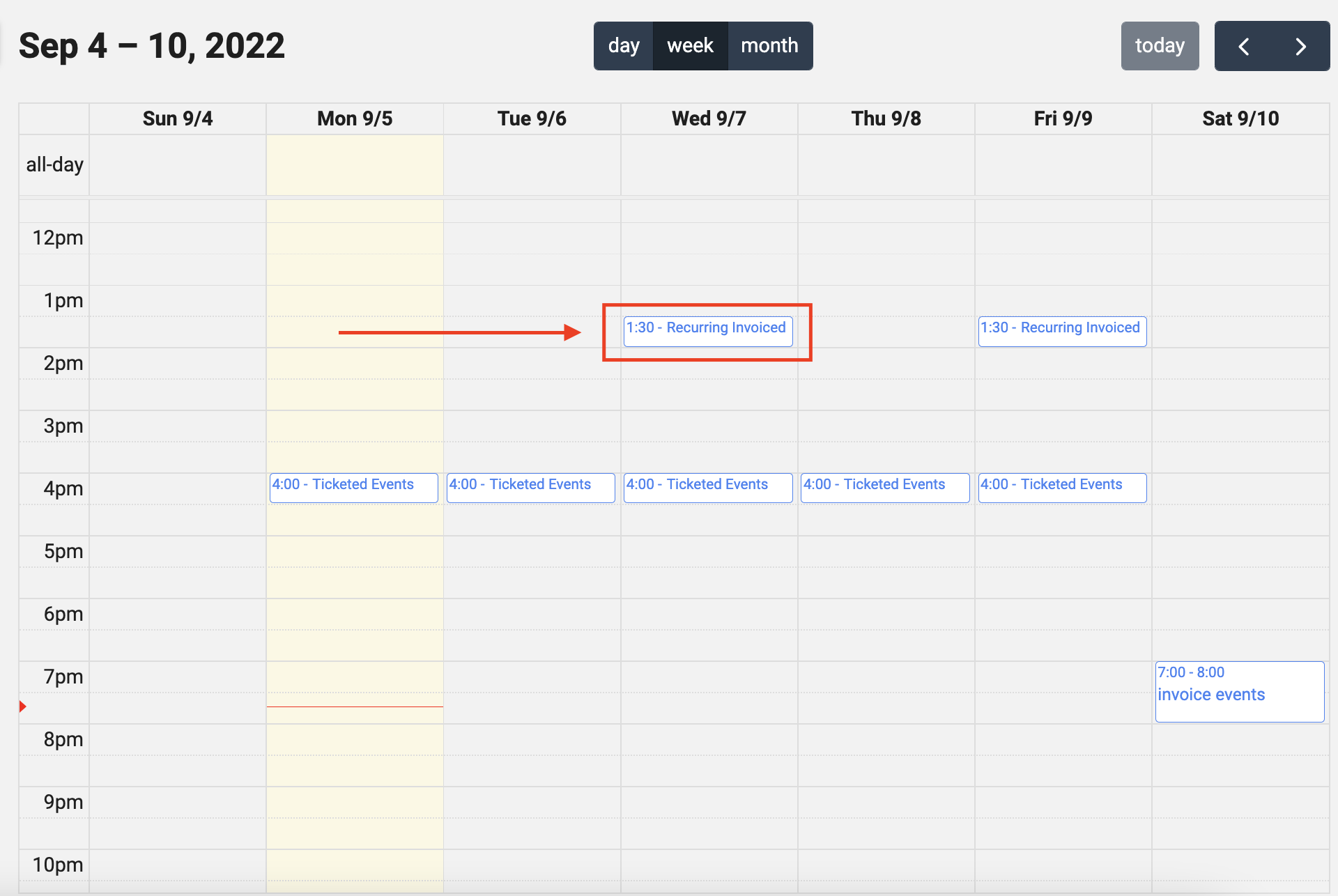
Reserving an Invoice Booking
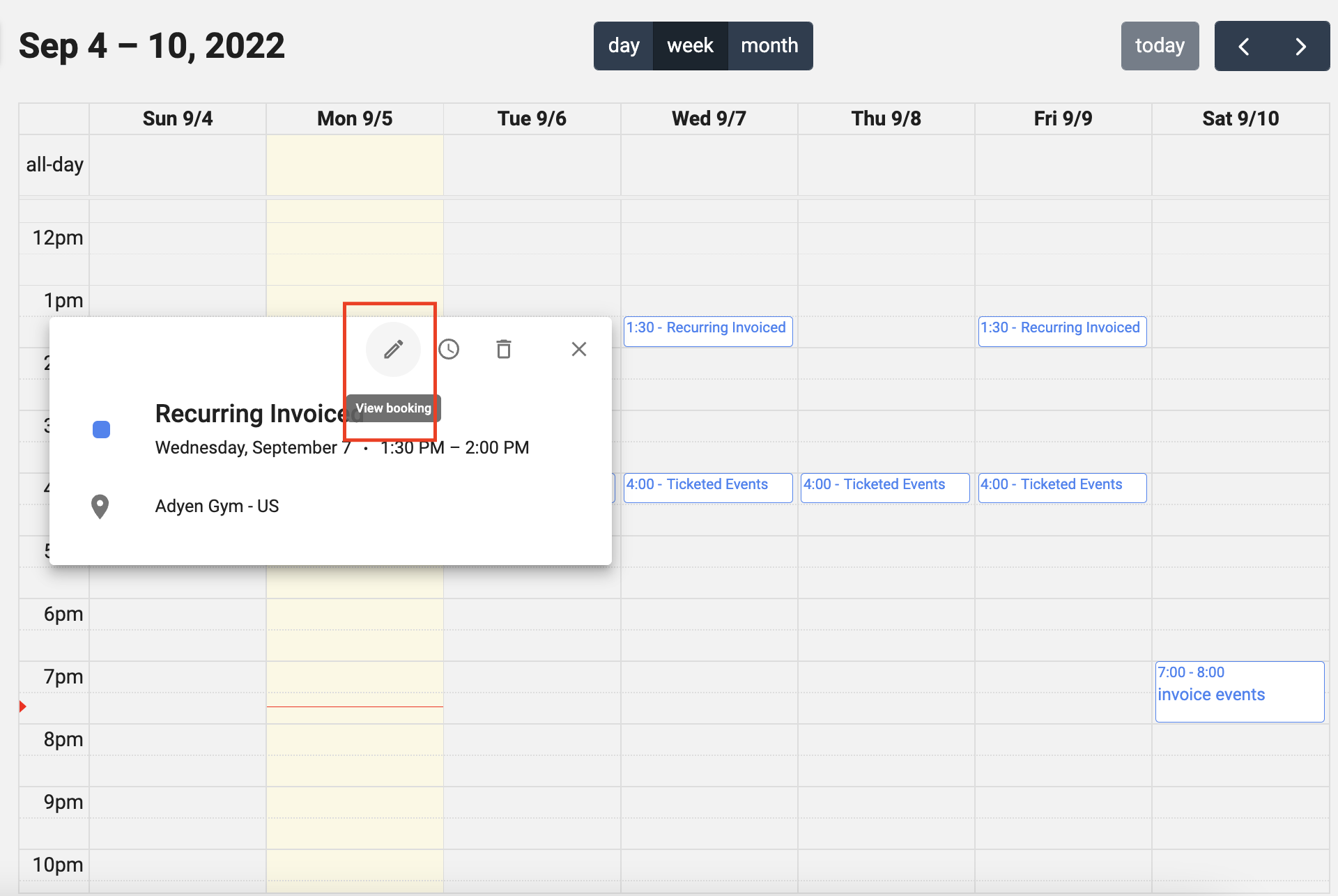
Once you are on the calendar, click on the booking that you want to reserve.
Once there, make sure to "View Booking"
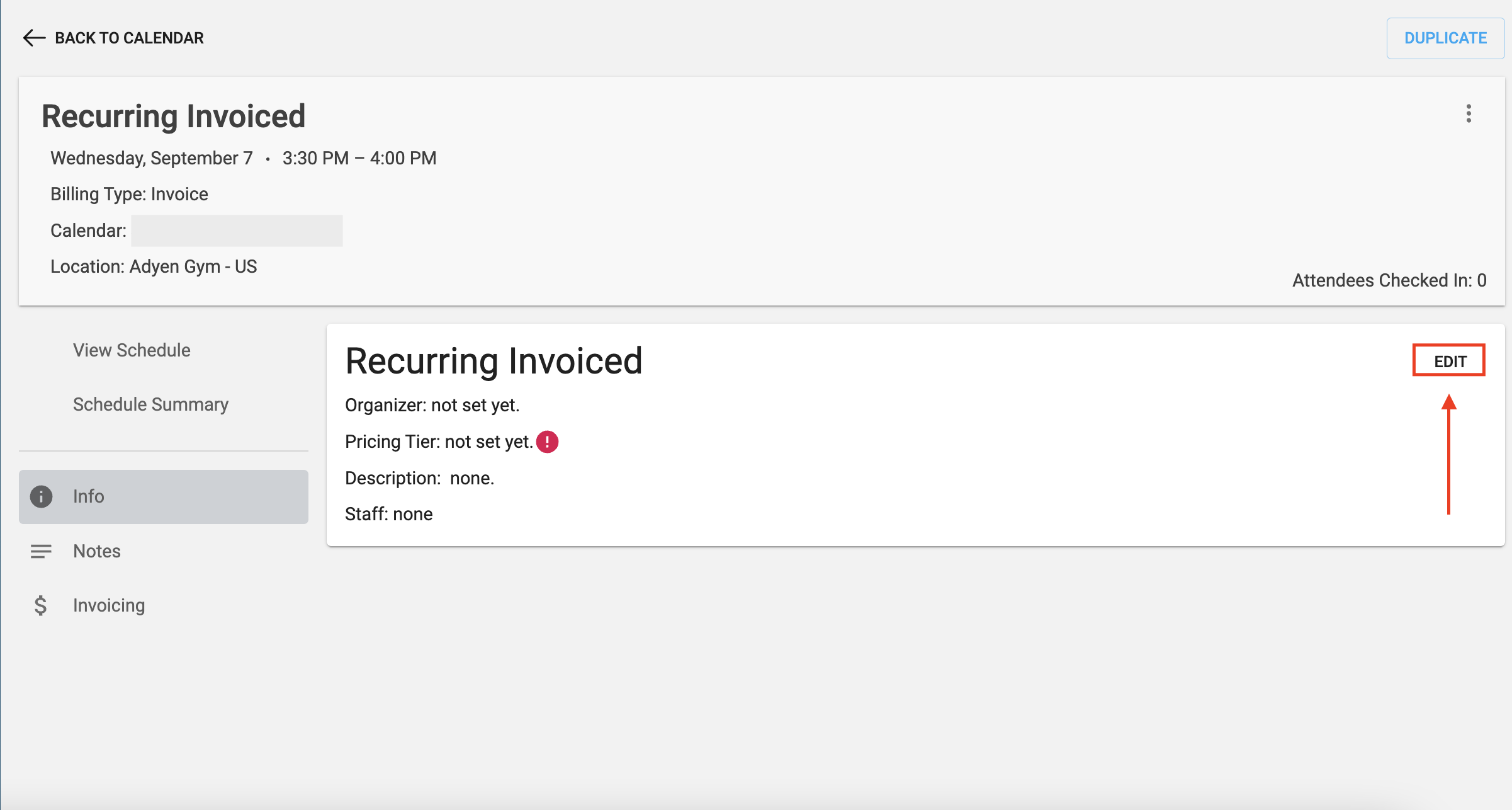
Once in the booking, make sure to "Edit"
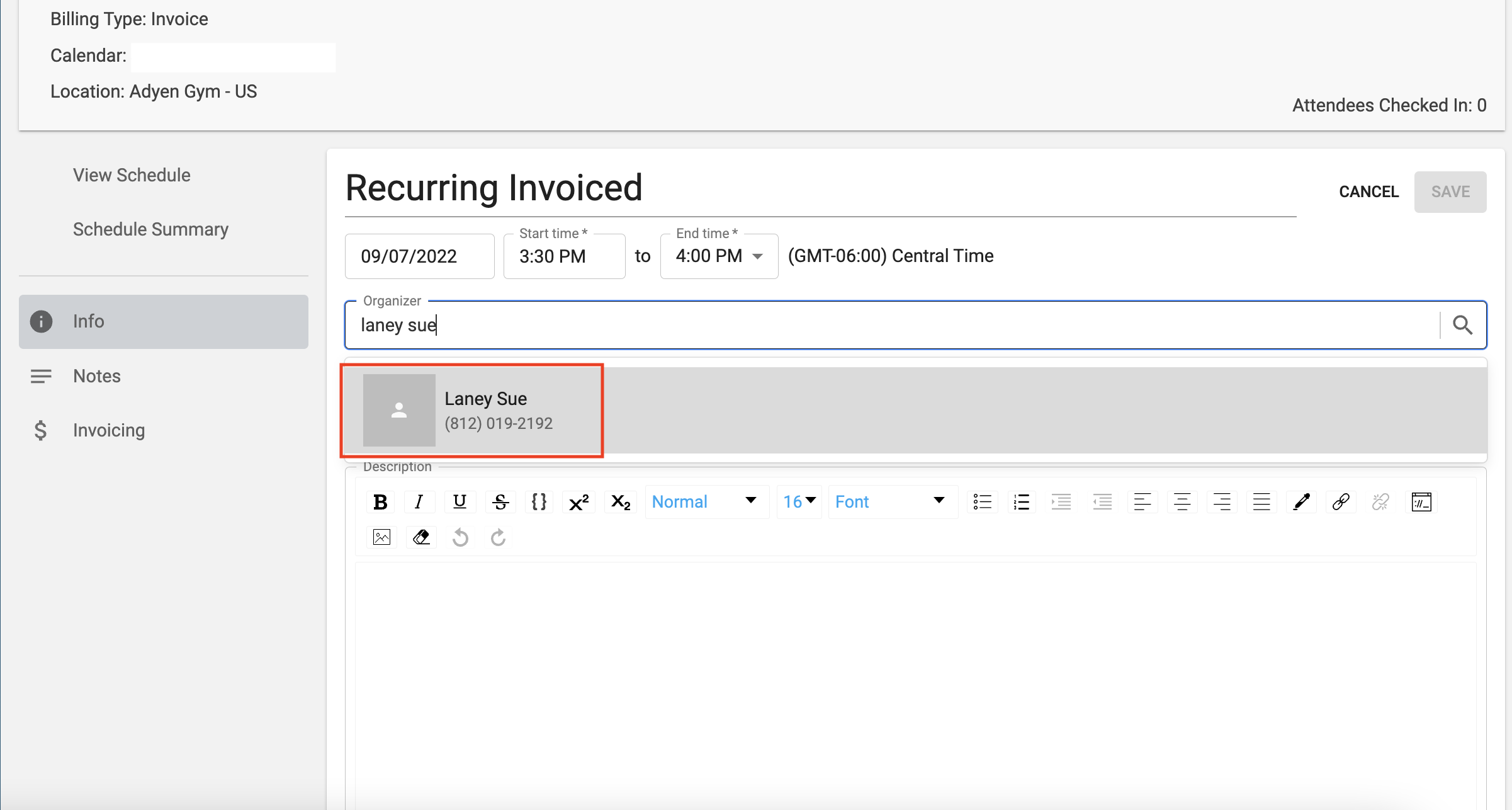
Search the customer that is going to be the Organizer.
Note: The Organizer is the customer that will be paying the event's deposit and balance.
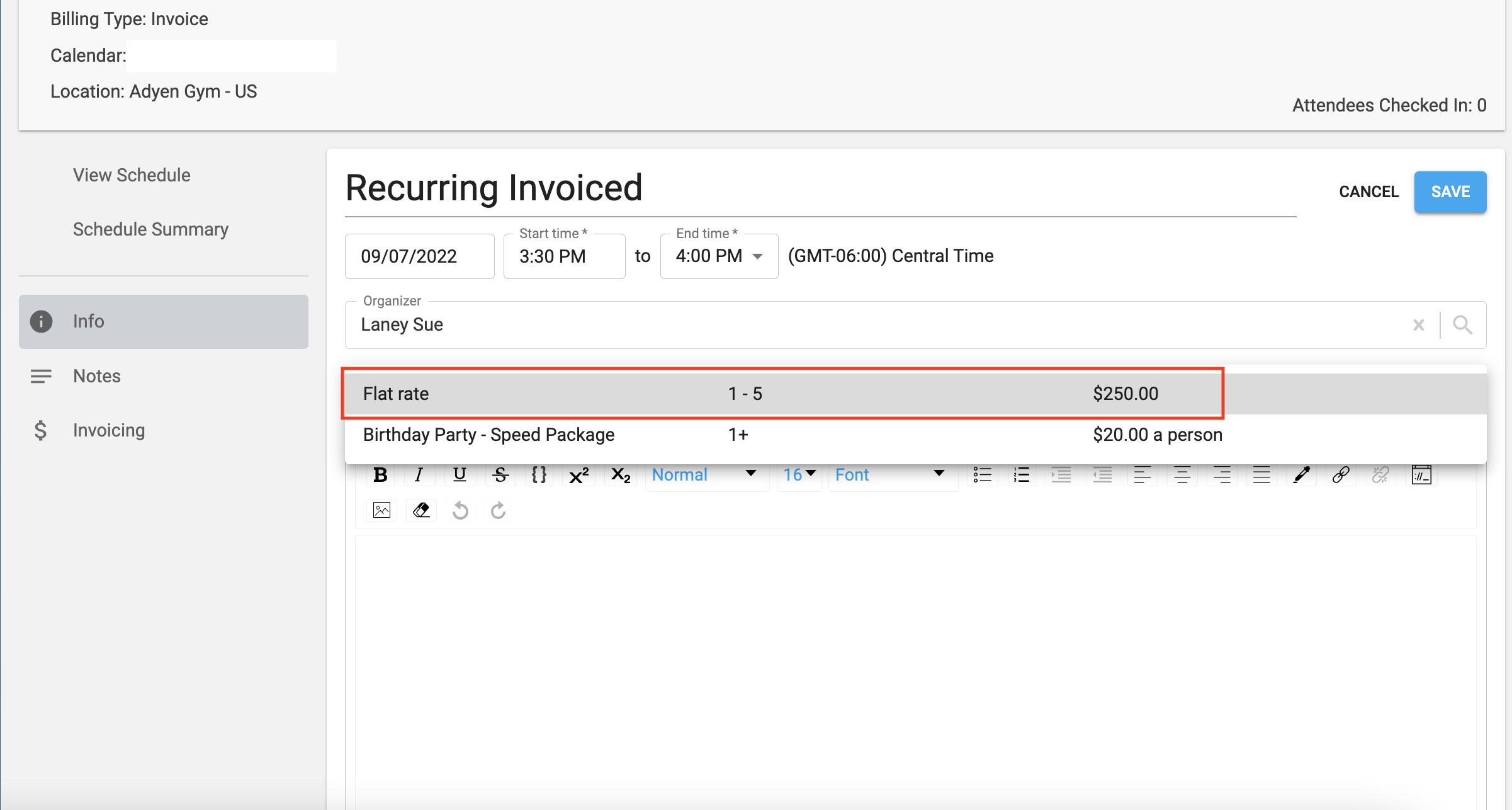
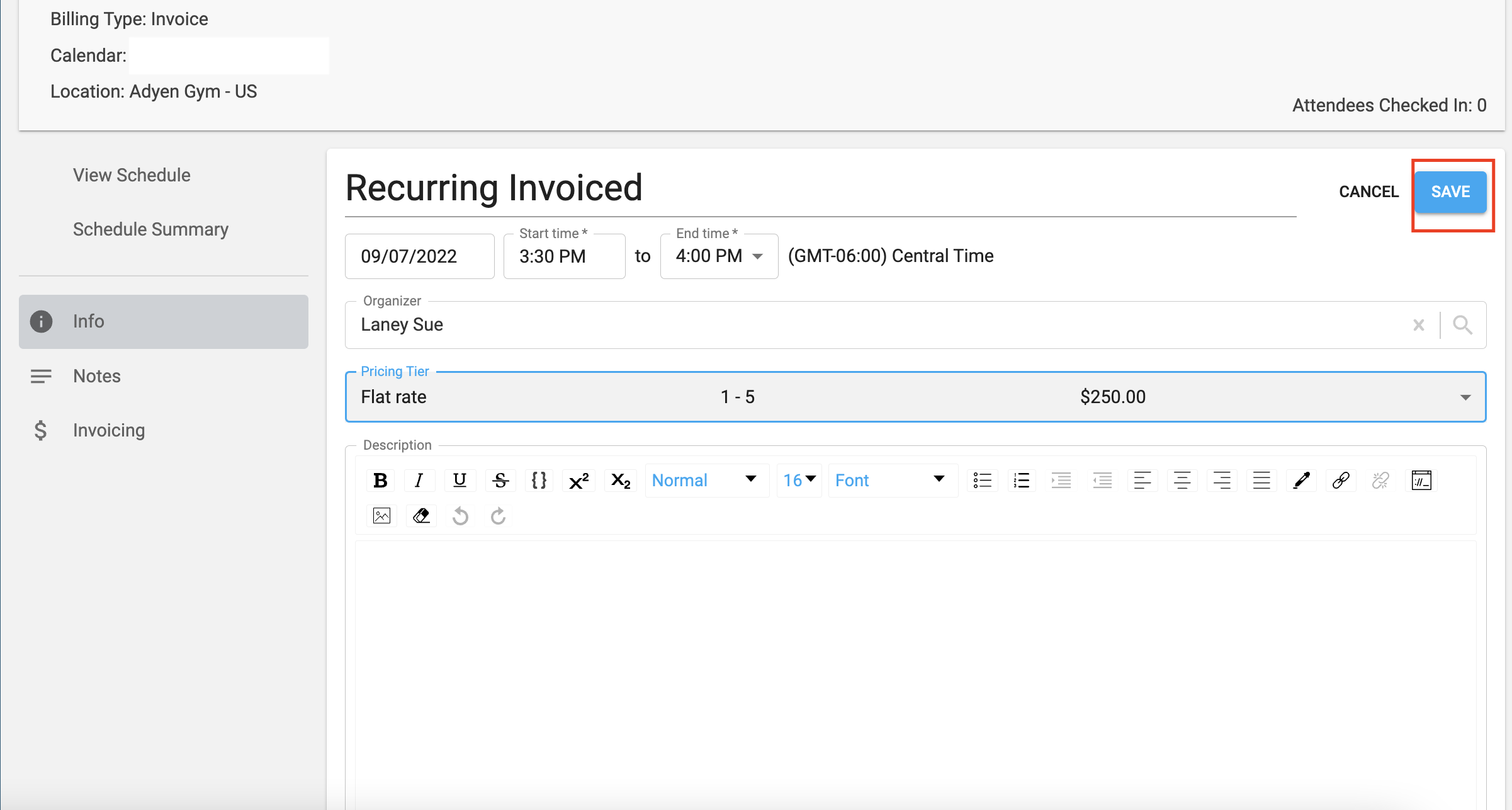
Once the organizer is set, click to set the pricing tier.
Note: The possible options for pricing tiers are set during the schedule setup process. For an example click HERE
Make sure to SAVE!
Your event is now set up! Continue reading in order to know how to Pay for the Invoice booking.
Paying for Singular Invoiced Event Booking 
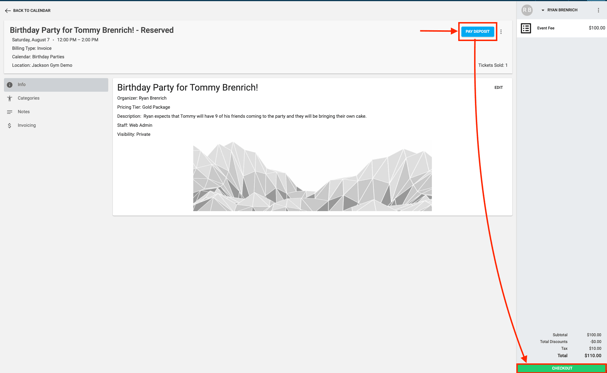
First click Pay Deposit.  It will automatically create a cart assigned to the Organizer that was set during the Invoice Event Booking creation and automatically calculate the deposit (if necessary) according to this specific Pricing Tier.
Complete the checkout process to finalize deposit Payment.  Once the deposit has been paid or if no deposit is required, you may begin adding guests to this Invoice Event Booking.  Please see below.
Screen Shot 2021-08-25 at 10.12.37 AM.png

Note: The Deposit Value goes towards the Balance.
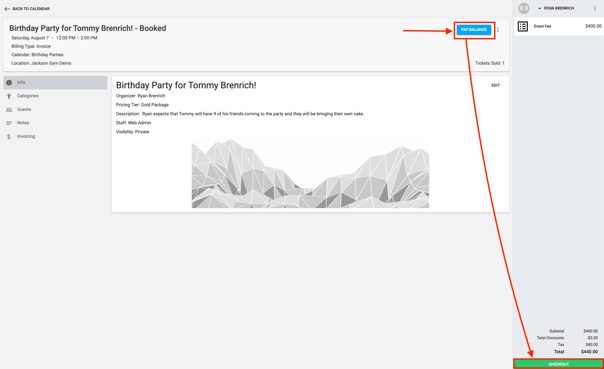
(The balance is decided by the pricing tier. For more information on pricing tiers please read the following article: Pricing Tiers )
If the deposit value is higher than the Flat Price or the Price per Head then the Pay Balance button will not appear.
 
To pay the remaining balance, click Pay Balance and complete the checkout process.
Screen Shot 2021-08-25 at 10.19.26 AM.png
 

Additional Invoicing. Can I create an invoice?

 There is indeed a pseudo way to make an invoice. These invoices cannot be sent to clients, though they will live in the customers orders, within the event as well as within the customers order history.
Additional invoices are a great way to  to charge for extras or other services in addition to the booking. click on the Invoicing button.
To create an invoice:
  • Within the invoiced event, click "Invoicing".
  •  Then click Generate Invoice.
  • Next, fill in the details of the new Invoice and click Send.  Clicking Send will record the new invoice as a pending order assigned to the Organizer.  From here you can click on the order number, to take you to the pending order. Once you are on the pending order summary screen, you will have the option to either checkout the pending order or cancel it. Please proceed to checkout in order to charge the customer's card.

NOTE: At this time, you can only checkout custom invoices in-store. All additional invoicing will appear as a 'Fee' in your orders, and will have the same Revenue Category as the Pricing Tier that was chosen by the customer in your Reporting.

  These pending orders will be displayed on the Invoiced booking as well as from the Customer Order History.


Adding Guests to Invoice Event Booking
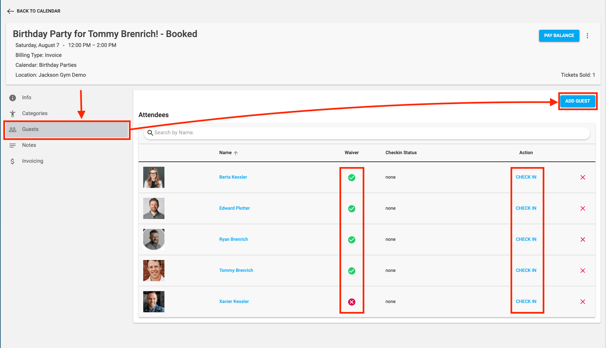
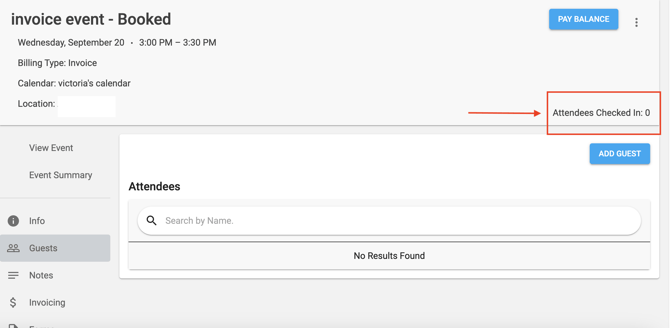
To add guests to this Invoice Event Booking, click Guests.  Then click Add Guest and add that guest.  Note: the guest must have a customer profile.
 
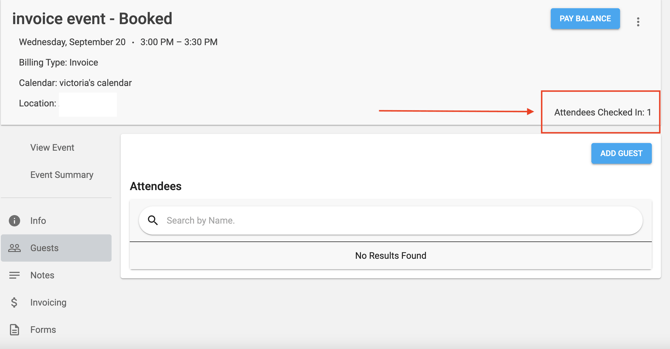
You can then view who has a waiver signed for your location and you also have the option to check everyone in manually when they show up for the Invoice Event Booking.
Screen Shot 2021-08-25 at 10.16.30 AM.png
 

Voiding a Check-In and Removing Guests

The "X" option is used to remove a guest from the guest list, with two distinct uses:
Option 1: Removing a Guest from the Guest List After Voiding Check-In
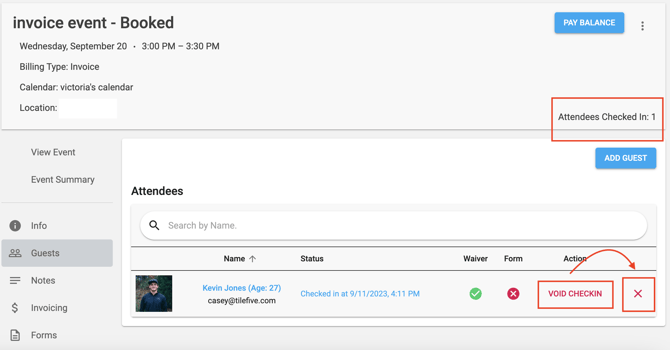
  1. In situations where you need to void the guest's check-in for any reason (e.g., the wrong customer is checked in), click the "Void Check In" option which will remove the check in from the check in count of the invoiced event.
  2. After voiding the check-in, you'll have the option to click the "X" symbol next to the guest's name. This “X” removes the guest from the list.
Screenshot 2023-09-12 at 8.17.09 AM.png
 
Screenshot 2023-09-12 at 8.17.51 AM.png

Note: If you click "X" accidentally before voiding check-in, use the Previous Notifications list to void the check-in and reset the count. To learn how to Void a Check in from the Previous Notifications list, click HERE

 
Option 2: Removing a Guest Without Affecting Check-In Count
In some cases, you may want to maintain the original check-in count for pricing purposes but still need to remove a guest from the guest list.
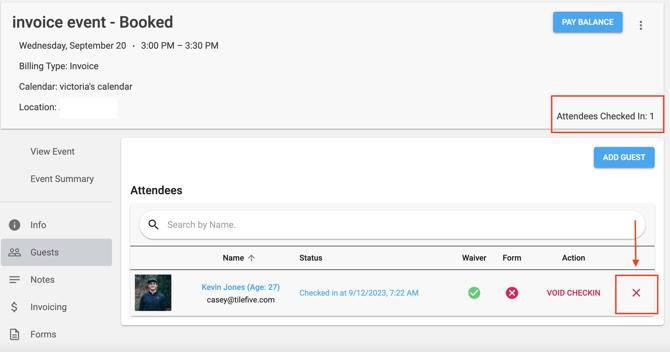
  1. Select "X" WITHOUT voiding the check-in. This will remove the guest from the list without affecting the check-in count. This ensures that the price per head payment, which is based on the check-in count, remains accurate.
 
Screenshot 2023-09-12 at 8.23.07 AM.png
 
Screenshot 2023-09-12 at 8.23.21 AM.png
 

Event Example. Can I reserve an event without charging for it up front?

One question we get often is can I reserve an event without charging for it. The answer is yes you can. Here is an example of that and also a run down of how pricing tier billing works for price per head.

To set an event up with no advanced payment you will have to simply make the deposit $0. The price of the event will be determine by how you set up the rest of the pricing tier, either price per head, or flat rate. If the price is price per head, the event will cost the amount of the minimum plus each additional participant.

Ex: Pricing tier deposit is $0, Pricer per head is $20. Minimum attendees is 5. Max is 15. This event will cost $100 for the first 5 people. Each subsequent person will add $20 to the balance, up to 15 people. After 15 people, no more participants will be allowed to check in to the event. When the customer is ready to pay, once all participants have checked in, simply click pay balance and this amount will populate to the Organizer's cart. 


If you have additional questions about invoiced events, drop us a line in the questions form in the main app or email us at CXM@approach.app.