
How do I see how many recurring memberships were billed?
How do I see the recurring memberships that came off hold?
How do I see the recurring memberships that went on hold?
How do I see how many recurring memberships cancelled?
How do I see how many recurring memberships expired?
How do I see how many recurring memberships were newly sold?
How do I see how many non-recurring memberships were newly sold?
How do I see the total number of auto billing transactions?
How do I see everyone that purchased a membership for the first time?
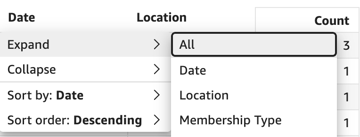
Note: Several of the visuals can be expanded to view more membership and customer info by clicking the  , collapsed by clicking the
  , or clicking the column name to view more options.
How do I see how many recurring memberships were billed?
Tab: Daily Membership Tracking
Name of Visual: Recurring Auto Billing
Filter Options: Date Range, Location, Membership Status, Membership Type
Description: This visual includes successful and unsuccessful recurring auto billing payments. Membership Status is captured at the time of billing; it does not necessarily reflect the current status. However, Billing Status will update based on live updates to the order.
How do I see the recurring memberships that came OFF hold?
Tab: Daily Membership Tracking
Name of Visual: Reactivated Recurring Memberships
Filter Options: Date Range, Location, Membership Type
Description: The count of recurring memberships that were reactivated after previously being on hold.
How do I see the recurring memberships that went ON hold?
Tab: Daily Membership Tracking
Name of Visual: Deactivated Recurring Memberships
Filter Options: Date Range, Location, Membership Status
Description: The count of recurring memberships that went on hold after previously being active.
How do I see how many recurring memberships CANCELLED?
Tab: Daily Membership Tracking
Name of Visual: Cancelled Recurring Memberships
Filter Options: Cancel Date Range, Location, Membership Type
Description: The count of recurring memberships with a cancel date within the specified time frame. A membership can receive a cancel date in three ways: manual cancellation on the membership record, cancelling the affiliated order, and refunding the order using the "cancel order item" check box in the Main App.
How do I see how many recurring memberships EXPIRED?
Tab: Daily Membership Tracking
Name of Visual: Expired Recurring Memberships
Filter Options: End Effective Date Range, Location, Membership Type
Description: Recurring memberships that are expired because they hit their end effective date. These are different from cancelled memberships. An end effective date can be manually adjusted on a membership via the customer profile.
How do I see how many recurring memberships were newly sold?
Tab: Daily Membership Tracking
Name of Visual: Newly Sold Recurring Memberships
Filter Options: Date Range, Location, Membership Type
Description: Newly purchased recurring memberships that were sold in-store or online, displayed by the date the order was placed, regardless of payment status. Refunding and cancelling orders will not affect this visual's count.
How do I see how many non-recurring memberships were newly sold?
Tab: Daily Membership Tracking
Name of Visual: Newly Sold Non-Recurring Memberships
Filter Options: Date Range, Location, Membership Type
Description: A count of the non-recurring memberships sold. Order refunds and cancellations do not affect this visual's count.
How do I see the total number of auto billing transactions?
Tab: Daily Membership Tracking
Name of Visual: Auto Billing Transactions
Filter Options: Date Range, Location, Membership Type
Description: This visual displays all auto billing membership transactions. A transaction may have multiple memberships within the order. Only completed or paid transactions are included in this visual.
How do I see everyone that purchased a membership for the first time?
Tab: Daily Membership Tracking
Name of Visual: First Time Members
Filter Options: Date Range, Location, Membership Type
Description: This visual includes both recurring and non-recurring memberships. It displays customers that have been assigned a membership for the first time.