---
title: Approach Emails
description: Approach sends a variety of emails to your customers. This article will serve as a guide to moderating those settings as well as discusses customizing emails and email event reminders.
---
[Skip to content](https://support.approach.app/knowledge-base/email-senders#main-content)
English
Show submenu for translations
[](https://support.approach.app/knowledge-base?hsLang=en)
- Home
- Products
- Pricing
- Blog
- Company
Open main navigation
Close main navigation
- Home
- Products
- Pricing
- Blog
- Company
- English
Show submenu for translations
- [Contact us](https://share.hsforms.com/1-n8QjFL3Rfiu-MkWDeoqcwnvfva)
[Contact us](https://share.hsforms.com/1-n8QjFL3Rfiu-MkWDeoqcwnvfva)
Welcome to Approach!
- There are no suggestions because the search field is empty.
1. [Approach Knowledge Base](https://support.approach.app/knowledge-base?hsLang=en)
2. [Approach Main App](https://support.approach.app/knowledge-base/approach-main-app?hsLang=en)
3. [Settings](https://support.approach.app/knowledge-base/approach-main-app?hsLang=en#settings)
# Approach Emails
## Approach sends a variety of emails to your customers. This article will serve as a guide to moderating those settings as well as discusses customizing emails and email event reminders.
### Email Settings in Approach
- - #### [Accessing Email Settings](https://support.approach.app/knowledge-base/email-senders#accessing-email-settings)
- #### [Changing the "From" Email](https://support.approach.app/knowledge-base/email-senders#changing-from-email)
- #### [What Do Emails Look Like From Approach?](https://support.approach.app/knowledge-base/email-senders#looklike)
- #### [Can Approach Emails Be Customized?](https://support.approach.app/knowledge-base/email-senders#custom)
### Event Email Reminders
- - #### [What are Email Event Reminders?](https://support.approach.app/knowledge-base/email-senders#reminders)
- #### [Email Event Reminders Setup](https://support.approach.app/knowledge-base/email-senders#Reminderssetup)
- #### [Adding Templates to an Event/Booking](https://support.approach.app/knowledge-base/email-senders#adding)
- #### [Event Reminders FAQ](https://support.approach.app/knowledge-base/email-senders#FAQ)
---
### Email Settings In Approach
### Accessing Email Settings
First, navigate to the "Settings" page from the Main App Dashboard.
Once in the Settings page, select "Email" from the tabs on the left. A drop-down menu will appear with the options, "Sender", "Receipts", and "Marketing". Select "Sender" if you would like to change the "From" email.
-png.png?width=384&height=339&name=2%20(5)-png.png)
---
### Changing the "From" Email
By default, automatic emails will be sent to customers from the following email:
**"noreply@tilefive.com"**
However, users are able to change this to **any** email address that they have access to.
Changing this address will make the "From" field in emails from Approach display your gym name followed by the email address of your choice:
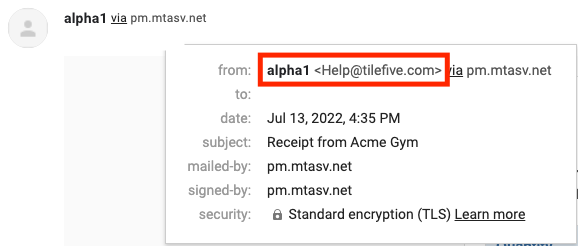
From the email settings page, select "Sender" from the drop-down menu and then select
the large blue "Change "From" E-mail Adress" button.
-png-1.png?width=478&height=337&name=Square%2c%20Template%20(37)-png-1.png)
In the blank field that appears, enter the desired email address, and then select "Change".
This will send the email address a verification email and set the verification status to "Pending"
The four menu options while in this status, accessible by clicking the adjacent hamburger, are:
- - Resend Verification: Resends the Verification Email
- Refresh Status: If you have verified your email you can select to update the status
- Edit: Allows you to place a different email address
- Remove: Removes the current email address and returns to the default
.png?width=688&height=327&name=Image%201%20(1).png)
The verification email will appear as follows:
-png.png?width=518&height=452&name=Square%2c%20Template%20(36)-png.png)
After clicking the blue button to "Confirm Sender Signature", you will be rerouted to the following confirmation page:
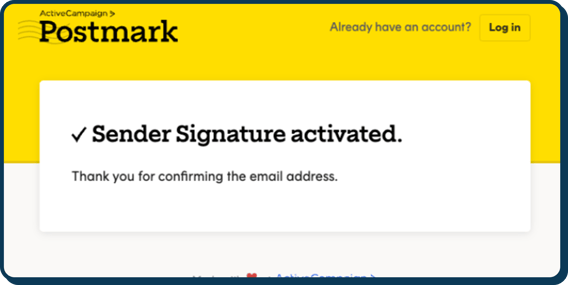
This action will update the Status of your "From" E-mail Address to: "Validated"
.png?width=688&height=269&name=Image%202%20(1).png)
If you have set your custom email sender, please submit a ticket to our support team via the Main App letting us know. Our team can help you verify your domain to ensure big email providers (Google, Yahoo, etc) see your custom sender email as legitimate and do not block your emails from being sent.
---
### What do emails look like from Approach?
Approach comes standard with basic transaction emails that have personalized fields based on the customer's information as well as the transaction info.
-png.png?width=321&height=551&name=Wide%2c%20Template%20(1)-png.png)
---
### Can Approach emails be customized?
Yes & no. Transactional emails cannot be customized within the main app or by us outside of displaying your gyms basic info. However, you can create custom emails via Postmark. For more info on what this looks like, please see our [Postmark Knowledge Base article](https://support.approach.app/knowledge-base/what-is-postmark?hsLang=en).
Here is what can be controlled by you as far as your gym's basic info goes on transactional receipts:
- Your Company Name
- Name (any name you would like, often this is also a company name)
- Help Email (generally info@yourgymnamehere@host.com)
- Your Website URL
Emails that can be fully customized within the main app are called Email Event Reminders. For more info on these, read on to the next section.
---
### Email Event Reminders
### What are Email Event Reminders?
Email event reminders have the ability to schedule multiple emails to be sent to enrolled participants beyond standard transactional communications. This feature supports the creation of **custom email messages tailored to specific events** and allows them to be scheduled at precise times bothbefore and after an event as well as on registration.
**Key Capabilities:**
- ✅ **Create Unique Email Templates**: Program managers can now craft tailored email content specific to each event.
- ✅ **Attach Templates to Events**: These templates can be easily linked to scheduled events, ensuring the right messages go to the right participants.
- ✅ **Schedule Emails Relative to Event Timing**: Emails can be scheduled to be sent a specific number of days before or after the event, enabling timely delivery of key information.
- ✅ **Automated Delivery**: Once scheduled, the system will automatically send out emails to registered participants based on the defined timeline—no manual triggers needed.
---
### Email Event Reminders Setup
- The first step in the setup process is creating an email template. In the Calendar Admin section of the main app, select the subtab Reminder Templates. Please note that only those with a staff role that allows for Calendar Admin will have access to this feature.
-png.png?width=688&height=330&name=Wide%2c%20Template%20(101)-png.png)
- This will avail the Reminder Templates Page. From this page you can choose a template to edit by clicking on it. You can create new templates by clicking "Add Template".
- Once you click "Add Template," you will be taken to the new reminder template.
**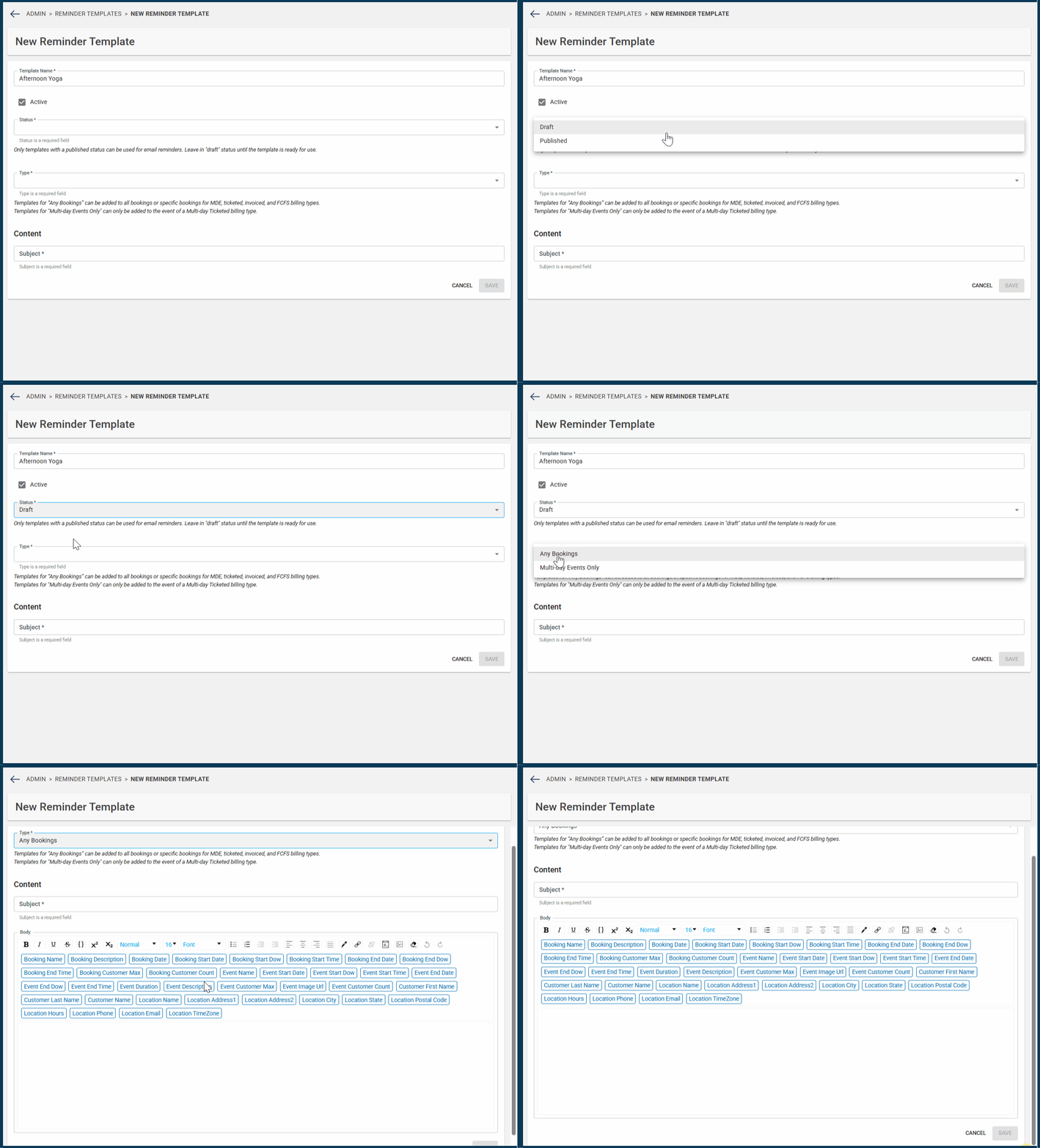**
- First, give your template a name. These are for internal reference only and will not be seen by your customers.
- Next, you have the option to make a template inactive. This feature is primarily intended for future use, in case you decide to retire a template. By default, all templates are active.
- Next, choose whether you want to create a draft or go straight to making one that is published.
You can **NOT** add templates that are in **draft** mode to Events/Bookings.
Once a template is published, it can **NOT** be unpublished (or sent back to draft mode). You can only update to not active.
- Now you choose your type. The two choices are "Any Bookings" & "Multi-day Event Only".
- Templates for “Any Bookings” can be added to all bookings or specific bookings for MDE (multi-day event), ticketed, invoiced, and FCFS billing types.
- Templates for "Multi-day Events Only" can only be added to the event of a Multi-day Ticketed billing type.
- Now time to add some content to your email. Everything in the Content section is customer facing. First off is the subject of your emails followed by the body.
- Above the body section, you will see blue boxes called Tags. These tags will fill in the information based off of the event/booking that the template is attached to. These are optional and can be added by simply clicking on them as wanted.
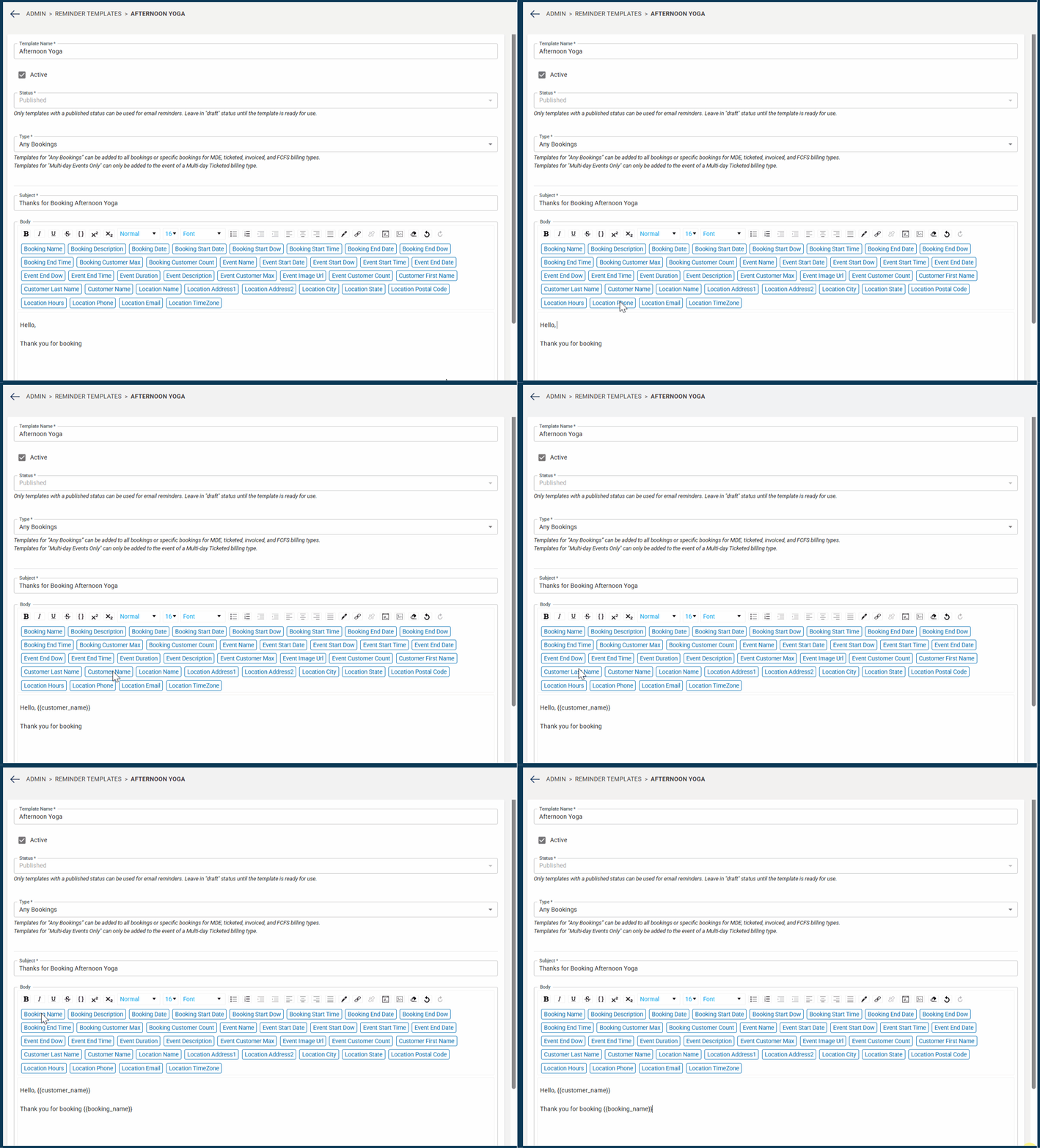
- Example: We are so glad that you decided to join our \[\[event\_name\]\]. We look forward to seeing you on \[\[event\_start\_dow\]\] \[\[event\_start\_date\]\].
- When attached to a booking it will send like:
- We are so glad that you decided to join our Climbing 101. We look forward to seeing you on Friday, 03/28/2025.
- More info on Tags can be found below in the FAQ section below.
- Once you have the body of your email, decide whether you want to leave the template as a draft or as published, then click Save.
---
#### Adding Templates to an Event/Booking
Now it is time to add your template to an event or booking. You can add as many templates as you would like to any event or booking. This gives you the ability to have custom registration emails, multiple reminders, as well as follow up emails.
- To add a template, navigate to the event or booking of your choosing and click "Reminder Templates" followed by the blue "Add Reminder Templates" button.
- This will prompt a wizard where you can select a template. You can search within the templates and of course select your templates. Click a check box to select the template(s) you want to add. Once you click one checkbox, you will also be presented with the option to select all. Make your selection(s) and click Next.
-png.png?width=688&height=370&name=Wide%2c%20Template%20(102)-png.png)
- Clicking Next will prompt the second stage of adding a reminder template, Email Settings.
-png.png?width=688&height=330&name=Wide%2c%20Template%20(103)-png.png)
- From here you will need to choose your schedule options which are:
- On Registration
- Here you will see the ability to "Disable Default Registration" that is already automatically sent from Approach in the form of a basic transactional template, should you want to send your own custom version of this email. This is recommended if you choose On Registration.
- Day(s) Before
- Day(s) After
- - - Selecting Day(s) Before or After will provide scheduling options where you can choose the number of days as well as the time to be sent.
.png?width=688&height=277&name=Wide%2c%20Template%20(3).png)
- Once all choices have been made, click Next. Review your selections, then if you are happy with them, click Save. Now the wizard will close, and you will be able to see all the newly attached emails. You can also go back and add more templates.
- From the Event/Booking screen, you will now see a hamburger button to the right of each chosen template. Within this button you have multiple options.
.png?width=319&height=323&name=Square%2c%20Template%20(1).png)
- **Preview-** The ability to see how your email will present to customers.
- **Edit-** The ability to edit your template. This functionality varies slightly between Non-Multiday and Multiday.
For non-multiday:
Edits from the event page updates the template for all the bookings.
Edits from the booking page updates just that booking.
For multiday:
Edits from the event page update the event only.
Edits from the booking page updates the booking only.
- - - **Send In Next Batch-** This means that the template will send whenever the next batch of emails is set to send. This shows from the booking level.
- - - - The queue runs every hour at the top of the hour.
- If you click this at 11:50am then the email will send in 10mins at 12pm.
- If you click this at 12:01pm, then the email will send in 59mins at 1pm.
- Send in Next Batch does not avail within On Registration template types as those do not send in batches. It does present on
- **Disable-** Turns the correlating template off from sending. You can come back and enable the template in the future if this option is chosen.
- **Remove**
- **From the event level:** Clicking *Remove* here will remove the template from **all associated bookings**.
- **From the booking level:** Clicking *Remove* will only remove the template from that specific booking **if** it was originally added at the **booking level**.
**Important:** If the template was added at the **event level**, it **must** be removed from the event level — this will remove it from **all bookings**.
- If you are wanting to “remove” a template from a booking that was added at the event level, we recommend disabling it instead.
- **Reset**- This will show if a template has been edited. This will reset the template back to the admin level template.
---
### Event Email Reminders FAQ
**When creating templates, what is the difference of the status "Draft" vs "Published"?**
A draft is a non-published version of a template. You can work on these, save them and come back to work on more later. Once you are ready to use them, you will need to publish them. Please note you can **NOT** add templates that are in draft mode to Events/Bookings. Once a template is published it can **NOT** be unpublished (or sent back to draft mode). It can however be made inactive.
Once a template is published it can **NOT** be unpublished (or sent back to draft mode).
**What do each of the tags mean and what is their purpose?**
Tags are a way to add personalization to emails by using data that is already present from the event/booking along with the customers info within Approach. For example, if you simply want to thank someone for booking and tell them you will see them at the events start date and time, In the body of the email template you could write:
Hi {customer\_first\_name}! Thanks for booking the {event\_name} on {Event\_Start\_Time}. Please remember to bring your own yoga mat and we will see you on {booking\_start\_dow}.
You can add each of these brackets simply by clicking the desired tab button.
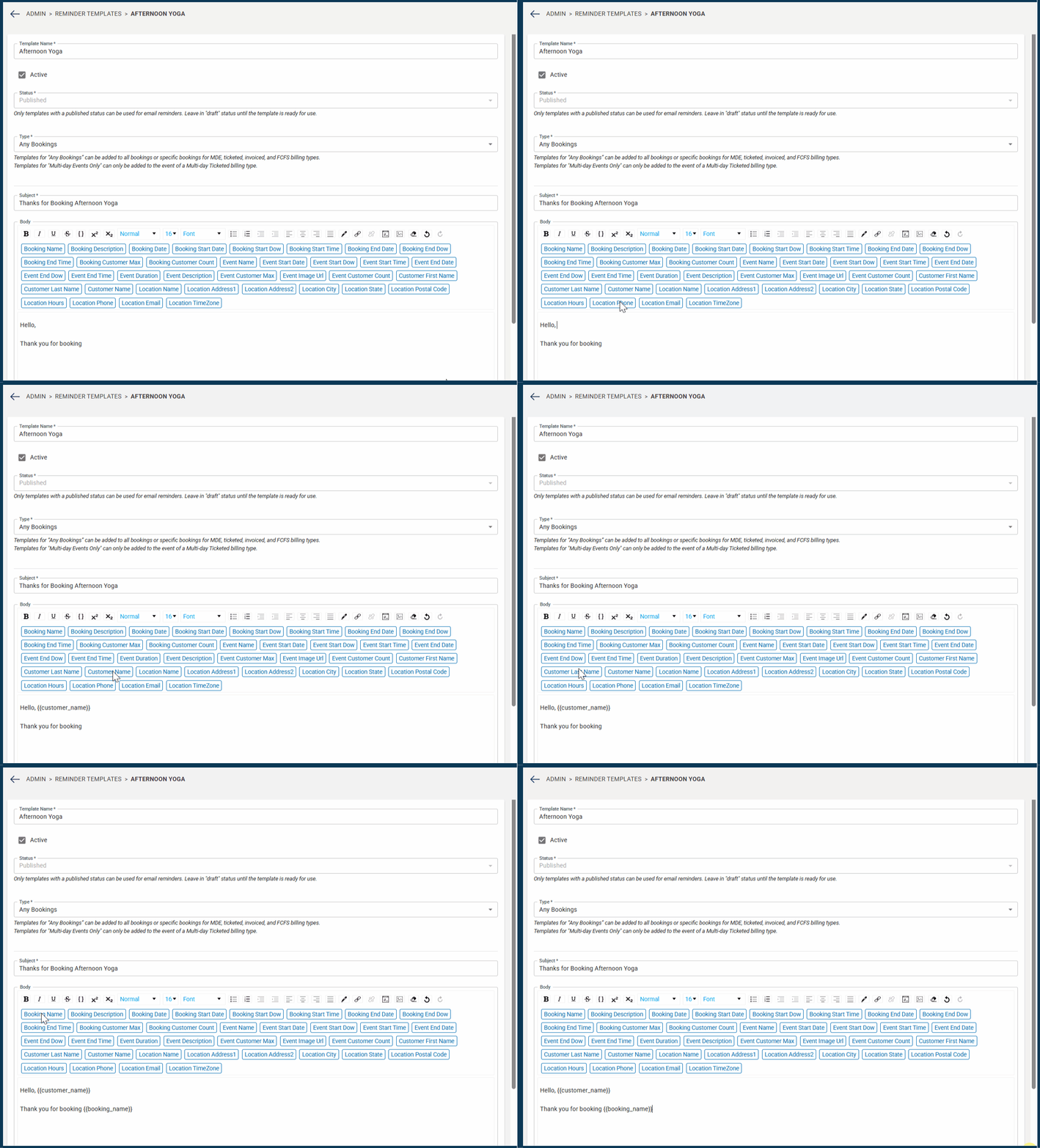
The breakdown of each email tab can be found in **[this knowledge base article.](https://support.approach.app/knowledge-base/event-email-reminder-tag-breakdown?hsLang=en)**
**Why are the available templates listed different when I am adding to a multi-day event?**
When adding a template to a multi-day event, the wizard only presents the admin templates that have the type of "Multi-Day Events Only" chosen when they were built.
**What happens if I add email templates to an older event/booking(s) that already have associated guests and it's scheduled to send "On Registration"?**
Guests will not receive the event email reminder if they registered for an event prior to the event email reminder template being added to the event.
**What are the major differences between how multiday event templates and all other types function?**
For Multi-day, templates added at the event level send based off the start/end date/time of the Event.
- Thus, if you add a template from the event level it will NOT be added to the booking level automatically.
Templates added at the booking level send based off the specific bookings start/end date/time.
- You can NOT schedule templates to send on registration from the booking level of a multiday event. Only "Day(s) Before" and "Day(s) After".
If you need to update the location, timing, or other details for a specific day within a multi-day booking, you should edit the template at the booking level of the Multiday event.
This is especially useful for recurring multiday events that take place once a week over the course of several months.
**Can email event reminders be used for class or event cancellations?**
Yes! Though not automatically, if you have a class or event that is cancelled, you most certainly could use this tool for this purpose. Any template that is set to be sent Days/Hours before or after (so not an On Registraion Template) could be used for this.
So, lets say I have an event that is Monday through Friday Yoga evening. On Thursday morning the yoga teacher calls in sick and you don't have a sub for them. You can go to the Thursday booking and edit the template. This will edit the template for just that booking. You can then click the "Send in Next Batch Button". This will sent at the top of the hour. So If I click this at 6:01 it will send at 7. If I click this at 6:59, it will send at 7. This email will then be sent to everyone on the guest list.
---
Still have questions on emails and Approach? Send us a question in the questions form in the main app or email us at [cxm@approach.app](mailto:cxm@approach.app)
### [Click Here for the Next Training Article](https://support.approach.app/knowledge-base/setup-staff-members?hsLang=en)
- [Setting Up Approach](https://support.approach.app/knowledge-base/setting-up-approach?hsLang=en)
- [Approach Main App](https://support.approach.app/knowledge-base/approach-main-app?hsLang=en#main-content)
- [Calendar](https://support.approach.app/knowledge-base/approach-main-app?hsLang=en#calendar)
- [CRM](https://support.approach.app/knowledge-base/approach-main-app?hsLang=en#crm)
- [Store](https://support.approach.app/knowledge-base/approach-main-app?hsLang=en#store)
- [Forms](https://support.approach.app/knowledge-base/approach-main-app?hsLang=en#forms)
- [Admin](https://support.approach.app/knowledge-base/approach-main-app?hsLang=en#admin)
- [Store Admin](https://support.approach.app/knowledge-base/approach-main-app?hsLang=en#store-admin)
- [Calendar Admin](https://support.approach.app/knowledge-base/approach-main-app?hsLang=en#calendar-admin)
- [Settings](https://support.approach.app/knowledge-base/approach-main-app?hsLang=en#settings)
- [Portal](https://support.approach.app/knowledge-base/approach-main-app?hsLang=en#portal)
- [Kiosk](https://support.approach.app/knowledge-base/kiosk?hsLang=en#main-content)
- [Kiosk](https://support.approach.app/knowledge-base/kiosk?hsLang=en#kiosk)
- [Customer Portal](https://support.approach.app/knowledge-base/customer-portal?hsLang=en)
- [Announcements & Release Notes](https://support.approach.app/knowledge-base/announcements-release-notes?hsLang=en#main-content)
- [Release Notes 2025](https://support.approach.app/knowledge-base/announcements-release-notes?hsLang=en#release-notes-2025)
- [Release Notes 2024](https://support.approach.app/knowledge-base/announcements-release-notes?hsLang=en#release-notes-2024)
- [Supplemental Information](https://support.approach.app/knowledge-base/supplemental-information?hsLang=en#main-content)
- [Integrations](https://support.approach.app/knowledge-base/supplemental-information?hsLang=en#integrations)
- [Set Up Assistance](https://support.approach.app/knowledge-base/supplemental-information?hsLang=en#set-up-assistance)
- [FAQs](https://support.approach.app/knowledge-base/supplemental-information?hsLang=en#faqs)
- [Quicksight Dashboard](https://support.approach.app/knowledge-base/quicksight-dashboard?hsLang=en)
- [Approach Journeys](https://support.approach.app/knowledge-base/approach-journeys?hsLang=en)
- [Onboarding](https://support.approach.app/knowledge-base/onboarding?hsLang=en)
[](https://support.approach.app/?hsLang=en)
Copyright © 2025, Approach