
Table of Contents
-
Navigating to General Settings
-
Automatic Log Out
-
Require Revenue Category
-
Check Out Location
-
Store Credit
-
Loyalty Points
-
Ad Hoc Charge
-
Check In Settings
-
Are General Settings the same across locations?
Navigating to General Settings
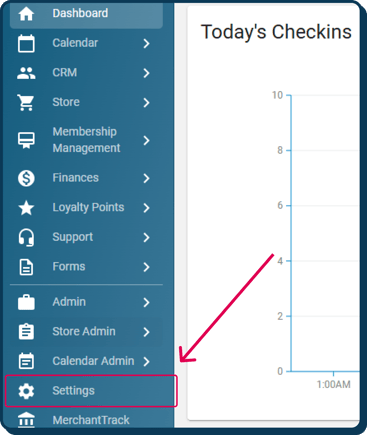
In order to access the General Settings make sure to click on "Settings" from the Approach Dashboard. If you do not see this option, you do not have the correct permissions to access settings. To change this, you will need to contact your manager or owner and make sure that the "Settings" permission is enabled for your staff role.
Automatic Log Out

You are able to select whether you want Approach to automatically log you out after a certain amount of time of inactivity.
Once you click the checkbox, you can select a time interval for automatic log out.
If every staff member at your gym has a unique log in, we recommend that you set an automatic log out time -- this helps to ensure that your staff members are logged in with the correct staff profile when making a sale, etc.
If you ever need to trace a transaction back to the staff member who did it, this setting helps ensure the transaction history is accurate.
If you are interested in a faster log in/log out method for your staff members, check out our article on setting up an RFID scanning system.
Require Revenue Category

This setting requires a revenue category to be chosen when creating a new asset (memberships, passes, gift cards, products, tickets, pricing tiers, and ad hoc charges.
We recommend enabling this setting before creating your Approach assets, if possible. This means that when you generate revenue category reports or look through QuickSight, you'll know that you're accounting for all you've sold.
Allow checking out only at location of purchase

This setting only applies to multi-location gyms. This determines whether or not you can check out an order that took place at one location and complete that order at a different location.
The most common situation this may be useful is if you have customers whose membership billing runs via one location, but they are allowed to check in at other locations.
If their auto-billing fails, that order will remain "Pending", and the membership status "Unpaid". If this setting is checked, the next time the customer walks in the gym, the customer must be at the location the membership is billed at in order to pay off the order and set their membership status back to "Active".
If the setting is unchecked, they can complete this order at any of the other locations.
Use Store Credit Functionality

This setting allows you to use store credit in the gym. This allows you to keep a credit balance for customers which can be used as a form of future payment within your store.
We recommend enabling this as it can only encourage your customers to visit the gym if they have a balance they want to use!
Allow Ad Hoc Charge Creation

The Allow Ad Hoc Charge setting allows you to charge a specific amount to a customer that is not tied to a specific product or asset in Approach.
We recommend enabling this -- you never know when you need to charge a customer an odd amount! This is also a feature you can restrict to some staff roles if desired.
Checkin Settings
The "Recent Checkins" is defaulted to show the last 4 hours. This can be adjusted anywhere between 1-24 hours from the "Settings" tab under "Checkins".
-png.png?width=500&height=278&name=Square%2c%20Template%20(11)-png.png)
- Recent CheckIns List: The recent checkins list is a feature that allows for faster searching of recent checkins. Instead of searching the entire CRM, quickly access today's checkins in the checkins modal. This can be found by navigating to the green New Check In button at the bottom of the notifications sidebar.
Use Points Functionality
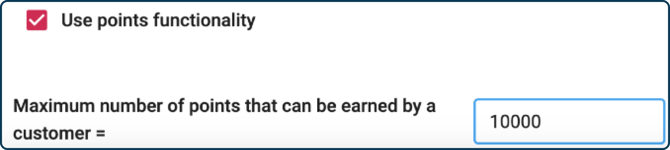
Enabling this setting allows you to use our Loyalty Points feature, which is built for encouraging customer loyalty and retention.
You have the ability to choose what items customers can redeem points for, as well as how they can earn points over their customer lifecycle. We strongly recommend enabling this setting as well, as it can only boost retention.
On the General Settings page, you'll set the maximum number of points that can be earned. More settings around Points are found on the "Loyalty Points" tab under Settings.
Are the General Settings the same per location?
If you have multiple locations on Approach, the general settings will be applied to all locations. Additionally, a settings change for the General Settings will affect all devices logged into the Main App.
Do you still have more questions about General Settings? Drop us an email at cxm@approach.app. You can also submit your question through the Questions form in the main app.