
Cancel a Pending Order
Checkout a Pending Order
How to Fix an Order
Checkout a Pending Order
To checkout a pending order, follow the steps below:
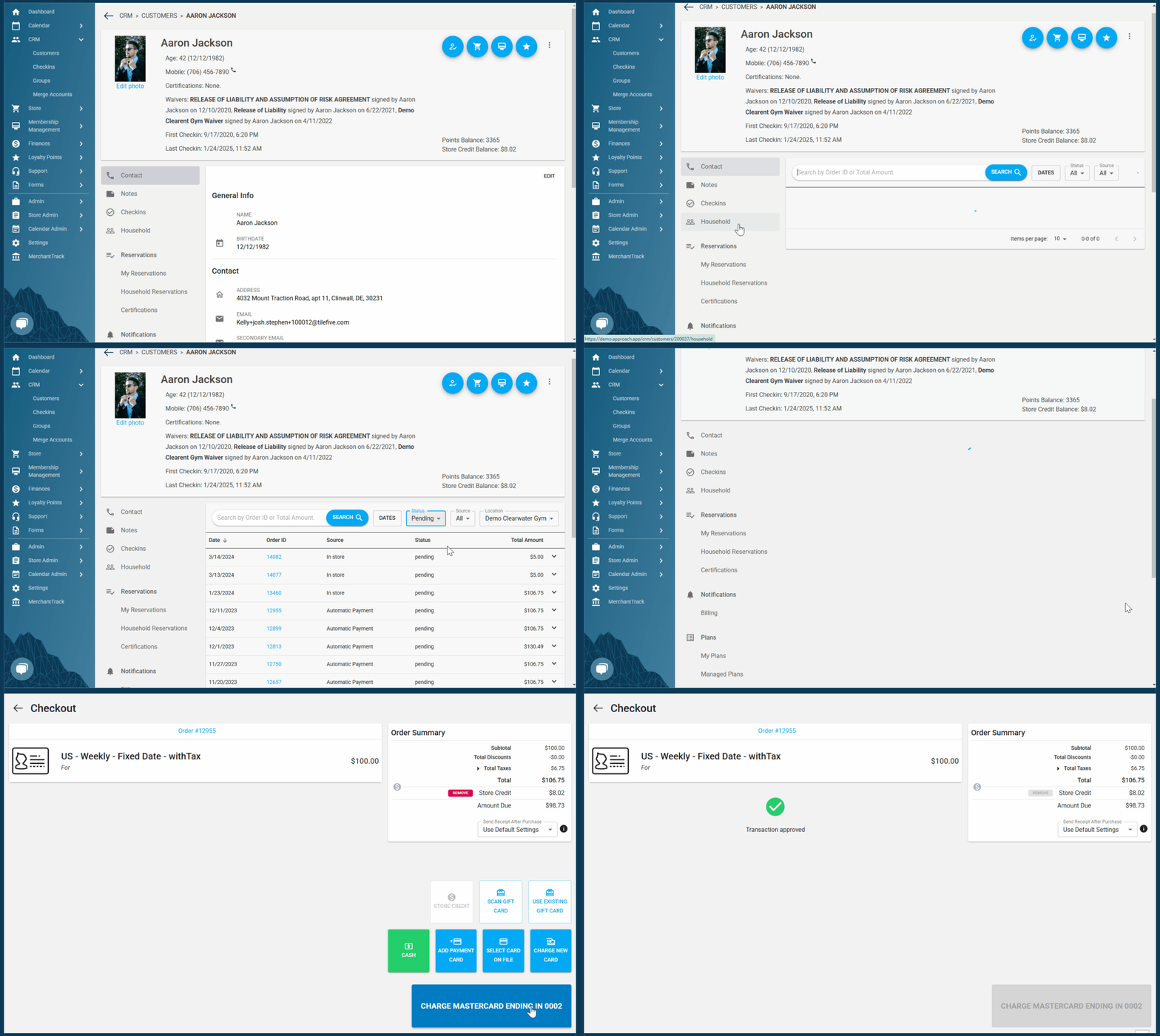
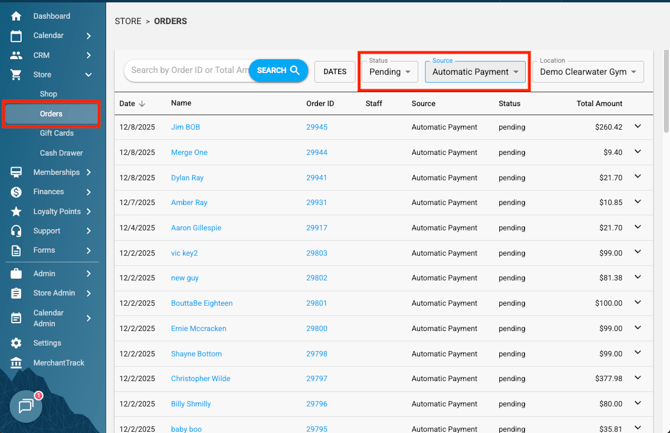
You can then click into each "Pending" order from here in order to check out the order or cancel it.
How to Fix an Order
As of March 2025, we now have a Fix Order button. Before then, there were some orders that due to internet connection and various other reasons that would not generate the items in them properly. This leads to orders that have been paid for but the assets in them (the memberships, passes, tickets…etc) did not get created as they should. Staff from those facilities then had to reach out to support to get those assets generated and "fixed".
.png?width=670&height=354&name=Wide%2c%20Template%20(80).png)
If a transaction is in need of fix, ie the fix order button appears, click the fix order button NOT the checkout button.
Clicking the button will cause the items generator to run, generating the items, and updating the order status to completed. Less time spend toward the resolution you need!
If clicking the button does NOT fix the order than there is a different issue going on that will need to be looked into further. This is rare, but if this is the case, you should proceed to submitting an issue ticket.
Do you still have more questions? We want to make our Knowledge Base as accurate and as in-depth as possible. If you think this article is missing anything, please let us know here. We will update the article and let you know we have done so!