
How to Create a Customer Account via the Main App
How to Merge Duplicate Customer Accounts
How to Create a Customer Account via the Main App
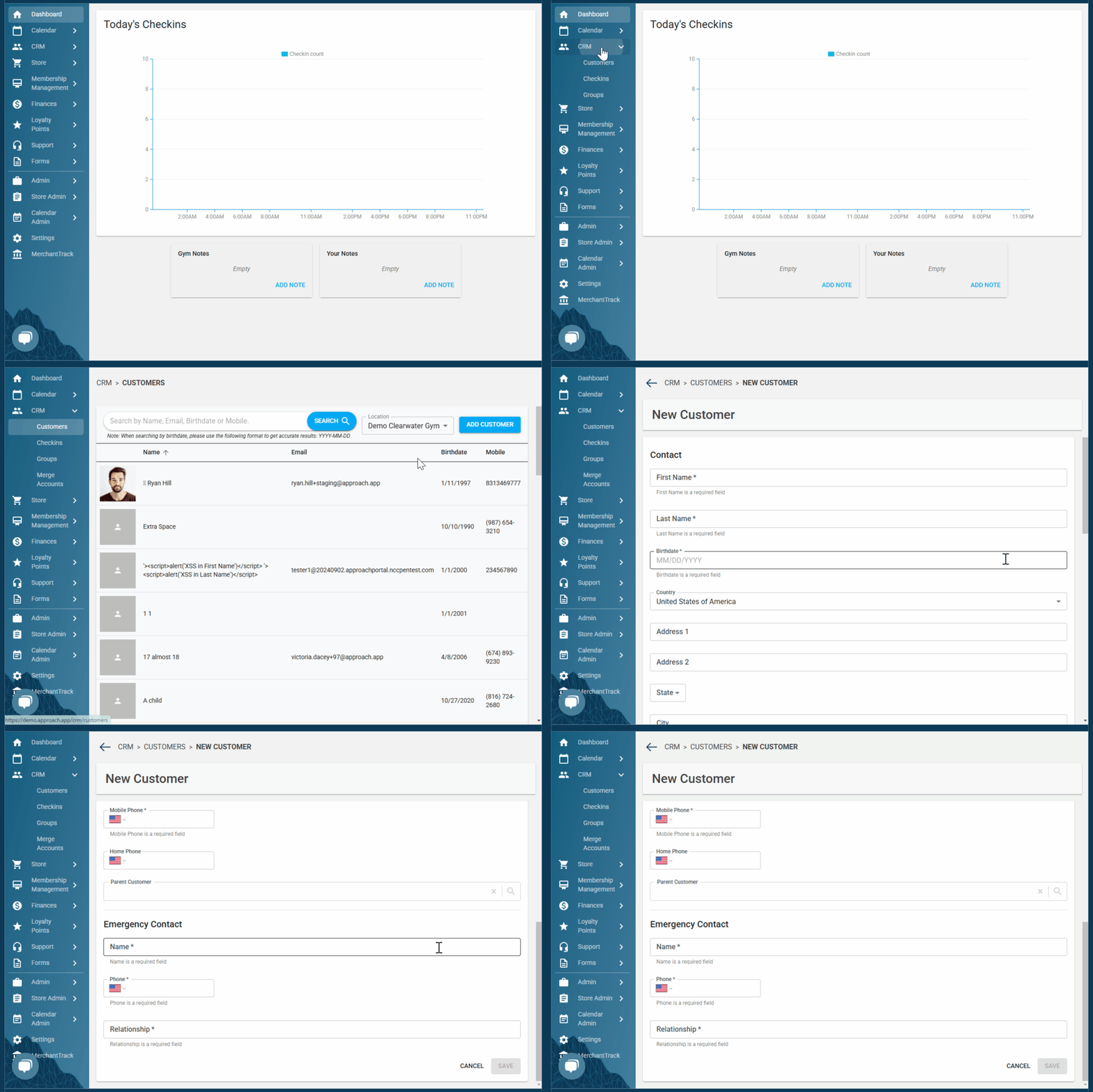
Next, fill out the needed fields as described below:
- First and Last Name.
- Birthday: It’s crucial that the birthday is accurate because there is waiver logic tied to the customer’s birthdate for waiver signing for minors/adults!
- Address, Email, and Phone Number.
- A customer's email is the unique identifier within Approach. If someone attempts to create a new profile with an email that is already associated with a current customer, they will receive an error.
- Parent Customer: If this customer is a member of another person’s household, type in the head of household for that household, otherwise leave blank. It’s important to use the head of household and not any adult in the household.
- Emergency Contact Information.
Remember to click "Save" at the bottom of the page!
Note on customer IDs:
Sometimes when working with our Support team you may need to reference a customer's CustomerID.
Look at this URL: https://demo.approach.app/crm/customers/200223
The customer ID is 200223
This link is from the customers profile.
You can do the same thing for memberships, passes and all assets.
For example, see this URL: https://demo.approach.app/crm/customers/200223/memberships/3931
This is from the same customer when looking at one of their memberships. The membership ID IS 3931.
How to Merge Duplicate Customer Accounts
To merge two duplicate customer accounts, follow the steps listed below:
- Navigate to the Customer’s account that you wish to be the primary/sole profile for the customer. All the contact/general information from the Duplicate Profile will be overwritten by the Primary Profile, unless there is a field of information in the Duplicate Profile that the Primary Profile is missing. That information will then be merged into the Primary Profile.
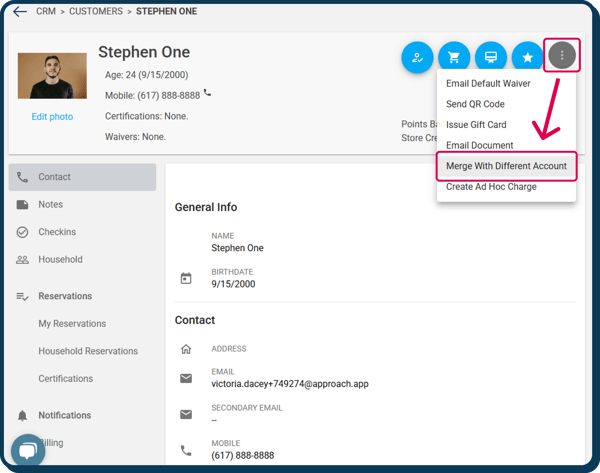
- Click on the hamburger (the three dots) and select "Merge with different account":
- Search for the duplicate account that you would like to merge into the primary account.
- It’s important to note that all passes, memberships, tickets, reservations, waivers, points, orders, transactions, certifications, and checkins and any other digital asset attached to either profile will be saved and combined into the Primary Profile after the merge:
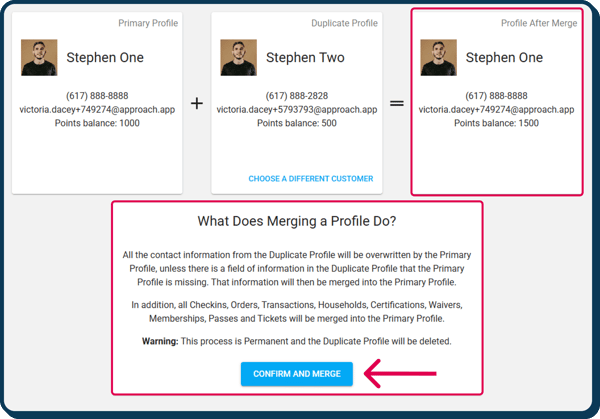
- Click "Confirm and Merge". This process is Permanent and the Duplicate Profile will be deleted.
Do you still have more questions about how to create a customer or merge two customer accounts? Drop us an email at cxm@approach.app. You can also submit your question through the Questions form in the main app chat bubble.