
Table of Contents
- Terms to Know
- Getting to the Membership
- How to put a membership on hold
- How to resume a membership that is on hold from the customer's "My Plans"
- How to cancel a membership
- How to set an end date on a membership
- How to set a discount on a membership
- Deleting Memberships in Approach?
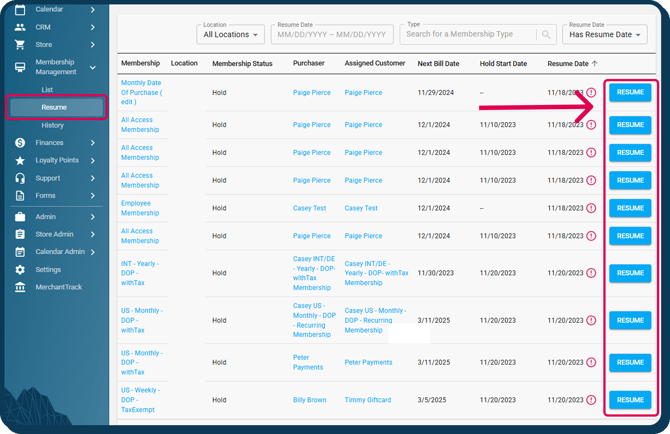
- How to Resume a Membership from the 'Resume' Page
Terms to Know
Recurring Memberships: A membership that bills the customer on a scheduled basis.
Nonrecurring Memberships: A membership that bills only once.
Billing Period: the period that membership bills in (weekly, monthly, yearly)
Getting to the Membership
Putting a Membership on Hold
- Want the membership to be active through the 31st but be on hold for the 1st? Set to 31st.
- Want a membership to be active through the 31st but be cancelled on the 1st? set to the 1st.
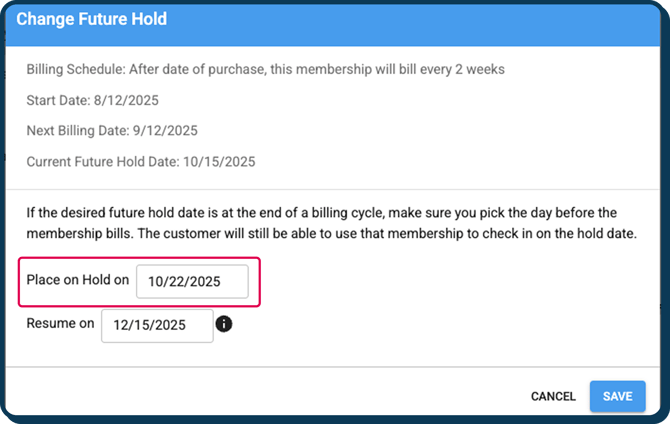
Example: If the membership bills on the first of the month and you want to put the membership on hold on December 1st. Please set the Hold start date to be November 30th.
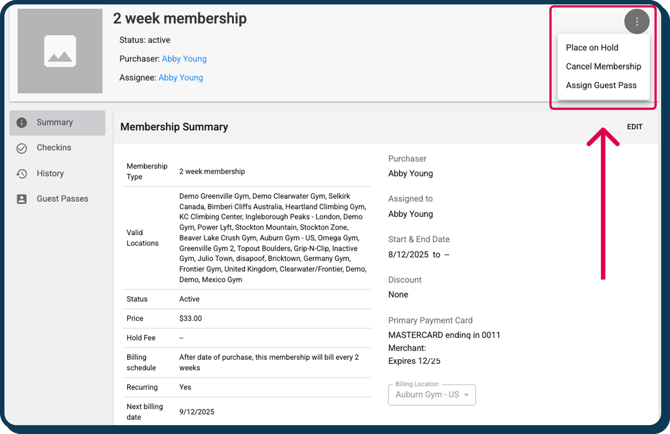
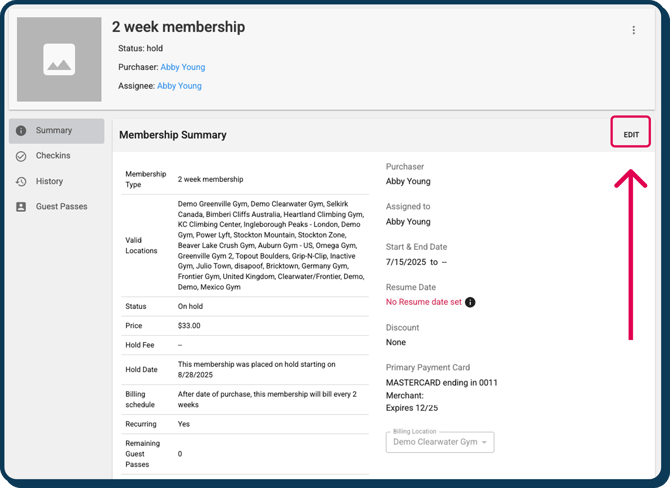
- To set a future hold date, go to the membership and click the three dots in the top right corner > "Place On Hold."
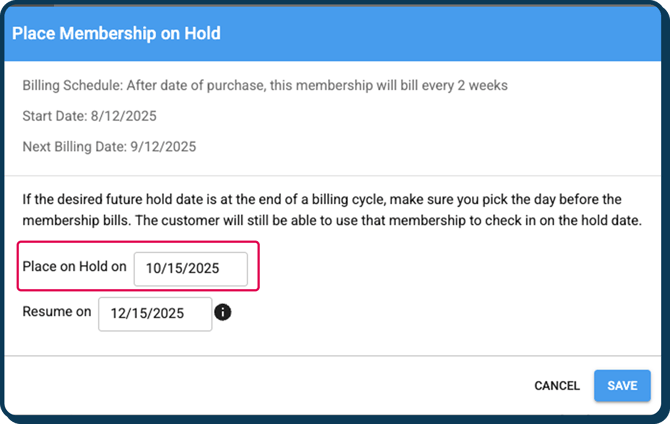
- You will see a dialog and an option to set the future hold date.
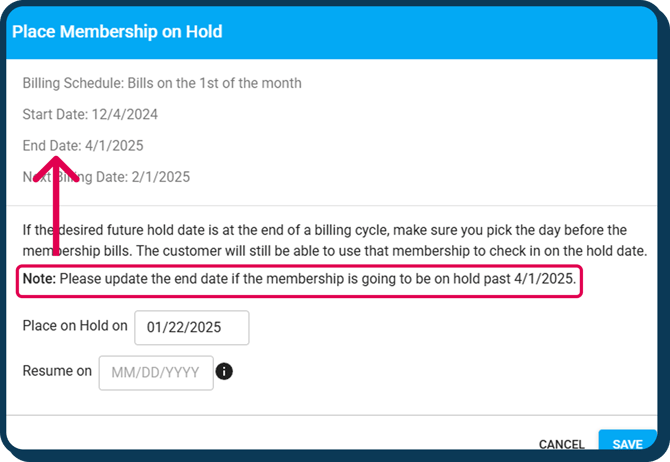
- If the membership has an 'End Date', you'll need to extend the end date if the membership will be on hold past the end date:
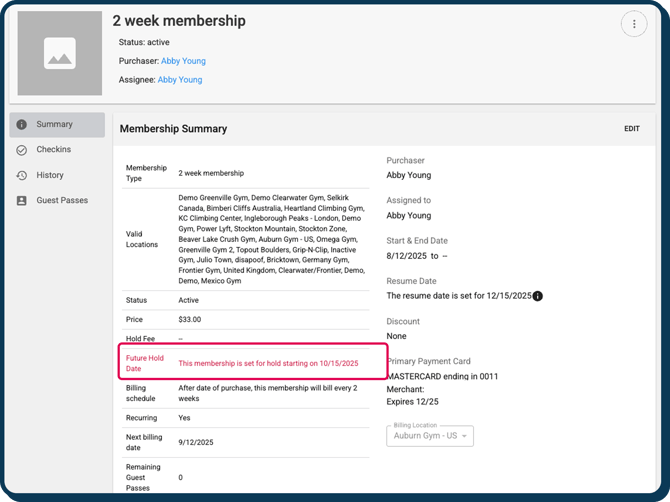
- You will see on the membership summary it displays that the membership is set to go on hold at a future date.
- To change the future hold date click "Change Future Hold"
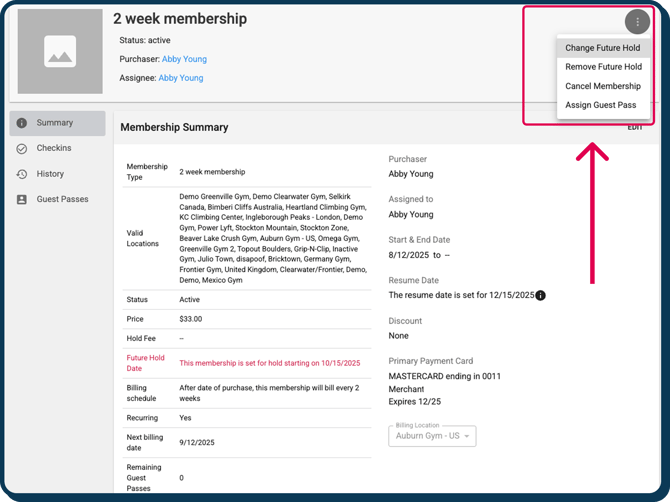
- You will see a pop up and options to change or remove the future hold date
To find out how to set a hold fee please check out the Membership Type Creation guide.
IMPORTANT NOTE: If you sell a membership with a future start date and schedule a hold to begin the day before that start date/bill date, the system will not automatically place the membership on hold. This is because the hold automation only applies to memberships that have already started — it does not process holds for memberships with start dates in the future.
Example:
- I sell a membership on September 20th and set the Start Date to be October 1
- I then go to the membership and select to add a future hold date of September 30th
- When September 30th roles around, the membership will NOT go on hold as the start date is October 1.
Resuming On-Hold Memberships from the Customer's "My Plans"
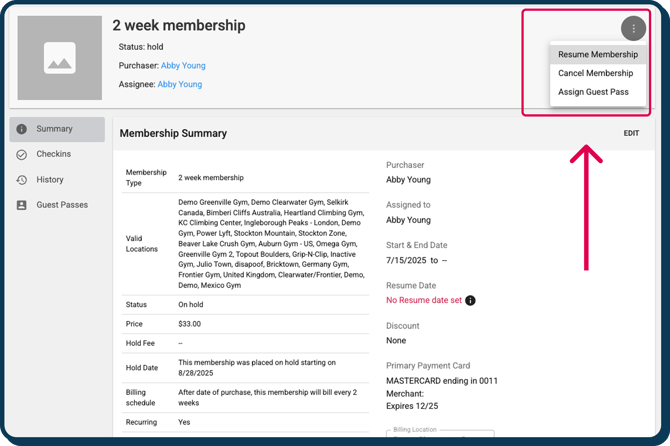
What happens when you place a membership on hold part way through it's billing cycle?
If you place a membership on hold part way through the billing cycle (let's say, 15/30 days), the hold will recognize that amount of days paid for and not used (15), and when the membership is taken off of hold and prorated, that proration fee is reduced by the number of days that were paid for and not used (15).
If the number of days that are applied to the proration are equal to the number of days remaining (let's say, 15 days applied with 15 days left), the reactivation fee will be $0. If the number of days that are applied towards proration are greater than the number of days left in the month (let's say 15 days applied with 10 days left), the reactivation fee will be $0 and the additional 5 days will be "lost".
-png.png?width=670&height=482&name=Wide%2c%20Template%20(94)-png.png)
Proration Fee
-png.png?width=670&height=418&name=Wide%2c%20Template%20(95)-png.png)
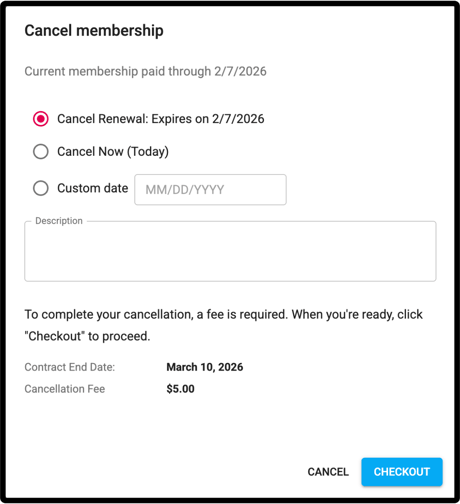
Cancelling a Membership
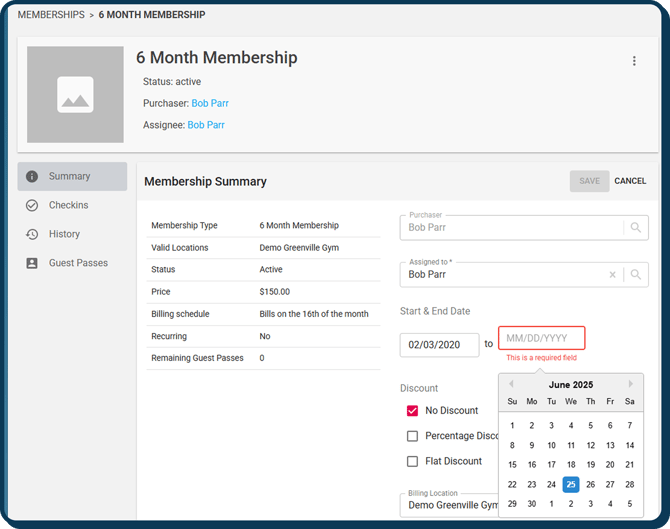
Set an End Date on a Membership
-png-1.png?width=670&height=431&name=Wide%2c%20Template%20(1)-png-1.png)
Set a Discount on a Membership
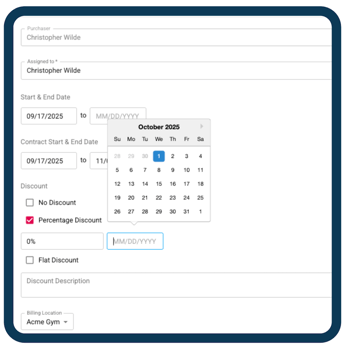
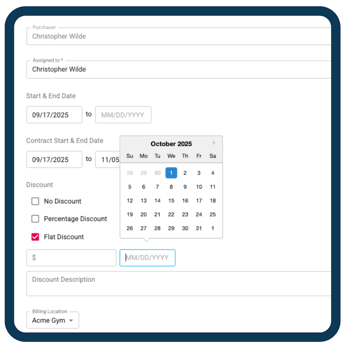
Please note, Discounts apply to the price field, not the hold field. Currently a hold fee cannot be waived or discounted. One option is to enable store credit billing and give a customer store credit to offset their hold fee, should it need to be waived. You can find info on store credit billing in this store credit article.
Deleting Memberships in Approach?
At Approach, we avoid "deletion" across the app because of the importance of maintaining data integrity, which means you cannot delete memberships, passes or products.
That being said, you can make these items inactive and inactive items will not show up in their respective places across the app: purchase pass and membership flows and shop. In terms of passes and memberships, Approach allows users to set inactive passes and memberships as entrance requirements when configuring events, if necessary.
In terms of organizing passes/memberships you will not sell again, what we recommend and it solves the major pain point around potentially selling something that is inactive is to rename the membership something like "DO NOT SELL-Family Membership" or "INACTIVE-Student Membership."
The Membership 'Resume' page
When a membership is given a Resume date, it DOES NOT automatically start back up the membership.
To manage all membership that are on hold, navigate to the "Membership Management" tab on the left sidebar of the main app. Select the "Resume" tab from the drop-down menu that will appear. The Resume page will display all of the memberships currently on hold in your environment. This page gives users faster access to resuming those memberships, with the only other way to achieve this being navigating to the customer's profile and resuming the membership within "My Plans". We suggest having this be a daily duty.
This concludes the guide for Managing Memberships
Do you still have more questions? We want to make our Knowledge Base as accurate and as in-depth as possible. If you think this article is missing anything, please let us know here. We will update the article and let you know we have done so!