Skip to content
English
  • There are no suggestions because the search field is empty.

How to Sell a Membership or Pass

In this guide, you will learn how to do to the following:

  • Sell a Membership
  • Sell a Pass

Sell a Membership

Important Note: When selling recurring memberships in person, Apple & Google Pay can NOT be used as a saved payment method for recurring payments. However, If a physical credit card is used via tap to pay on the credit card device, it can be stored and used for recurring memebrship billing.

All merchants associated with Approach do support digital wallets for regular, one time/non-recurring payments. For those clients that use digital wallets for a payment, know that the cards last 4 digits will appear differently in your app. This is a security feature of those payment methods that will make for searching by using the last 4 digits impossible. The choice is up to those clients whether to allow those for making one time payments.
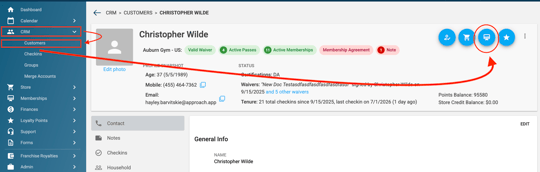
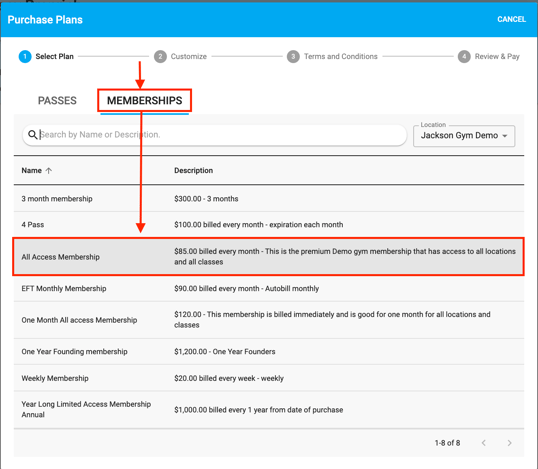
First, open the customer’s profile that is purchasing the Membership.  Click on CRM, then Customers, then the hamburger, then Purchase Membership or Pass.
Screen Shot 2021-08-24 at 9.45.06 AM.png
Then, click Memberships and the Membership Type the customer is purchasing.
Screen Shot 2021-08-24 at 9.49.17 AM.png
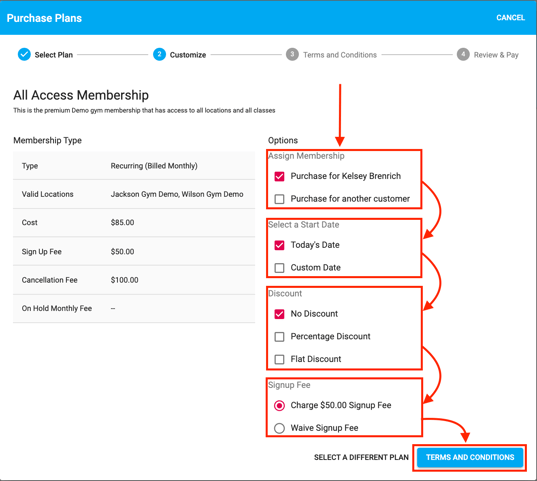
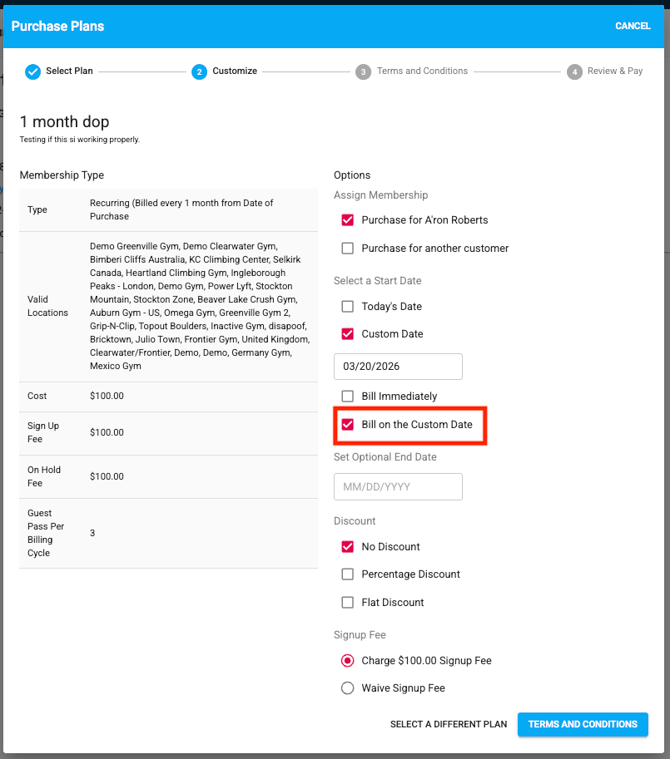
Then you will select options.
 
First, you will select if it is for Kelsey or if Kelsey is purchasing it for someone else.  If for someone else, you will check “Purchase for another customer” and proceed to type in that customer’s name and assign it to them.  Note: Every customer purchasing a membership must have a profile.
 
Then you will select if the membership is beginning today or on a future date.  Select Custom Date if the membership needs to begin on a future date.  Note: you may not start a membership on any day prior to today’s date.  If the membership has a terminus date, you will select Custom Date and enter the end date for the membership.
 
Then you will apply a discount, if needed.  Note: this will discount every billing period for this membership.  e.g. If this monthly membership is given a 10% discount, it will apply a 10% discount every month. To understand membership-level vs. cart level discounts, please see this article. 
 
Finally you will select the option to charge or waive the Signup Fee.  If there is no Signup Fee for this membership, this option will not be available.
 
Click Terms and Conditions.
Screen Shot 2021-08-24 at 9.53.23 AM.png
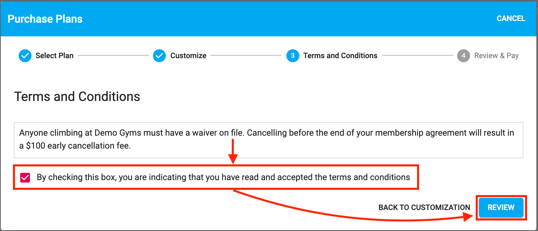
Your employee will go over the terms and conditions that are unique to this membership.  Once the customer has agreed to the Terms and Conditions, you will check the box that they are agreed upon and then click Review.
Screen Shot 2021-08-24 at 9.58.10 AM.png
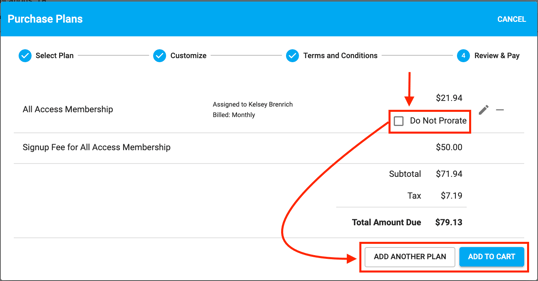
Then you will have the option to prorate or not prorate the membership.  The default is to always prorate.  This feature does not apply to Date of Purchase Membership Types.
 
If the client desires to purchase another plan, click add another plan.  If the customer is finished with adding plans, click Add to Cart.
Screen Shot 2021-08-24 at 9.59.14 AM.png
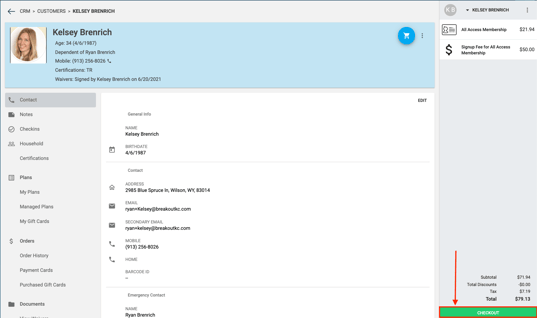
A cart will automatically be created for this customer.  There is no need to make a cart prior to using the Buy a Membership work flow. This is your opportunity to add additional items to the cart to check the customer out with one, singular transaction.
 
Finally, click checkout and finish the Checkout Work Flow.
Screen Shot 2021-08-24 at 10.00.37 AM.png


Example options for selling a "Date Of Purchase" Recurring Membership using the "Custom Date":


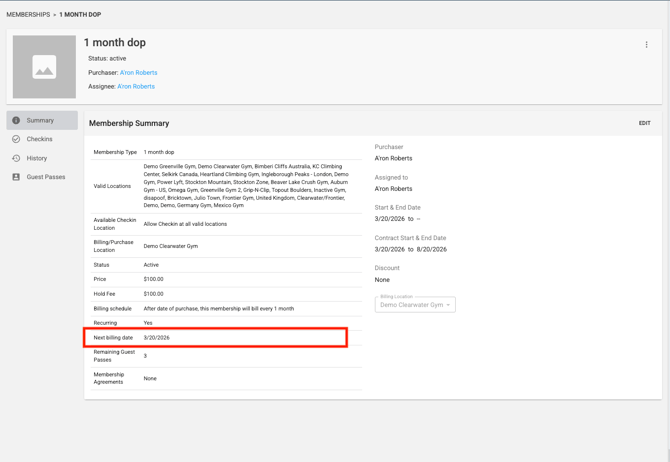
Option 1: "Bill on Custom Start Date"

  • On the "Purchase Plans" screen, if you select "Custom Date" to be 3/2/2026 and then "Bill on Custom Start Date", it will set the next bill date to be that custom date of 3/2/2026. This assumes that you will waiver/discount the initial purchase (on 2/11/2026), as they will pay for the mont of march on march 2. See screenshots below:


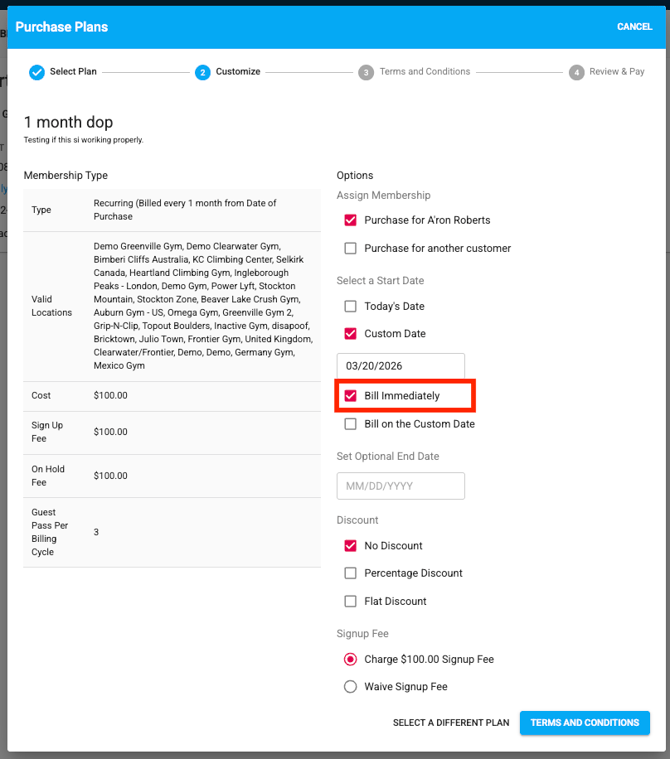
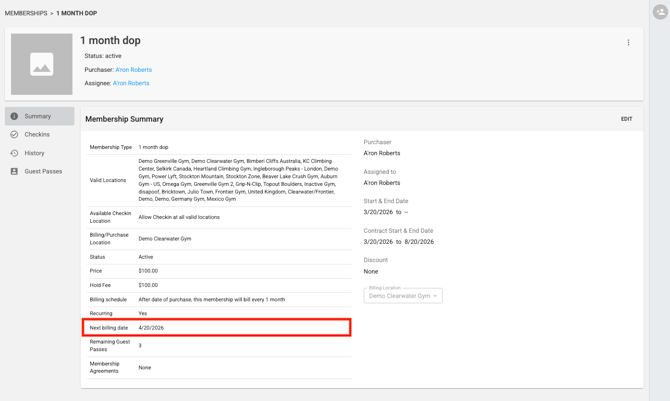
Option 2: "Bill Immediately"

  • On the "Purchase Plans" screen, if you select "Custom Date" to be 3/2/2026 and then "Bill Immediately", it will set the next bill date to be 4/2/2026. This assumes that you will bill the customer immediately for the month of march on the initial purchase (2/11/2026). So it will set the next bill date to be 4/2/2026, since they technically paid for March on 2/11/2026. See screenshots below:


Sell a Pass
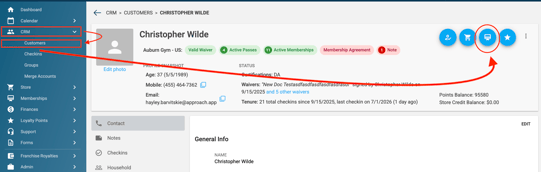
First, open the customer’s profile that is purchasing the Membership.  Click on CRM, then Customers, then the hamburger, then Purchase Membership or Pass.
Screen Shot 2021-08-24 at 9.45.06 AM.png
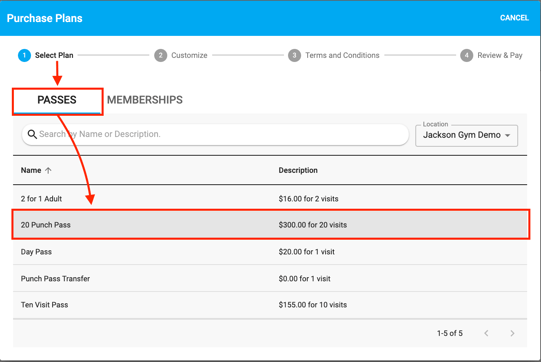
Then you will select Passes and select the Pass that the customer is purchasing.
Screen Shot 2021-08-24 at 10.12.16 AM.png
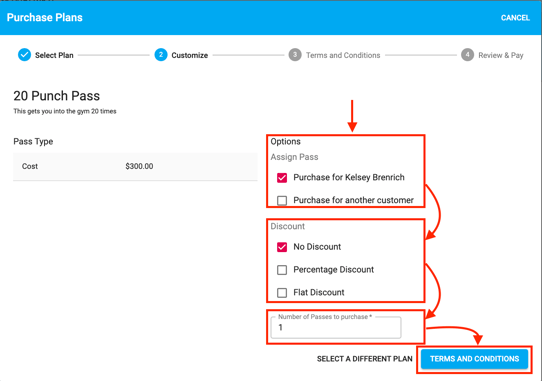
You will then select if Kelsey is buying this for herself or buying it for another customer.  It’s important to note that in order to buy a Pass, a customer must have a profile.
 
You will then apply a discount, if necessary.
 
You will then type in how many passes the customer wishes to purchase.
 
Next, click Terms and Conditions.
Screen Shot 2021-08-24 at 10.13.26 AM.png
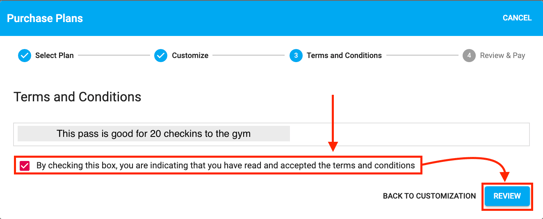
Your employee will go over the terms and conditions that are unique to this Pass.  Once the customer has agreed to the Terms and Conditions, you will check the box that they are agreed upon and then click Review.
Screen Shot 2021-08-24 at 10.15.29 AM.png
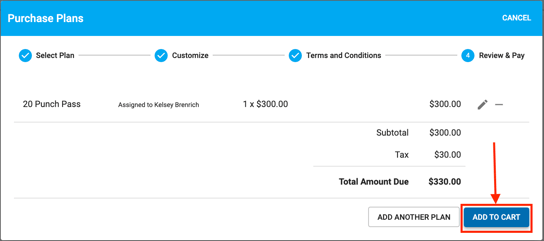
You will review the information and Add to Cart.
 
This will automatically create a cart for the customer, there is no need to create a cart in advance to the Buy a Pass work flow.
Screen Shot 2021-08-24 at 10.18.00 AM.png
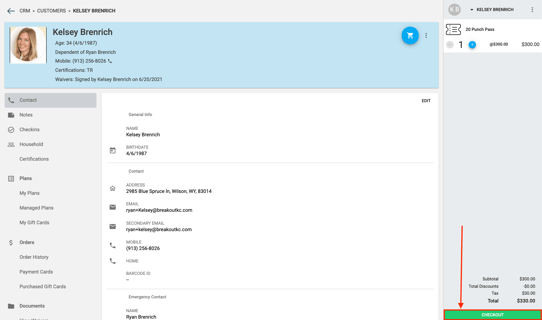
Finally, you will click Checkout and follow the Checkout work flow to complete the transaction.
Screen Shot 2021-08-24 at 10.18.42 AM.png


This concludes the guide for Selling a Membership or Pass