
Before implementing Membership Agreements, please ensure to reset your kiosk's cache.
How To Clear All Cache On a PWA And Remove All Service Workers
Table of Contents
- The difference between a Membership Agreement and a Waiver.
- Where a Membership Agreement can be signed.
- Member Check-in and Membership Agreements.
- FAQs
The difference between a Membership Agreement and a Waiver.
A Waiver is a document recording the waiving of a right or claim, while a Membership Agreement is a contract recording the signer understands the terms and conditions and agrees to such. A Membership Agreement can define the rights, responsibilities, and obligations of both parties (business and customer), covering details like member benefits, rules, fees, and policies for termination or misconduct.
How to create a Membership Agreement.
In the Main App, these can be found under Admin > Document Templates. When adding a new template, there is an option to identify the document as a Waiver or Membership Agreement. From there, you can add sections where the new member needs to initial, then sign.
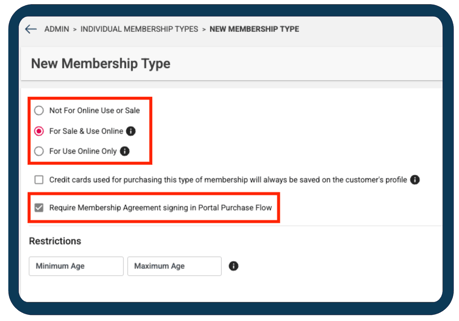
Then, once a Membership Agreement is created, it can be attached to a Membership Type. Once an agreement is attached, it will be ready for signage for all who acquire that Membership Type.
- Navigate to Admin.
- Select Document Templates.
- Click Add Template.
- Select Document Type: Membership Agreement.
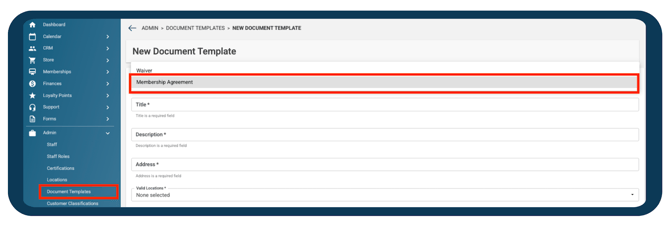
Once a Membership Agreement is created, it cannot become a Waiver and vice versa.
Where a Membership Agreement can be signed.
A Membership Agreement can be signed from the Main App, Portal, and Kiosk.
Portal: The membership agreement can be signed during the membership checkout process. Signing a membership agreement in the checkout process is optional by default. You can make this required by turning on a setting in the Membership Type settings. The purchaser will have to sign the membership agreement before completing the checkout, even with guest checkout!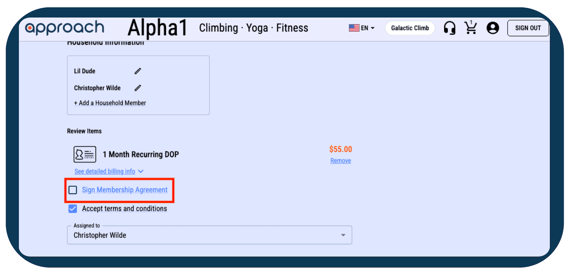
If a customer has purchased a membership prior, the membership agreement can be signed when a customer views their Memberships on their Portal Profile.
Any signed agreement(s) can be viewed via their Portal Profile Memberships tab under 'Signed Membership Agreements.'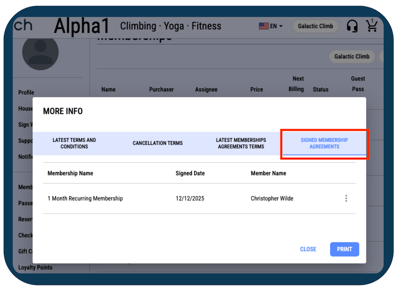
Kiosk: Membership Agreements can be signed through two flows in the Kiosk. A "Sign Membership Agreement" button will show in the customer header when the member has not signed a membership agreement.
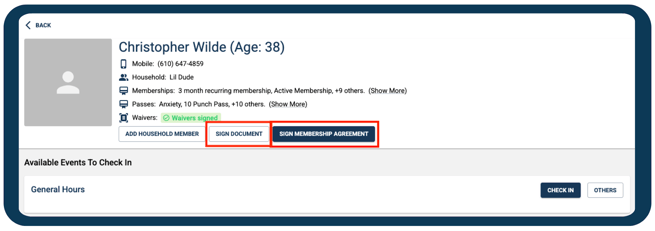
The other way to sign a membership agreement is by clicking "Sign Document" > "Membership Agreement," then signing the agreement. If there are multiple membership agreements to be signed, the member will need to select the membership agreement they wish to sign. If a minor purchased the membership, they will have to select which adult in their household will sign the membership agreement.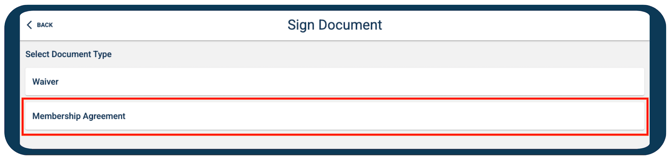
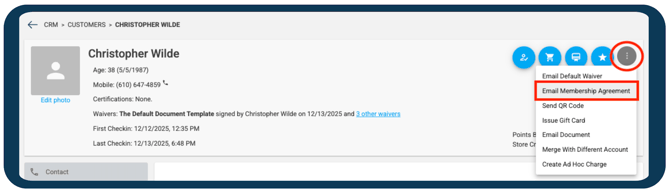
Main App: The membership agreement and all other additional document templates/waivers can be emailed to the customer from their profile. Learn how to send a document from a customer profile in the Main App here.
Member Check-in and Membership Agreements.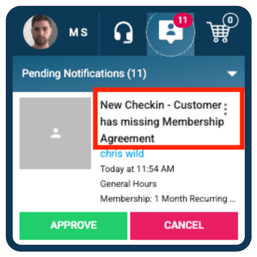
When a Member needs to sign their Membership Agreement—whether expired or never signed, there will be a notification to tell front desk staff that a signature is needed. From there, Staff can inform the customer, and have them sign the agreement from the Kiosk, Portal, or Main App email. However, it will not block the member from checking-in.
If a Member does not have a Membership Agreement signed, it will not prohibit their check-in abilities.
FAQs
Can I have multiple, different Membership Agreements?
Yes! You can reuse a single active Membership Agreement template across multiple Membership Types. However, only one Membership Agreement can be tied to a Membership Type.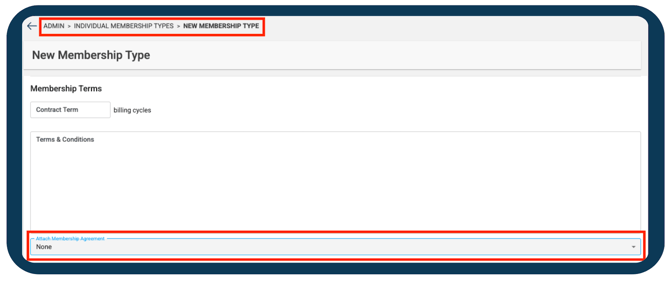
Who can sign a Membership Agreement?
The membership Purchaser will always be the one to sign the Membership Agreement. For Shared Memberships, this is true as well; the Purchaser will sign for all those under the Shared Membership. The Kiosk will prompt to select a responsible adult when the membership purchaser is a minor.
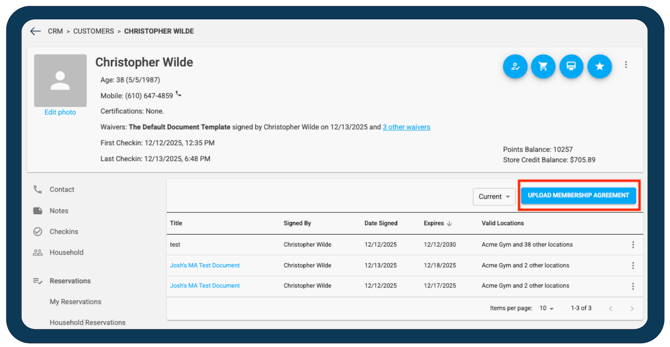
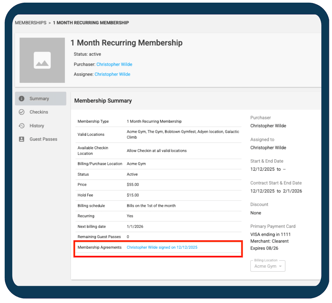
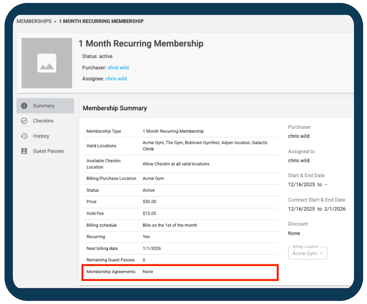
Once signed, the agreement will appear with the rest of the customer's Documents in their profile. The agreement can also be found in their Membership Summary via 'My Plans' or 'Managed Plans.'
Our Recommendation: Do not require a Youth Membership to need a Membership Agreement for Portal purchase. The Portal does not allow the minor to have an adult sign for them.
What does the Email (sent via the Main App) look like—Postmark?
When a Waiver is sent to a customer's email, the subject is "New Waiver Signing Session." Meanwhile, any other Document—like a Membership Agreement—the subject will read "New Signing Session." Then specify in the body via a button link which Document Type is ready for signature.
Note: Membership Agreements currently do not support multiple languages.
For those who have Custom Postmark Servers: you will need to update your Signing Session template, please reach out to our Support Team at the link below. If you think this article is missing anything, please also let us know here. We will update the article and let you know we have done so!