---
title: Membership Type Creation
description: In this guide, you will learn how to create Membership Types and examples of different Membership Types.
---
[Skip to content](https://support.approach.app/knowledge-base/membership-type-creation#main-content)
English
Show submenu for translations
[](https://support.approach.app/knowledge-base?hsLang=en)
- Home
- Products
- Pricing
- Blog
- Company
Open main navigation
Close main navigation
- Home
- Products
- Pricing
- Blog
- Company
- English
Show submenu for translations
- [Contact us](https://share.hsforms.com/1-n8QjFL3Rfiu-MkWDeoqcwnvfva)
[Contact us](https://share.hsforms.com/1-n8QjFL3Rfiu-MkWDeoqcwnvfva)
Welcome to Approach!
- There are no suggestions because the search field is empty.
1. [Approach Knowledge Base](https://support.approach.app/knowledge-base?hsLang=en)
2. [Approach Main App](https://support.approach.app/knowledge-base/approach-main-app?hsLang=en)
3. [Store Admin](https://support.approach.app/knowledge-base/approach-main-app?hsLang=en#store-admin)
# Membership Type Creation
## In this guide, you will learn how to create Membership Types and examples of different Membership Types.
### [How to Create a Membership Type](https://support.approach.app/knowledge-base/membership-type-creation#membershipcreation) [Examples of Membership Types](https://support.approach.app/knowledge-base/membership-type-creation#examples)
---
**Important Note:** If you change the price of a membership type, it will only affect memberships that were sold after the change. *All memberships that were sold before the price change will still charge the associated customers with the original price.*
If you desire to update the pricing of a membership type and all the associated customers who have that membership type, please request a Data Update via the chat bubble in the Main App to start this manual process with our team.
### How to Create a Membership Type
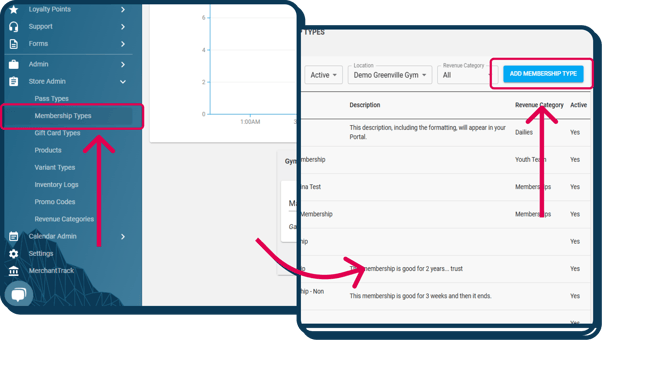
First, click on Store Admin on the left side of the screen, then into Membership Types, then Add Membership Type.
- #### Name and Description
First, add a name, a description to your membership type and a photo if desired.
- #### Setting the price, taxes, and activation
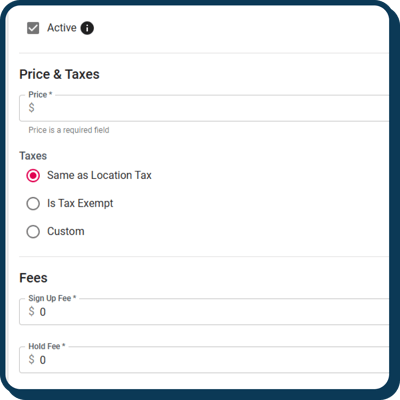
1\. First determine if the membership is **active** (sellable)It’s important to remember that if this membership is public, your customers will be able to read the description online.
2\. Next, enter the **price** of the Membership Type.
3\. Then, decide **taxation.** If this membership type is tax exempt, you will check the Tax Exempt box. If it has a different tax rate than the overall tax rate for your whole gym, choose custom.
4\. Then you will assign **Sign up** and **Hold fees**. If there is no fee associated for this membership, type “0.” Note: Hold fees are billed every billing period. If the Hold fee is $10, it will bill $10 every billing period until the membership is either cancelled or reinstated.
**"If I inactivate a recurring membership so it's no longer sellable, does that also prevent any future recurring billing to occur?"**
No, making a membership inactive does not stop future recurring billing. This give you the ability to disable a membership and no longer offer it, but continue it's services for the members that already have it. This is true for all assets (memberships, passes, etc.).
- #### Setting the Billing Information
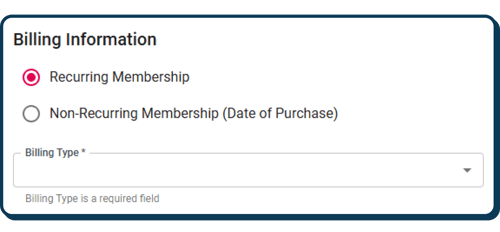
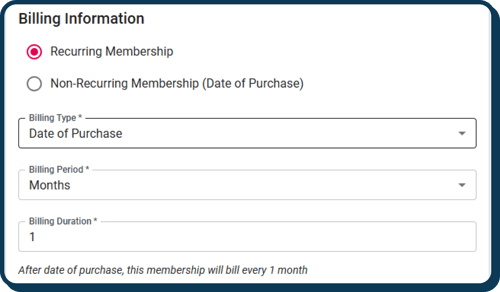
Then you will set the Membership Type's **Billing Information.** This is the most important section to get correct, as it is **not editable after you save**.
For recurring memberships, adjust the **billing type**
1. For *date of purchase*: determine the **billing period** (months, weeks, years) and **billing duration** (user choice)
2. For *monthly***:** determine the **billing day of month**
3. For *weekly:* determine the **billing day of week**
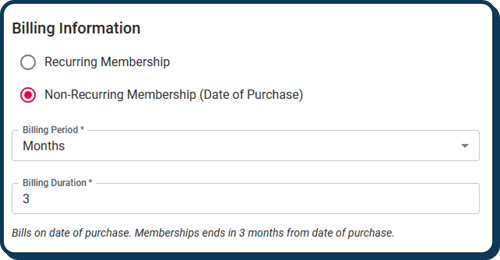
For non-recurring memberships, adjust the **billing period** and **billing duration.** These two categories in conjunction adjust how long the membership is applicable for.
- **Note:** For non-recurring memberships, an end date will be set once it is sold. That end date is the day that the membership ends and will no longer be valid for check-in.
- #### Membership Cancellation and Contract Terms
Members can cancel through the same methods they used to sign up, if enabled. This includes new cancelation terms set on the Membership Type in the Main App for customers to cancel via the Portal.
Note: This is an option available for recurring memberships.
Once enabled on the Membership Type, members can cancel any recurring membership through their Portal account. The cancelation option will always default to canceling at the end of their current billing cycle. Then, if there are any cancelation fees, they can pay the fee and finish the cancelation.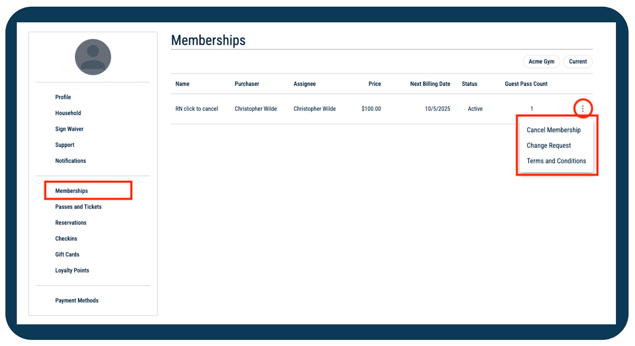
To set this up on the Membership Type, see the below information!
**Allow Cancellation "*Click-to-Cancel"*:**
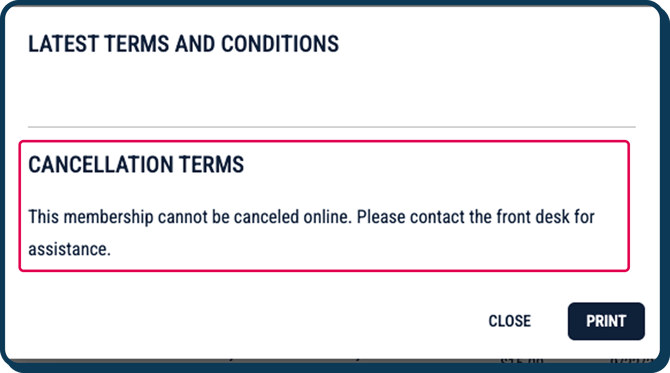
- Never: This means cancellations are not permitted online for this membership type. Customer's will see the cancellation terms when selecting 'Terms and Conditions' in the Portal for this membership:
- Allow Cancellation Only After Contract Term: The customer is only able to cancel their membership on the Portal if they are outside their "Contract Terms". If they are outside their contract terms, they will see *“Are you sure you want to cancel?”* when canceling. If they are still within their contract terms they will be met with *“You are in contract until \[date\].”*
- Please Note: If this option is selected, the membership can still be canceled in the Main App by staff *before* the contract term end date. If a 'Cancellation Fee' applies, you can choose to charge the fee or waive it by adding a discount in the cart.
- Allow Cancellation Within Contract Term: The customer is able to cancel their membership on the Portal within or after the contract terms that were set.
**Cancellation Fee:**
- Never: There will never be a cancellation fee required when a customer attempts to cancel their membership.
- Always: There will always be a cancellation fee required when a customer attempts to cancel their membership.
- When cancellation is before contract term: The cancellation fee will be applied when the cancellation is completed before the end of the contract terms. This option only appears if 'Allow Cancellation Within Contract Term' is selected.
**Cancellation Deadline:** This deadline, measured in days before the next billing cycle/date, will ensure that customers will need to cancel X days before their next billing cycle. So, if the cancellation happens after the deadline, the cancellation will apply to the *next* billing cycle.
**Membership Terms:**
- Contract Terms: Admins can enforce a *contract timeline -*based on the sale date- before a member is able to cancel their membership. This is measured in number of billing cycles.
- Setting this to '0' will make it so a member can cancel before their first autobill. This will also set the Membership Agreement End Date to the Purchase date.
- The Membership Agreement End Date is not when a membership is cancelled, but to inform the customer they can cancel anytime after that date.
- If a membership has a set contract duration, the Membership Agreement End Date will be *one day after the last contracted billing cycle.*
- If the contract duration is *0*, the contract will now end on the *start date*.
- If the contract duration is *not provided*, the Membership Agreement End Date will remain *blank*.
- If a membership has a *future start date* and *0 billing cycles*, the Membership Agreement End Date will now be set to the *creation date*, allowing it to be canceled immediately if needed.
Example here:
If I purchased a weekly membership that bill on Monday on 4/17/2026 and the contract terms were set to '4':
- my 1st auto bill would be Monday, April 20th
- my 2nd auto bill would be Monday, April 27th
- my 3rd auto bill would be Monday, May 4th
- my 4th auto bill would be Monday, May 11th
My Membership Agreement End Date would be May 12th, so I'd be able to cancel on or after May 12th. I will of course need to ensure I cancel 2 days before my next bill date (bill date being the 18th), or the cancelation will go into effect on the following billing cycle (i.e. I will be billed on the 18th).
Here are a few examples of how this will appear on the customer Portal:
1. The customer has no Contract terms and no Cancelation Fee.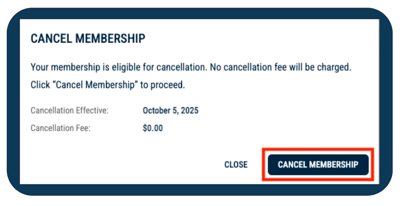
2. The customer is attempting to Cancel before their Contract has ended, but is not allowed.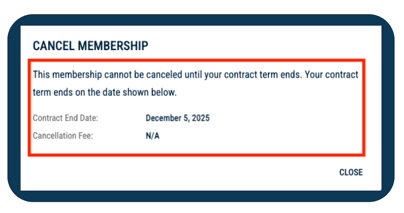
3. The customer has a Cancelation Fee attached to their membership.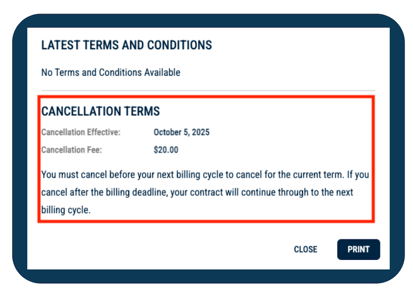
- Terms and Conditions: The terms and conditions of the membership must be reviewed and the 'Terms and Conditions" box checked before purchasing the membership.
- #### "Other Information" Settings
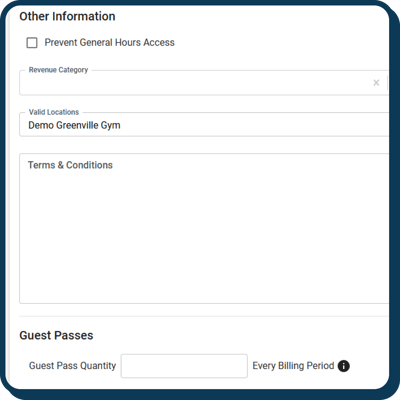
1. **Prevent General Hours Access:** when this is turned on, customers can no longer check in for general access but they can check in to FCFS events that have the Membership Type as an entrance requirement.
2. **Assign Revenue Category:** assign the revenue category, so you can track the sale of this product through Quickbooks and Quicksight
3. **Valid locations:** this Membership Type will be valid for these locations.
4. **Terms and Conditions:** your customer will have an opportunity to read these, if purchased online, and will be required to agree to them.
5. **Guest passes:** This is the field that decides how many guest passes the membership provides to the purchaser, per pay period.
6. **Birthday Guest Passes**: You can set however many birthday passes you'd like the Membership Type to receive based on their billing cycle. And the Enhanced can be utilized for their birthday GP. 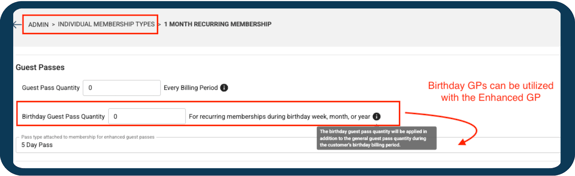
1. **Note:** guest passes do not roll over and are only good for the billing period that they are issued. Guest passes issued work in conjunction with Guest Pass Usage Rules set on your Location Information for your Gym.
- #### Portal Settings
1. **Portal Settings:** adjust the following settings, as desired.
- **Permit customers to checkout this item as guest:** on the portal, if the item is available for purchase, this permits customers to checkout this item as a guest. If this is left unselected and the item is available in the portal, customers will not be allowed to proceed to guest checkout in the portal.
- **Put this Membership in Pre-sales mode:**
- **Do Not Prorate:**
- **Manage online usage:** 1) *not for online use or sale-*users will not be able to purchase this through the portal nor be able to checkin to events, 2) *for sale & use online*-public will be able to view, purchase and reserve applicable events, 3) *for use online only-*those who have purchased previously will be able to view and reserve an event spot online
2. **Age Restrictions:** utilize this feature to manage age restrictions. Please note: if the user falls outside the age restriction, their checkin will fail. Also, membership types with age restrictions can be purchased by anyone and assigned to anyone, regardless of age.
**Remember to save your work!!!**
---
#### Examples of Membership Types
Monthly Membership that is billed on the 5th of every month:
- **Note**: when a customer checks out with this membership on any other day of the month than the 5th, it will prorate them for their first month until the 5th of the next month occurs
-png.png?width=500&height=241&name=1%20(2)-png.png)
Monthly Membership that is billed every month on the day that the customer purchases the Membership:
Non recurring, 3 Month Membership:
Non Recurring Annual Membership (billed once for the whole year):
-png.png?width=500&height=260&name=image%20(13)-png.png)
Weekly Membership that is billed every Friday:
- **Note**: If this membership is bought on any other day of the week, it will prorate them for their first week until the next Friday occurs
-png.png?width=500&height=260&name=image%20(14)-png.png)
Quarterly Membership that bills every 3 months on the day that the customer purchased this membership:
-png.png?width=500&height=293&name=6%20(1)-png.png)
Please Note: if your auto biller is enabled, recurring memberships will begin to bill on the next bill date. For more info on auto billing click [here.](https://support.approach.app/knowledge-base/how-does-autobilling-work-in-approach?hsLang=en)
Do you still have more questions about how to set up a Membership Type? Drop us an email at [cxm@approach.app](mailto:cxm@approach.app). You can also submit your question through the Questions form in the main app.
### [Click Here for the Next Training Article](https://support.approach.app/knowledge-base/document/waiver-creation?hsLang=en)
- [Setting Up Approach](https://support.approach.app/knowledge-base/setting-up-approach?hsLang=en)
- [Approach Main App](https://support.approach.app/knowledge-base/approach-main-app?hsLang=en#main-content)
- [Calendar](https://support.approach.app/knowledge-base/approach-main-app?hsLang=en#calendar)
- [CRM](https://support.approach.app/knowledge-base/approach-main-app?hsLang=en#crm)
- [Store](https://support.approach.app/knowledge-base/approach-main-app?hsLang=en#store)
- [Forms](https://support.approach.app/knowledge-base/approach-main-app?hsLang=en#forms)
- [Admin](https://support.approach.app/knowledge-base/approach-main-app?hsLang=en#admin)
- [Store Admin](https://support.approach.app/knowledge-base/approach-main-app?hsLang=en#store-admin)
- [Calendar Admin](https://support.approach.app/knowledge-base/approach-main-app?hsLang=en#calendar-admin)
- [Settings](https://support.approach.app/knowledge-base/approach-main-app?hsLang=en#settings)
- [Portal](https://support.approach.app/knowledge-base/approach-main-app?hsLang=en#portal)
- [Kiosk](https://support.approach.app/knowledge-base/kiosk?hsLang=en#main-content)
- [Kiosk](https://support.approach.app/knowledge-base/kiosk?hsLang=en#kiosk)
- [Customer Portal](https://support.approach.app/knowledge-base/customer-portal?hsLang=en)
- [Announcements & Release Notes](https://support.approach.app/knowledge-base/announcements-release-notes?hsLang=en#main-content)
- [Release Notes 2025](https://support.approach.app/knowledge-base/announcements-release-notes?hsLang=en#release-notes-2025)
- [Release Notes 2024](https://support.approach.app/knowledge-base/announcements-release-notes?hsLang=en#release-notes-2024)
- [Supplemental Information](https://support.approach.app/knowledge-base/supplemental-information?hsLang=en#main-content)
- [Integrations](https://support.approach.app/knowledge-base/supplemental-information?hsLang=en#integrations)
- [Set Up Assistance](https://support.approach.app/knowledge-base/supplemental-information?hsLang=en#set-up-assistance)
- [FAQs](https://support.approach.app/knowledge-base/supplemental-information?hsLang=en#faqs)
- [Quicksight Dashboard](https://support.approach.app/knowledge-base/quicksight-dashboard?hsLang=en)
- [Approach Journeys](https://support.approach.app/knowledge-base/approach-journeys?hsLang=en)
- [Onboarding](https://support.approach.app/knowledge-base/onboarding?hsLang=en)
[](https://support.approach.app/?hsLang=en)
Copyright © 2025, Approach