First, reference this article on how to sell a pass.
Terms to know
Visits: Check-ins via general hours or an Event. This is allowed based on the Pass Type.
Active: This Pass has not hit it's end date established in the Pass Type and still has visits remaining.
Depleted: This Pass has no more visits remaining, but did not hit it's end date.
Expired: This Pass has hit it's end date. This can occur even if there are visits remaining.
Current: Bookings happening now, or in the future.
Getting to the Pass Information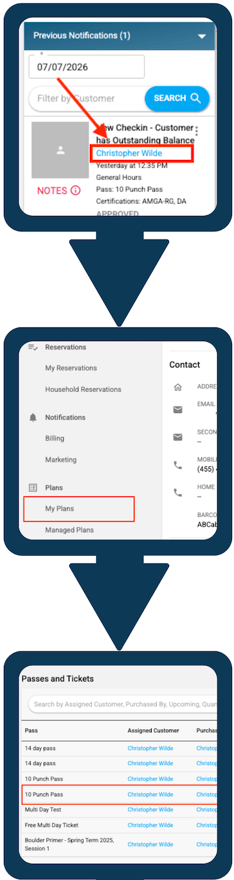
- Find the Customer's check-in
- Select their name
- Scroll to 'My Plans'
- Select the Pass Type name
The Pass Page Explained
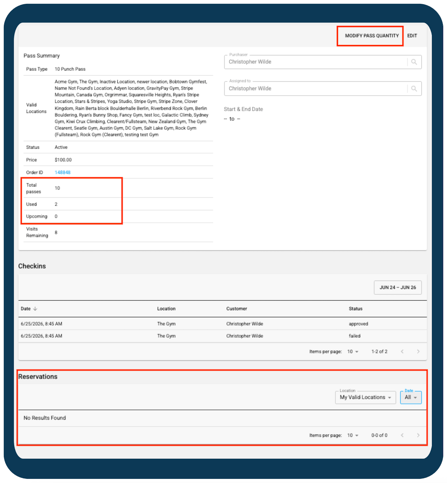
The Pass Summary contains information for the purchased Pass. This also includes the Purchaser, Assigned to, and Start/End Date.
- Pass Type: Name from the Pass Type.
- Valid Locations: What location(s) this pass can be checked-in at.
- Status: Active, Depleted, or Expired.
- Price: Amount established in the Pass Type.
- Total Passes: How many visits the Pass had. This is established in the Pass Type.
- Used: How many check-ins this customer has with this Pass.
- Upcoming: How many current Reservations this Pass is associated with.
- Visits Remaining: How many visits this Pass currently has.
The Checkins section shows the check-in history of this Pass. This could contain check-ins of other customers that the purchaser allowed. Utilize the Date Range filter to see different views.
The Reservations displays the Bookings this Pass was reserved with.
 How to manage a Pass
What you can "Edit"
The Start and End Date will be based on your Pass Type Expiration settings. Editing will give the option to change the valid dates.
Editing will also give you the option to change the "assigned to." This will add the Pass to that customer's profile.
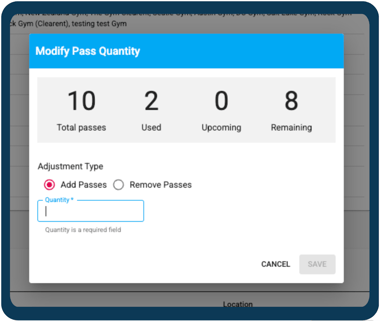
"Modify Pass Quantity" will give you the option to remove or add pass amounts. Then enter a quantity to adjust to.