
Table of Contents
-
What Are Loyalty Points? How Can They Benefit My Facility?
-
Turning on and Setting Up Points
-
Additional Features
-
How to Redeem Points
-
FAQ
What Are Loyalty Points? How Can They Benefit My facility?
The Loyalty Points feature is a participation-based loyalty system that allows your customers to accumulate points based on predefined actions. Loyalty Points are a great way to incentivize customers to keep coming back to your facility and participate in more of your offerings. With Loyalty Points, customers get rewarded for check-ins or purchases made toward your facility. This, in turn, creates a stronger value proposition for those customers, ultimately increasing Life Time Value (LTV).
Imagine a member doesn't sign up for a fitness class or use their member discount on a protein shake. They will not see as much value in the membership they are paying for, skewing them closer to churning. Incentivizing them with rewards to participate helps to increase full usage of the offering with an end result of generating greater LTV.
The Loyalty Points system is also the simplest way to build retention among your members and assist in converting your day pass customers into members. By rewarding your customers with points for their checkins, use of guest passes, and purchases, you can incentivize your customers to become long-lasting fans of your business. You can allow customers to redeem their loyalty points for select items like chalk, food and beverage, passes and more. Using a rewards system in your gym simply gives your customers one more reason to keep coming back.
Turning On and Setting Up Loyalty Points
The Points feature is disabled by default.
Step 1: Enable Loyalty Points under the General Settings
- Go to the Settings section of the Main App by clicking the Settings tab in the navigation menu on the left.
- Under General Settings, you will see a checkbox with the text “Use points functionality” - Please check the box next to that setting and click “Save” to enable the Points feature.
- After checking the box "Use Points Functionality", You will then be able to set a points limit for customers.
Please note that the maximum points allowed setting is on the General Settings page as this is a global setting. All settings within the Loyalty Points settings tab are location specific.
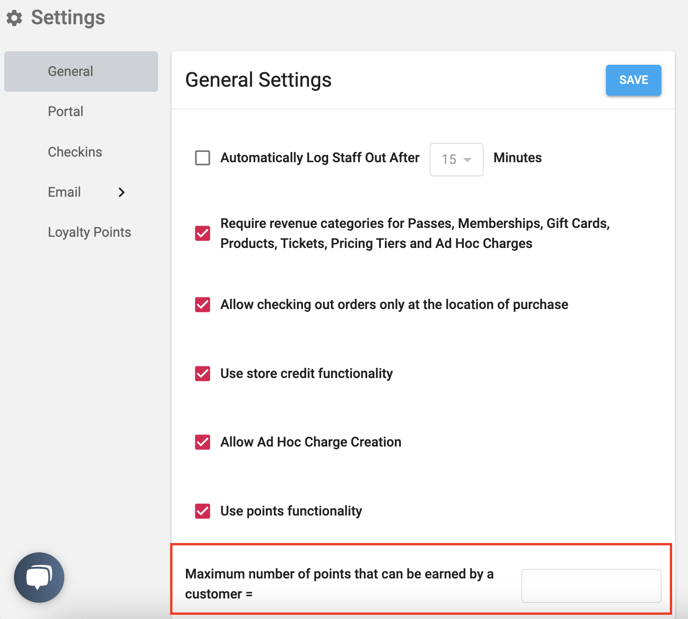
Please note: If you do not want a points limit, leave the field blank. Inputting a zero will disallow the customer from receiving points.
After turning on the feature there are a few more steps to set up before you should start using points.
Step 2: Review and Update the Loyalty Points Specific Settings
These can be found by clicking on “Settings” then “Loyalty Points”. On this page you will see various settings: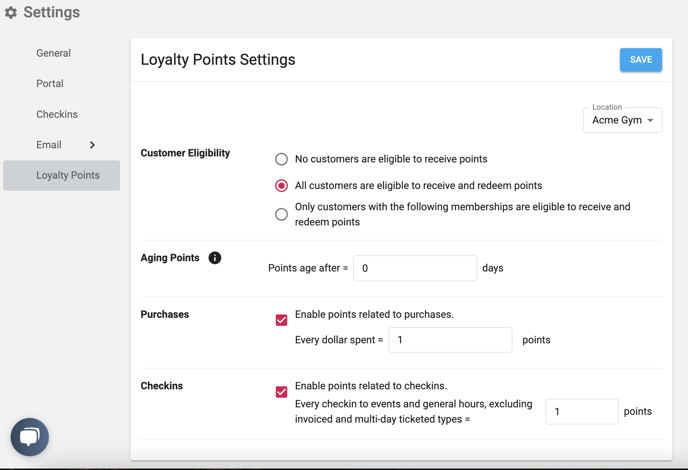
-
- Customer Eligibility. This setting allows you to determine which customers are eligible to start earning and redeeming points. There are 3 options at this time:
- "All customers are eligible to receive and redeem points" - As this setting states, all customers that go to your facility will be able to earn and redeem points.
- "Only customers with the following memberships are eligible to receive and redeem points". This setting allows you to limit who has access to receiving and redeeming points based on what active membership they have.
- "No customers are eligible to receive points". The option to not earn points.
- Aging Points. This setting allows you to set how long from the day points are earned until they are redeemable.
- This setting defaults to 30 days but you can update it to be lower or higher to suit your needs. You can set it as low as 0 to make points instantly redeemable or increase it to 365 if you want points to age for a year before they are usable.
- Purchases. This setting allows points based off of purchases. For every dollar spent you get X amount of points. Please note that partial points can not be earned.
- Customer Eligibility. This setting allows you to determine which customers are eligible to start earning and redeeming points. There are 3 options at this time:
-
-
- Example: If the points setting is set at 10 points per dollar spent, and someone buys a sticker for 50 cents, they would get 5 points. Additionally, if that same sticker was $1.50, you would get 15 points.
-
Step 3: Adding Redemption Points to Products/Passes
The final step to setting up points is to specify which products are redeemable by points. You must assign each of those assets with the number of points needed for redemption.
At this time we only support the redemption of points for Passes and Products.
Steps to Set up Redemption Amounts:
- In order to set up the redemption amounts, please navigate to either the existing pass or product that you want to allow for redemption or create a new pass or product. This would need to be done in Store Admin.
- At the bottom of the edit or create form you will see a new field called “Points Redemption”:
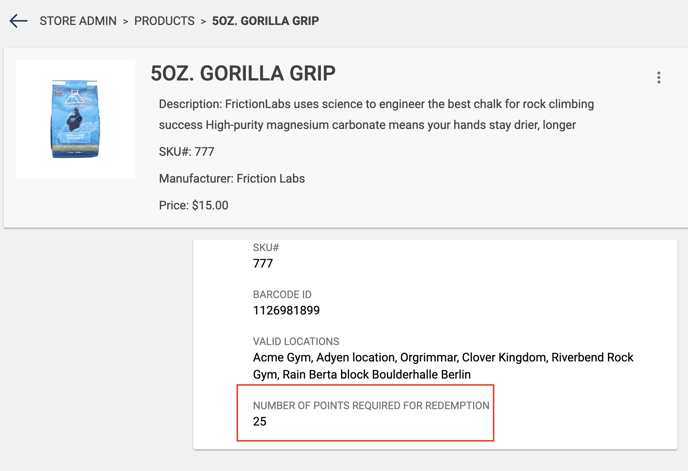
3. There you will be able to set the number of points that should be required in order to redeem that pass or product.
4. Please make sure that you consider the monetary value of the asset when setting the number of points needed for redemption.
Additional Features
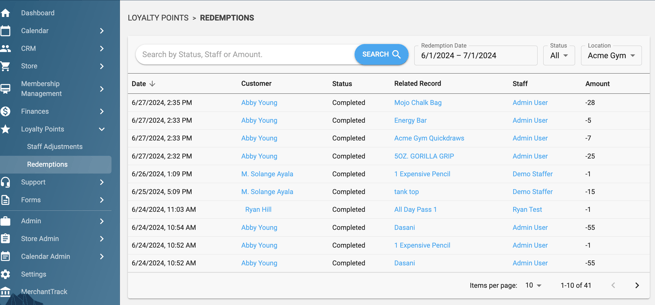
- Redemption History List
- This is a list of all the redemption transactions that have taken place in your location/environment.
- This list includes the following information:
- Date of the redemption.
- The customer’s name and a link to points redemption on their profile.
- Status of the transaction.
- Related Records.
- The asset that was purchased with that redemption.
- The Staff that completed the redemption transaction.
- The amount of points redeemed.
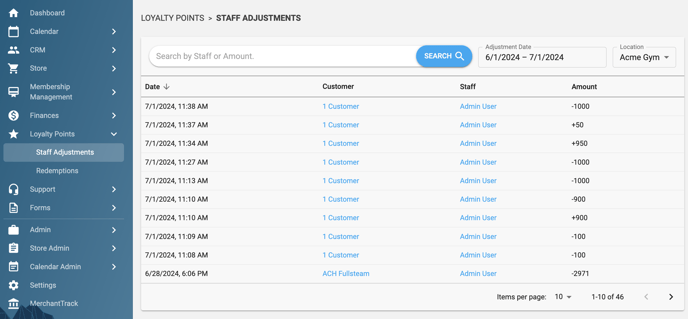
- Staff Adjustment List
- This is a list of all the adjustments that staff have made to customers' points balance.
- This list includes the following information:
- The Date the adjustment was made
- The Customer’s name and a link to that specific adjustment on their profile
- The Staff name and link to their staff profile
- The amount that the balance was adjusted (positively or negatively).
Please Note: When searching the redemptions page by amount, searching by a negative amount will not work.
Ex: When searching for a -500 redemption, you should search "500".
How to Redeem Loyalty Points
- Customer points redemption must be done in store.
- To redeem points, navigate to a customers profile in CRM and find the blue star button in the top right corner of the profile window.
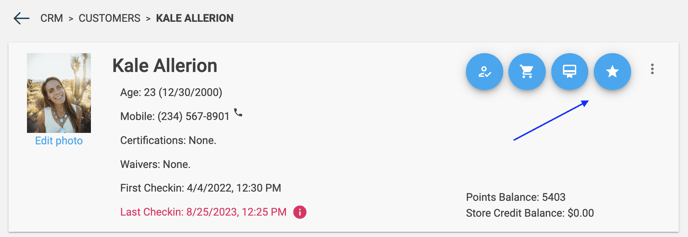
- A pop-up will appear giving you the option to select a product or pass from the eligible inventory in your environment:
Note: Only products who have both their inventory and variants setup will be available for redemption with loyalty points.
FAQ
- What happens to the customer's loyalty points if the order is refunded?
- Cancelled or Voided orders will deplete points from a customer's account. This implies that negative point totals are indeed possible. Partial refunds mean partial points will be returned.
- Do customers earn loyalty points for using guest passes? Yes, however, the points go to the customer who checks in with the guest pass not the assignee of the membership.
- Where can Staff go to see a customer’s loyalty points and edit them?
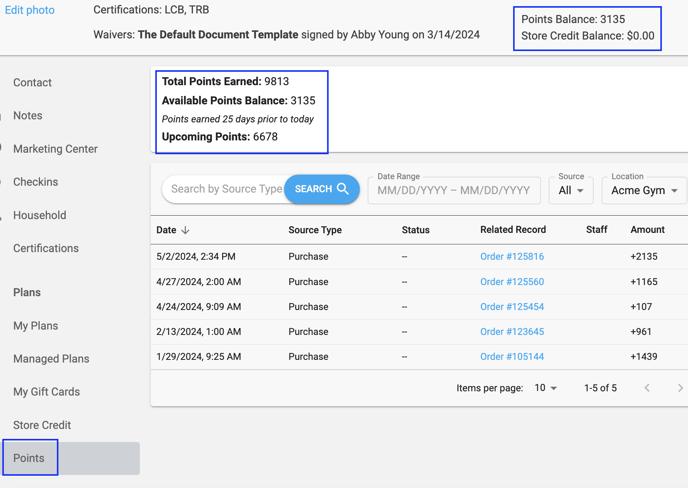
- There is a tab on the left hand side of every customer profile that says "Loyalty Points" within "Plans".
- The Total Points Earned by this customer is shown on this page as well as Available Points Balance (points earned ___days prior to today, based on aging) and their upcoming points.
- There is also a table that shows the points history which can be filtered by date as well as location.
- Are there staff permissions around Loyalty Points?
- Yes by navigating to a customers points profile, you can then click the hamburger button and select "Adjust Points"
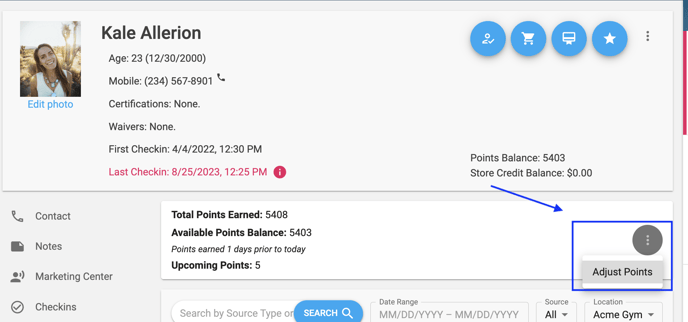
- From here you can make both negative and positive adjustments.
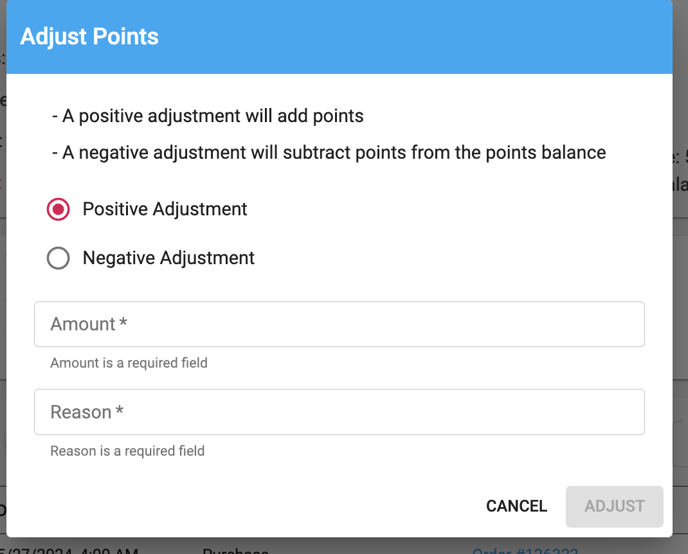
- Yes by navigating to a customers points profile, you can then click the hamburger button and select "Adjust Points"
- What Happens to a customer's points when you merge customers?
- If customer A has 5 points and customer B has 10 points, when they are merged the merged profile will have 15 points, even if the points limit is set to 10.
- What is the relationship between gift cards and points?
- When you purchase a gift card, you do not get points.
- When you use a gift card to purchase a pass or product for which points have been enabled and assigned, you do get points.
- What is the relationship between store credit and points?
- When you use store credit, you get points, just as you would with a cash or card purchase.
- Can redemptions be refunded?
- Yes! On the customer's profile page, click their points tab. Find the redemption you want to refund on the list and click the triple dot hamburger button, then click "Refund Redemption". This will immediately refund the redemption.
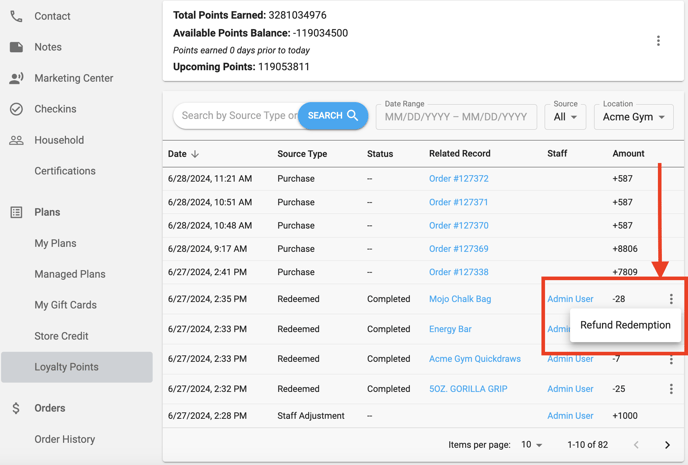
- Yes! On the customer's profile page, click their points tab. Find the redemption you want to refund on the list and click the triple dot hamburger button, then click "Refund Redemption". This will immediately refund the redemption.
- Why do inactive locations show up on the settings page?
- The reason that inactive locations are shown is because some clients that switched merchants still have memberships billing towards the old locations that could earn points:
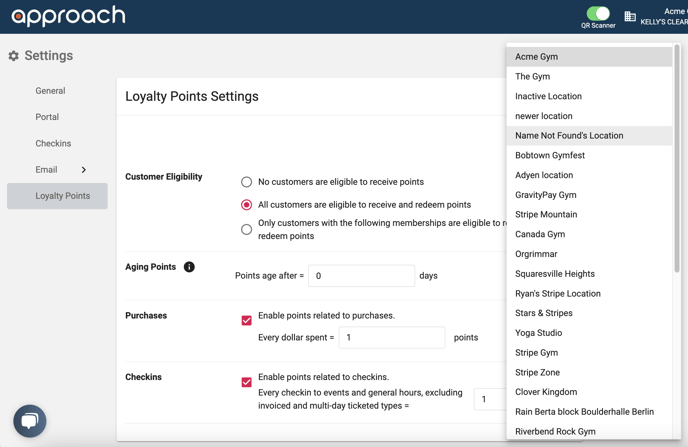
- The reason that inactive locations are shown is because some clients that switched merchants still have memberships billing towards the old locations that could earn points:
Do you still have more questions? We want to make our knowledge base as accurate and as in depth as possible. If you think this article is missing anything, please let us know here. We will update the article and let you know we have done so!