Table of Contents
Getting to Analytics
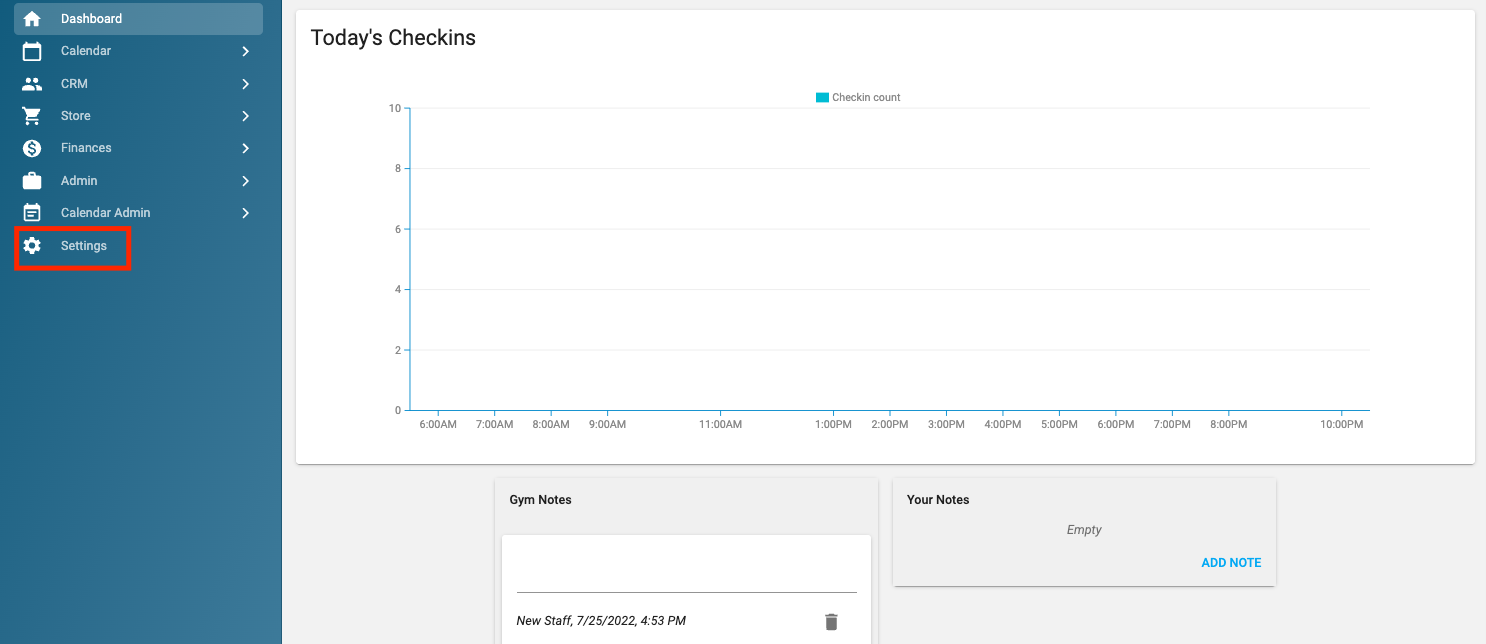
Make sure to click on the "Settings" section of the left menu.
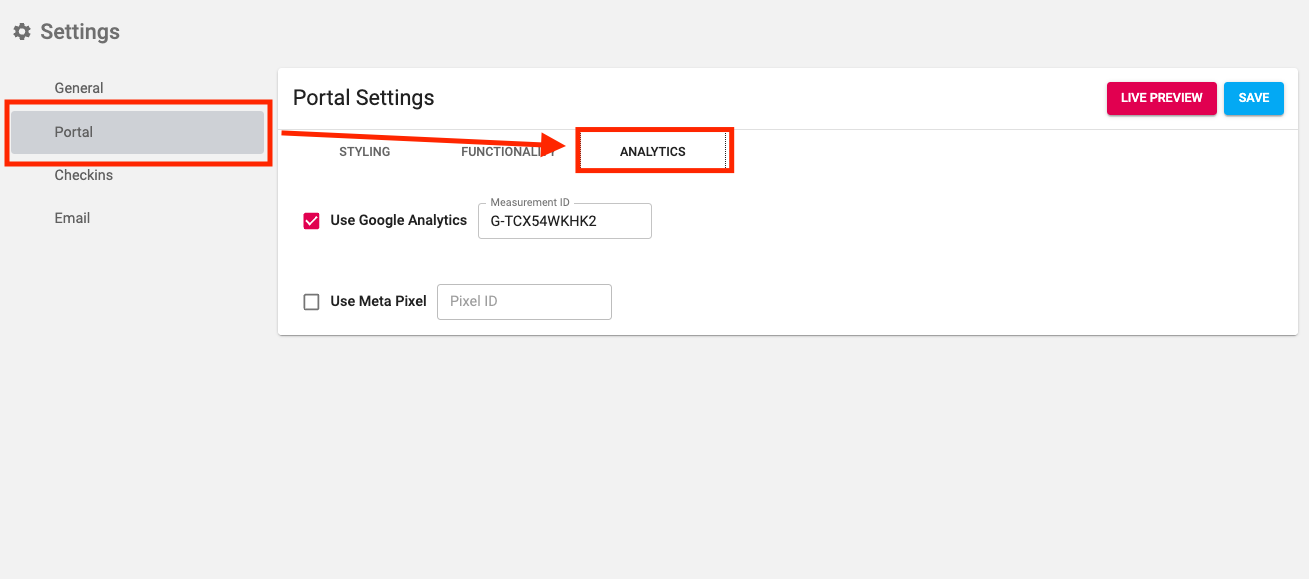
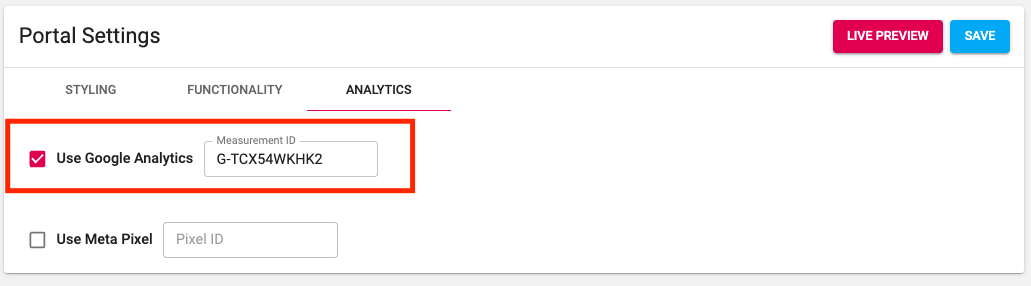
Once in the Settings section, make sure to click on the Portal, then on the Analytics section.
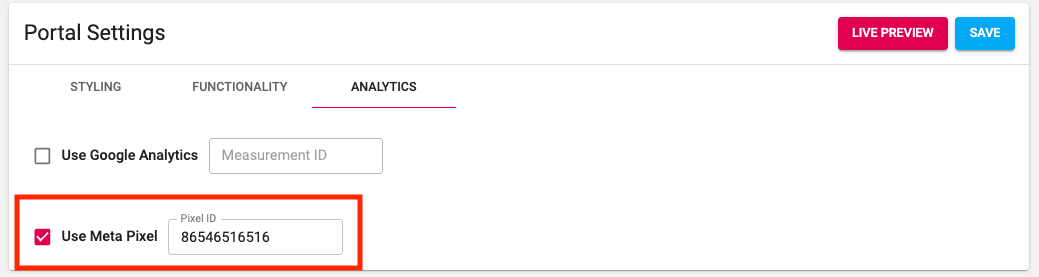
Here is where you will place the ID that Google Analytics or Meta Pixel provides.
Setting up Google Analytics
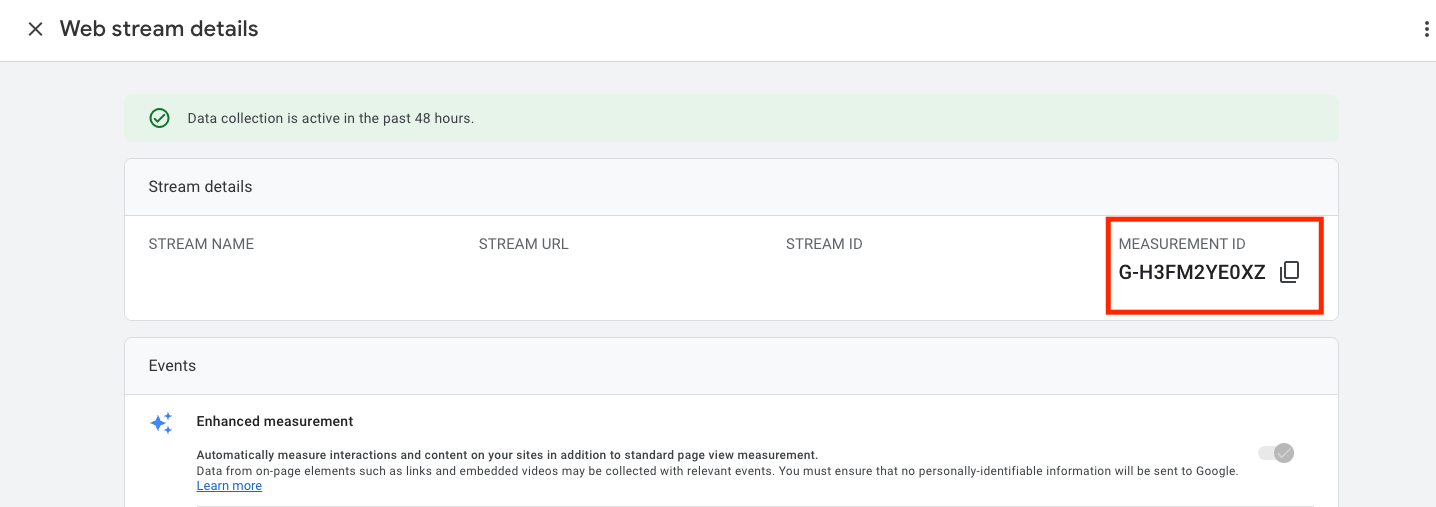
When in google analytics, proceed through this workflow (As demonstrated by image below)
Admin (Bottom Left Gear) -> Data Streams -> Click on Desired Stream (Website)
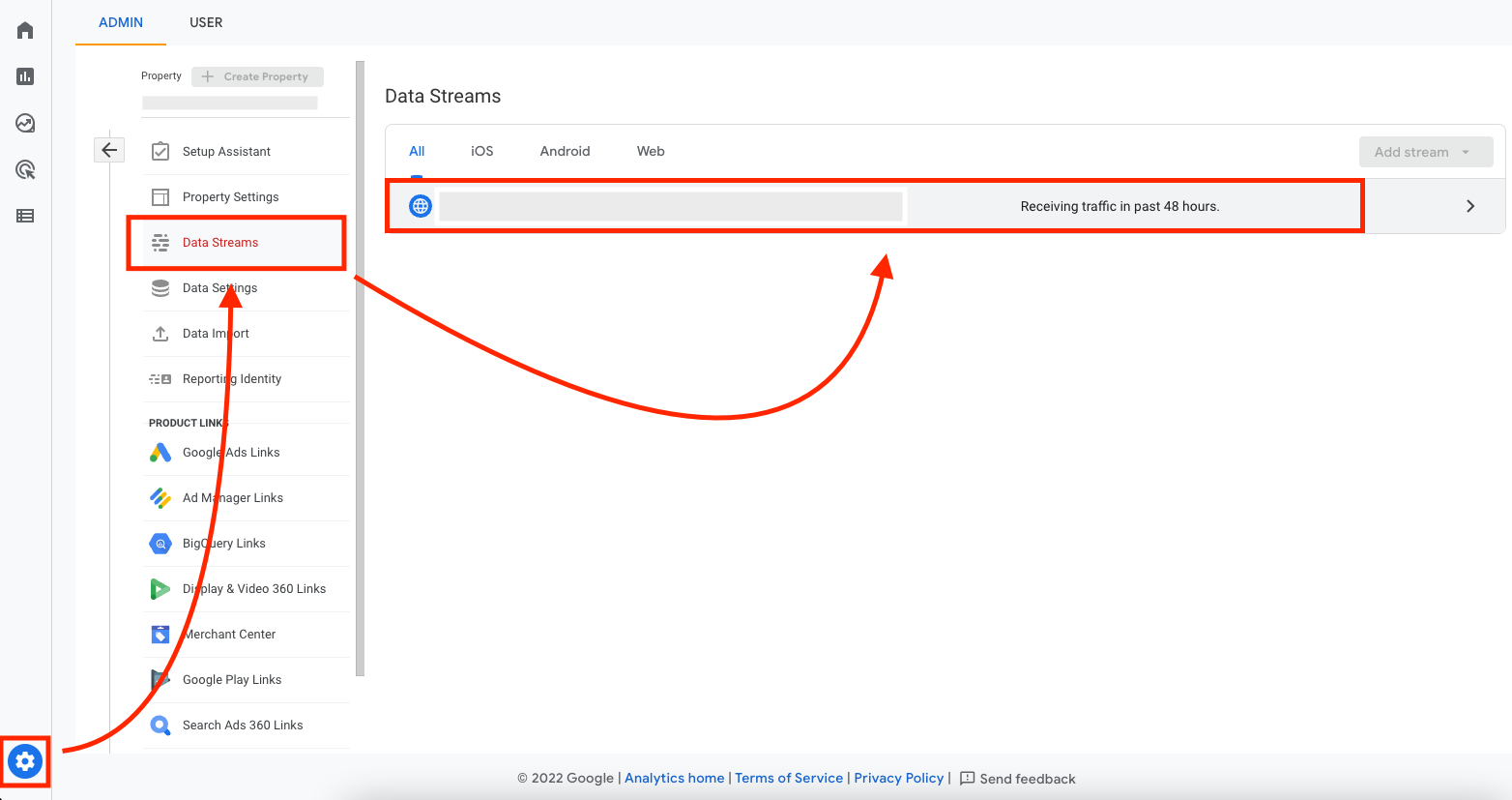
Once here, make sure to grab the "Measurement ID" for Approach.
Make sure to place the ID into the associated field within Approach. Make sure to Save!
Setting up Meta Pixel
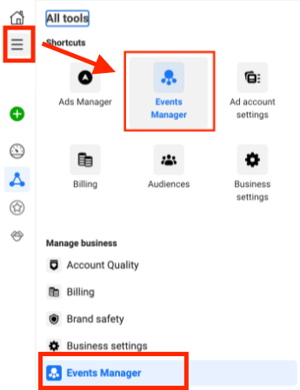
When setting up Meta Pixel you will want to go the "Events Manager"
This will be visible from the "All tools" section.
Once there, grab the Pixel Id from the top right corner.
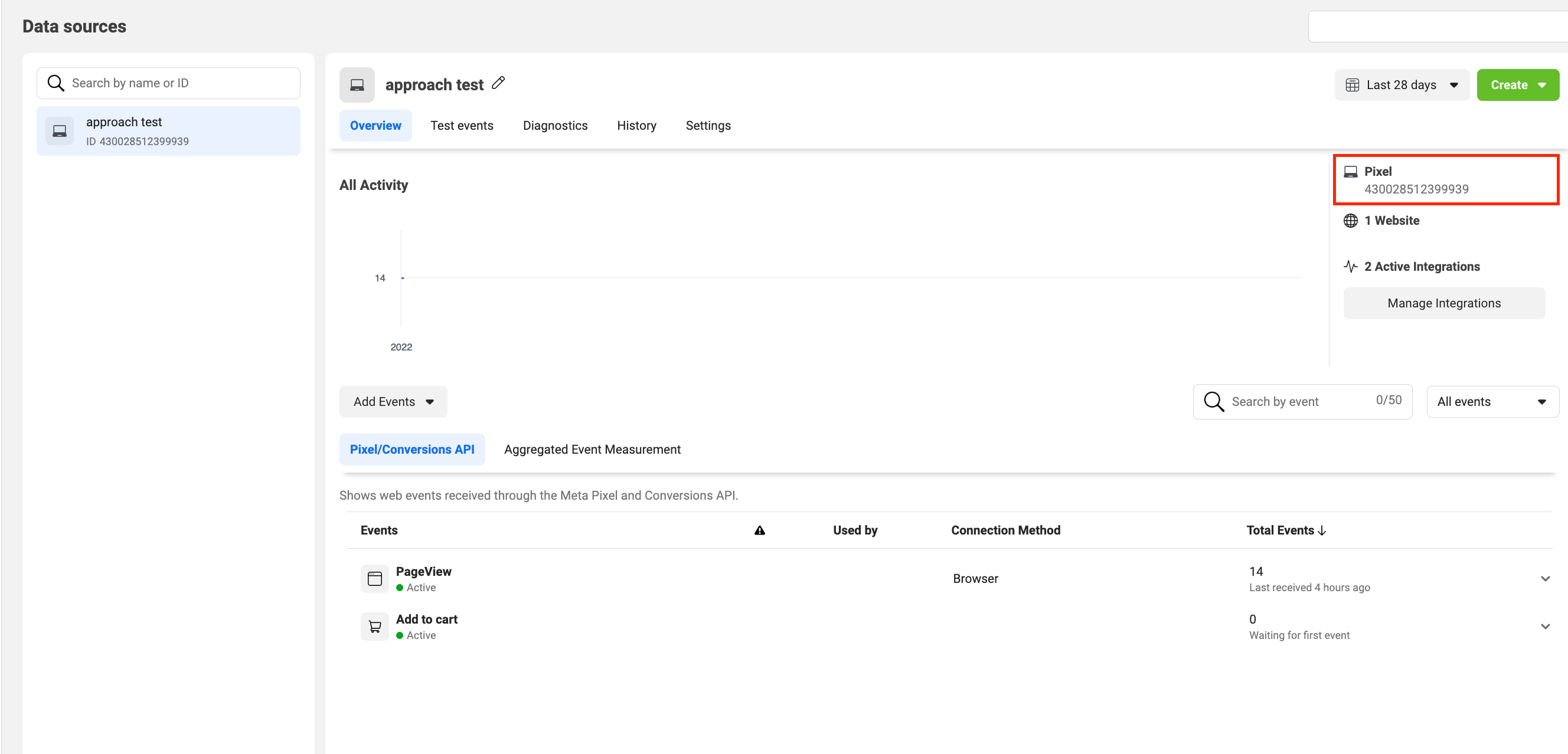
Make sure to place the ID into the associated field within Approach. Make sure to Save!