
Table of contents
Providing QR codes to customers
Checking in with the Main App
When you first receive your scanner make sure to plug it into your computer. Afterward, make sure that Approach is set to take in QR codes by turning it on. (see image below)
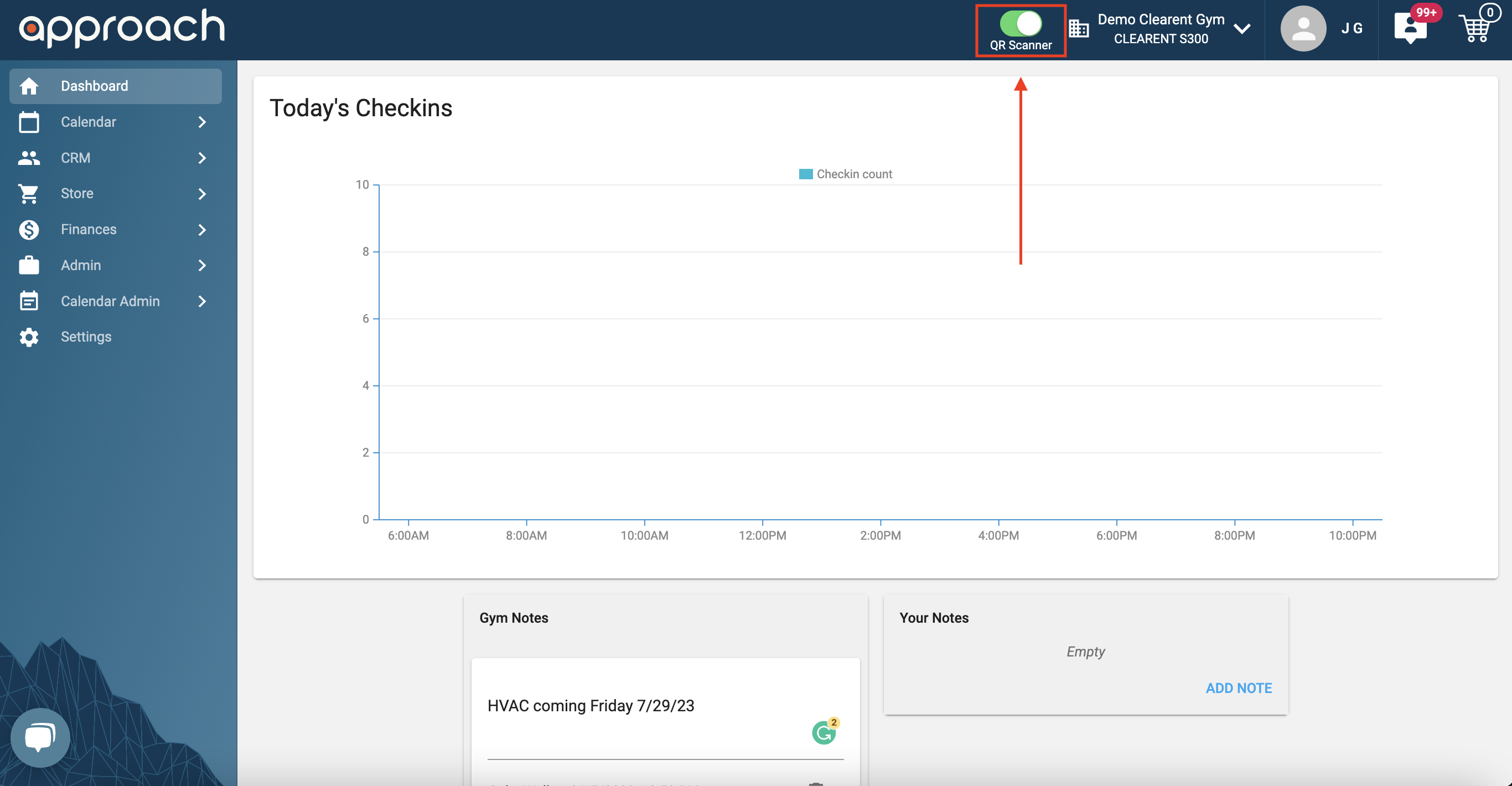
Great! You are now ready to start receiving QR Code check-ins.
Note: Make sure your mouse is not clicked into a text field or search bar when scanning a QR Code. Doing so causes the information to be placed there instead of checking the customer in.
Note: The computer has to have the Approach page open while the person is scanning the QR Code.
Checking in with the Kiosk and Main App
For checking customers in with a QR code or a barcode, we recommend having a dedicated computer and monitor, or a dedicated laptop, that is connected to your scanner. On that monitor, you should have two windows open that are tiled to the right and left side of the screen: the Kiosk, set to barcode mode, and the Main App with the notifications tab open. Refer to the photo below to see how we suggest you set this up: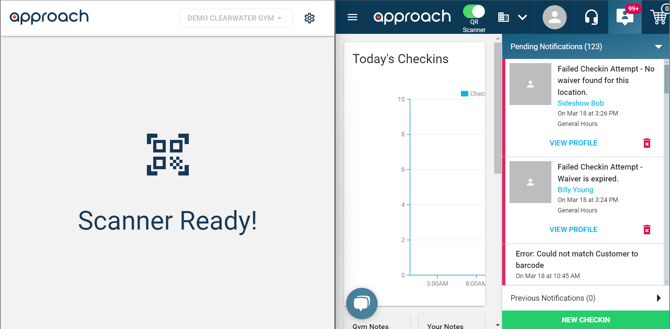
For this to work properly, the window with the Kiosk must be selected with your cursor so the scanner sends the barcode or QR code information to the Kiosk screen. The Main App also must have the QR Scanner toggled on.
To avoid creating issues with customers checking in during peak hours, we also recommend setting the barcode reader timeout to either 1 or 2 seconds. The Main App window is exclusively being used to monitor those check-ins for any issues, which will be sorted to the pending notifications tab and can be dealt with by an employee on their primary workstation.
If a staff member attempts to deal with an issue by selecting the account on this screen, it will deselect the Kiosk window and the scanner will no longer be sending their barcode or QR code information to the Kiosk to check in.
Now you can have customers check in with a barcode or QR code and monitor their check-in status efficiently!
Note: If you request that Approach enable auto-approval for checkins, both barcode and QR code checkins will be auto approved (to general hours only).
Having an issue?
Make sure the Scanner is Working Properly
If customers are not being checked in, then we want to make sure the device is working properly.
Do the following steps:
- Make sure that is Connected
- That it is Powered On
- Click into a search bar or text field.
- Scan a QR Code
- A value should be scanned into the field
If no value is scanned into the field then please reach out to the manufacturer to inquire about the reason that it is not scanning.
If the scanner was able to input a value into the text field
Then please make sure to click out of the text field and back into the Approach Dashboard.
Make sure that the mouse is not clicked into any text field by clicking into an open area of the dashboard (such as the drawn boxes in the image below)
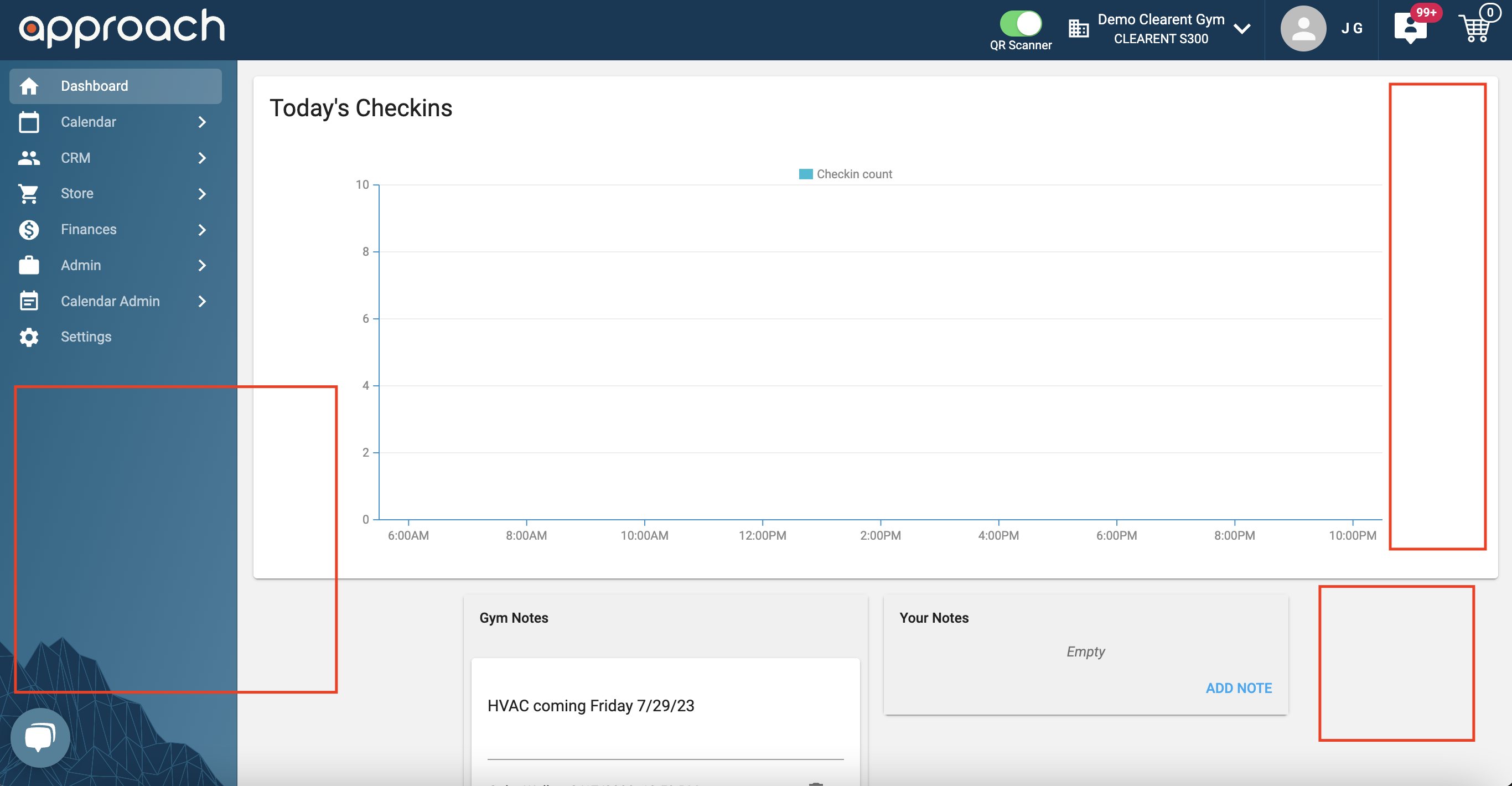
Once that is done attempt to check the customer in again.
If it is still not checking in the customer then please make sure to reach out to the customer chat bubble in order to report the issue:
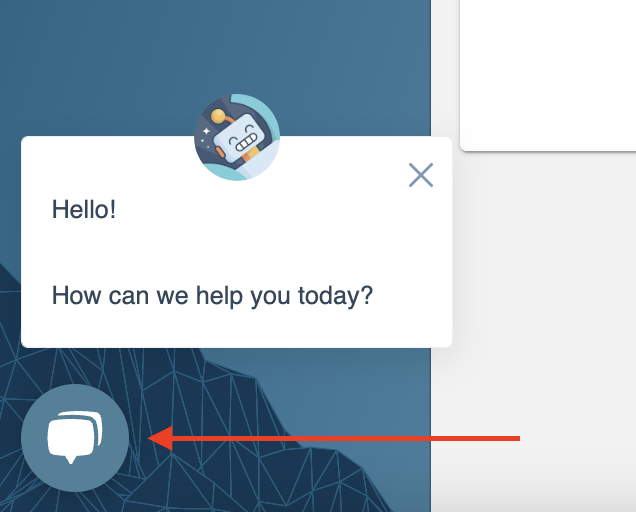
Make sure to provide the:
- URL/link of the customer profile
- Name of the device that you are using to scan
- Image of the QR Code that you are scanning
We will follow back as soon as we can!
QR/barcode Scanner Recommendations
Approach Staff utilize this scanner for testing and troubleshooting. However, you are welcome to utilize a different scanner so long as it can scan the following:
- 3D
- QR Code
- Aztec
- 2D
- Barcodes
- Code 39
- Code 128
- Barcodes
Our barcode type Recommendations
- We recommend sequenced barcodes
-
- Barcodes need to be unique. Buying a “range” or plastic barcodes ensures that you don’t have duplicate barcode tags
- Alpha numeric or just numeric barcodes
- code 39 or 128 are sufficient barcode standards
- Test your reader with the barcode you purchase.
Barcode Requirements
As a system, our only requirement is that the barcode field be unique, alphanumeric string that is less than 45 characters long.
This allows for quite a bit of flexibility in choosing your barcode format type and reader.
When a barcode is encoded, sometimes the barcode manufacturer adds a leading sentinel of “;” or “%” and ends the barcode with “%”
You should ask your vendor to send you a sample of barcodes. Then you’ll see if your scanner removed the sentinels or not.
Our Recommended Barcode Vendors
Providing Customers with their QR Code
There are two ways to provide a QR Code to the customer
Sending it through email:
Staff members can send customers their QR Codes by email. For more information on this refer to the following document:
Accessing it from the PWA:
Customers can save their gym's portal to their phone as a progressive web app (PWA). Once there they'll be able to view the QR Code. For more information on the PWA please refer to the following documentation:
Want to use barcodes for Products? Check out this article!
Want to use barcodes for Gift Cards? Check out this article!