
Table of Contents
Setting up your QR Code Scanner
Providing Customers with their QR Code
Setting up QR Code Scanner
For information on barcode check-ins please refer to the following document:
Approach does not have a standard scanner recommendation. However, please be sure that your scanner fits these two criteria:
1. The scanner should be able to scan both QR codes and barcodes. Regardless of whether you only want to use QR codes or not, the scanner you use should be able to accept both.
2. Our QR codes are Aztec barcodes. Please be sure that your scanner is able to scan the Aztec format before purchasing.
When you first receive your QR scanner make sure to plug it into your computer. Afterward, make sure that Approach is set to take in QR codes by turning it on. (see image below)
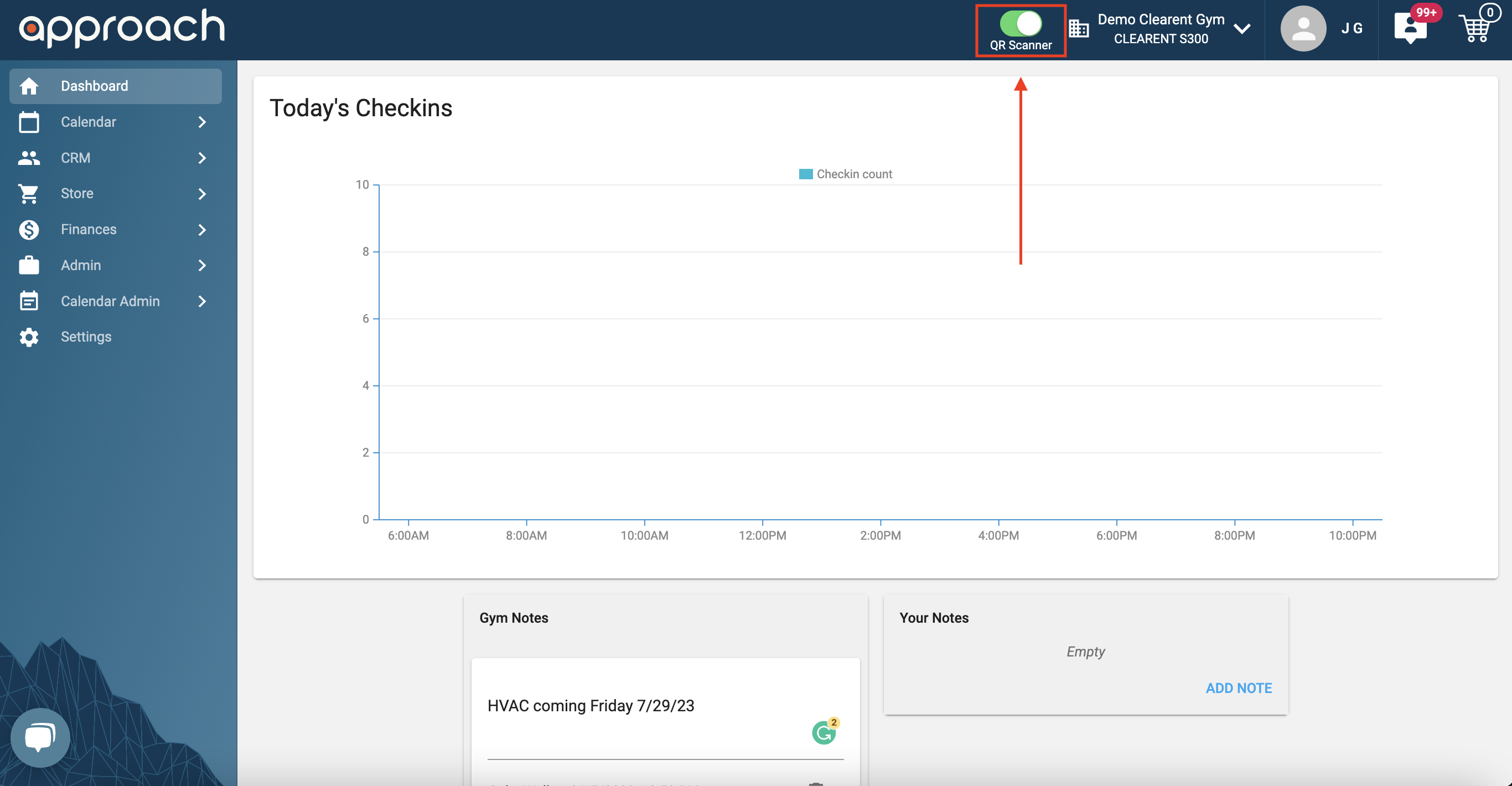
Great! You are now ready to start receiving QR Code check-ins.
Note: Make sure your mouse is not clicked into a text field or search bar when scanning a QR Code. Doing so causes the information to be placed there instead of checking the customer in.
Note: The computer has to have the Approach page open while the person is scanning the QR Code.
Troubleshooting
Make sure the Scanner is Working Properly
If customers are not being checked in, then we want to make sure the device is working properly.
Do the following steps:
- Make sure that is Connected
- That it is Powered On
- Click into a search bar or text field.
- Scan a QR Code
- A value should be scanned into the field
If no value is scanned into the field then please reach out to the manufacturer to inquire about the reason that it is not scanning.
If the scanner was able to input a value into the text field
Then please make sure to click out of the text field and back into the Approach Dashboard.
Make sure that the mouse is not clicked into any text field by clicking into an open area of the dashboard (such as the drawn boxes in the image below)
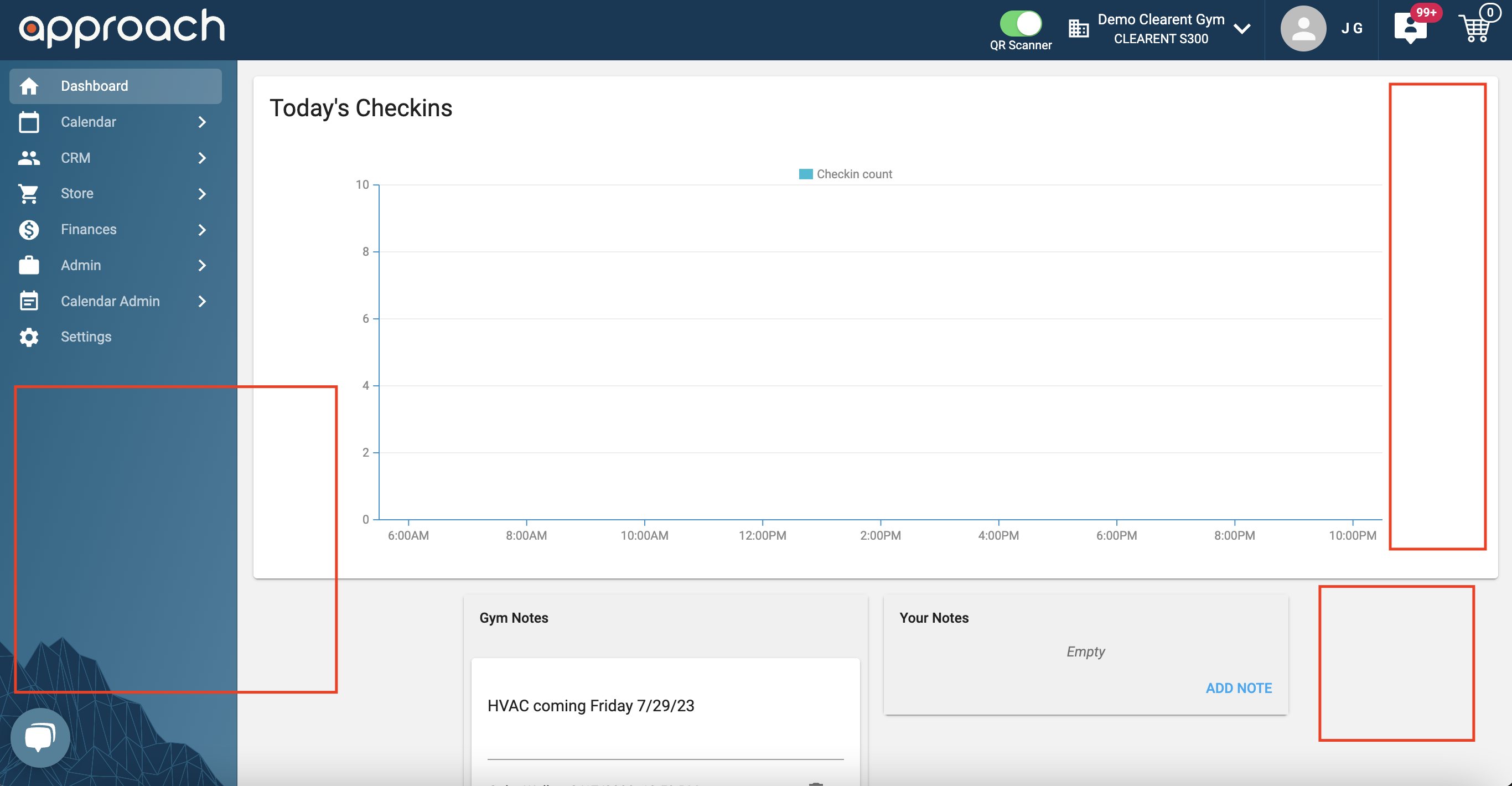
Once that is done attempt to check the customer in again.
If it is still not checking in the customer then please make sure to reach out to the customer chat bubble in order to report the issue:
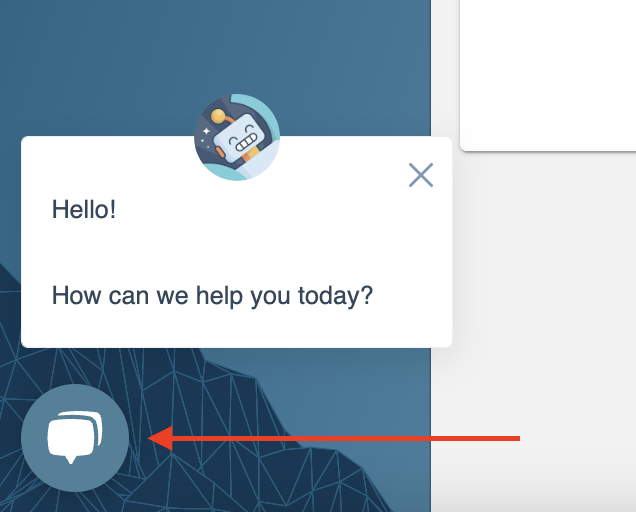
Make sure to provide the:
- URL/link of the customer profile
- Name of the device that you are using to scan
- Image of the QR Code that you are scanning
We will follow back as soon as we can!
Providing Customers with their QR Code
There are two ways to provide a QR Code to the customer
Sending it through email:
Staff members can send customers their QR Codes by email. For more information on this refer to the following document:
Accessing it from the PWA:
Customers can save their gym's portal to their phone as a progressive web app (PWA). Once there they'll be able to view the QR Code. For more information on the PWA please refer to the following documentation: