
Store credit serves as an alternative to traditional refunds, providing customers with added flexibility and an incentive to stay loyal to the business. Store credit is managed through various components and settings within the system, which include:
- Admin Setup (Global Settings & Roles)
- Customer Profile (Store Credit History)
- Checkout Sequence
- QuickBooks Fields & Revenue Category Reports
- Store Credit Cron Billing (store credit's connection to billing)
Admin Setup
-
Global Setting
By Default, Store credit will automatically be turned "on."
-
-
- If your business does not want to use store credit, make sure to go to the global settings section on the bottom left of the Main App. Under General, make sure the checkbox is deselected that says "Use store credit functionality." Make sure to hit "Save"!
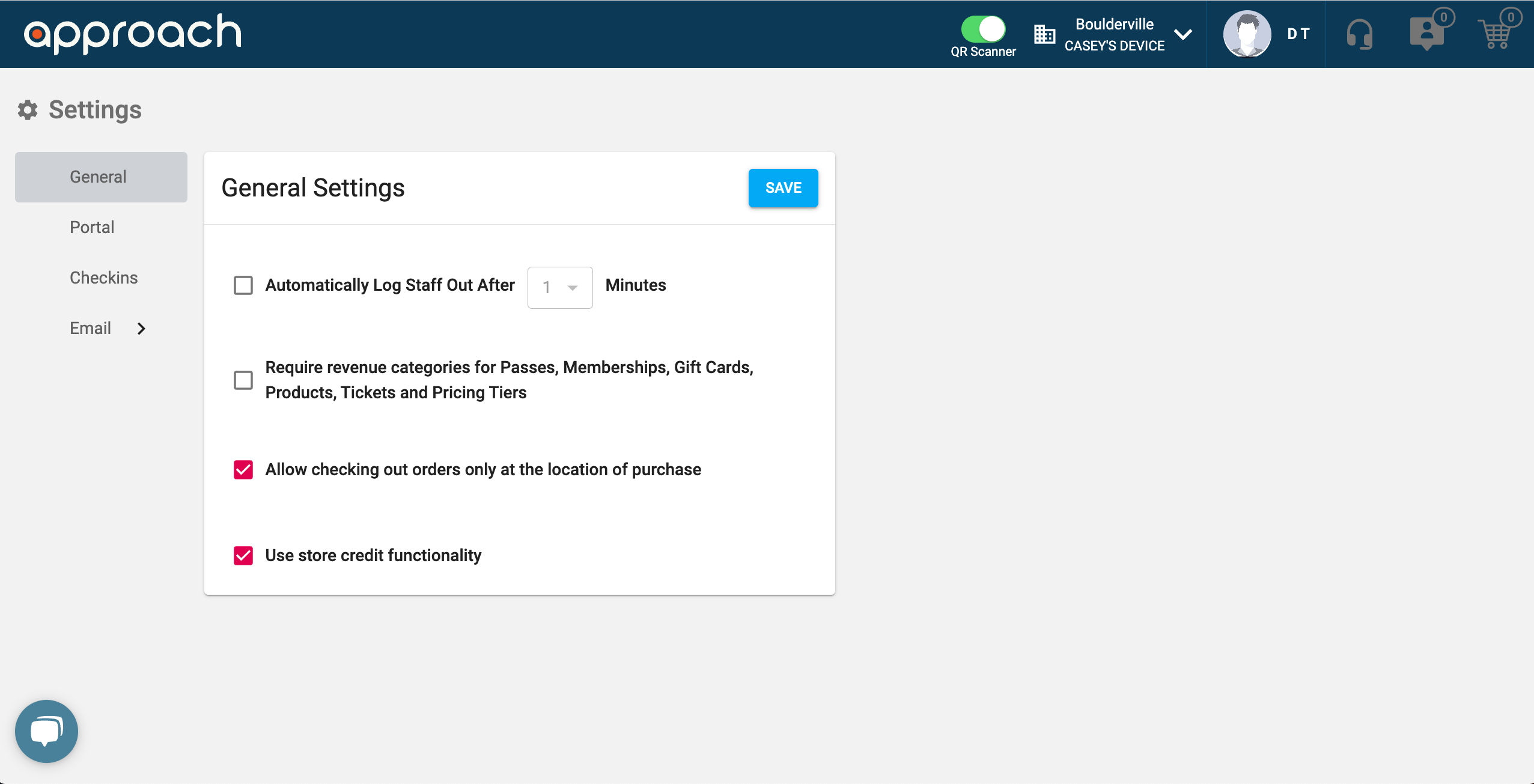
- After turning this feature on, you can return to the Main App and adjust staff roles to your liking.
- If your business does not want to use store credit, make sure to go to the global settings section on the bottom left of the Main App. Under General, make sure the checkbox is deselected that says "Use store credit functionality." Make sure to hit "Save"!
-
Please note: this global setting can be changed at anytime. If your organization uses this functionality and then turns it off, no customer store credit will be lost; instead, that customer information will no longer appear on their profile and any store credit functionality across the Main App will be disabled (checkout sequence, refund flows, etc.).
Roles
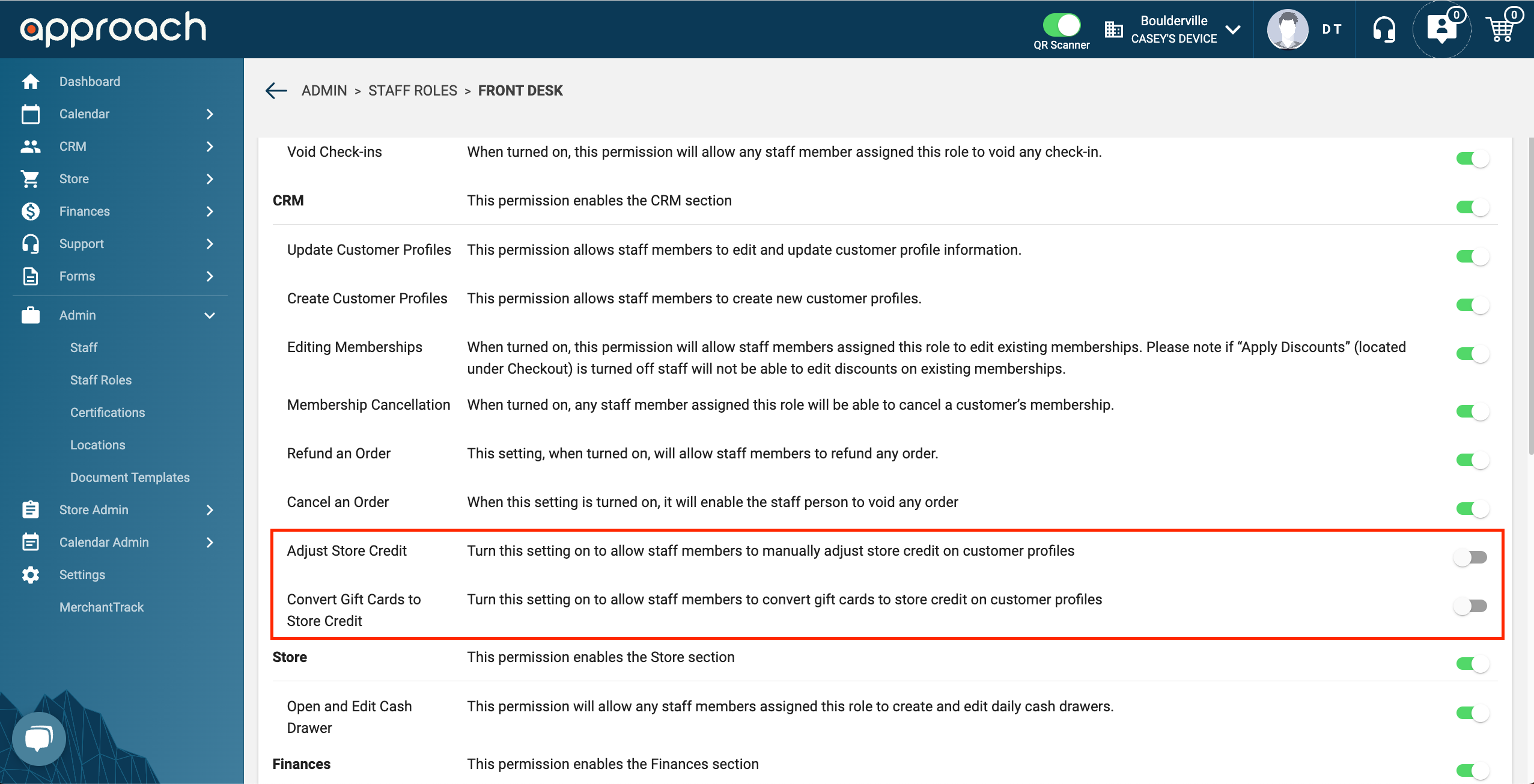
Roles are different user categories with specific permissions and responsibilities. Two new permissions have been added to roles related to store credit: "Adjust Store Credit" and "Convert Gift Cards to Store Credit."
These can be turned on or off, depending on business needs per role, helping ensure security and control over the store credit feature.
Customer Profile (Store Credit History)
Under "Plans" in the customer profile, there is a tab called "Store Credit."
This tab allows staff to:
1) manually adjust store credit.
2) convert gift cards to store credit.
3) view store credit history and current store credit balance. 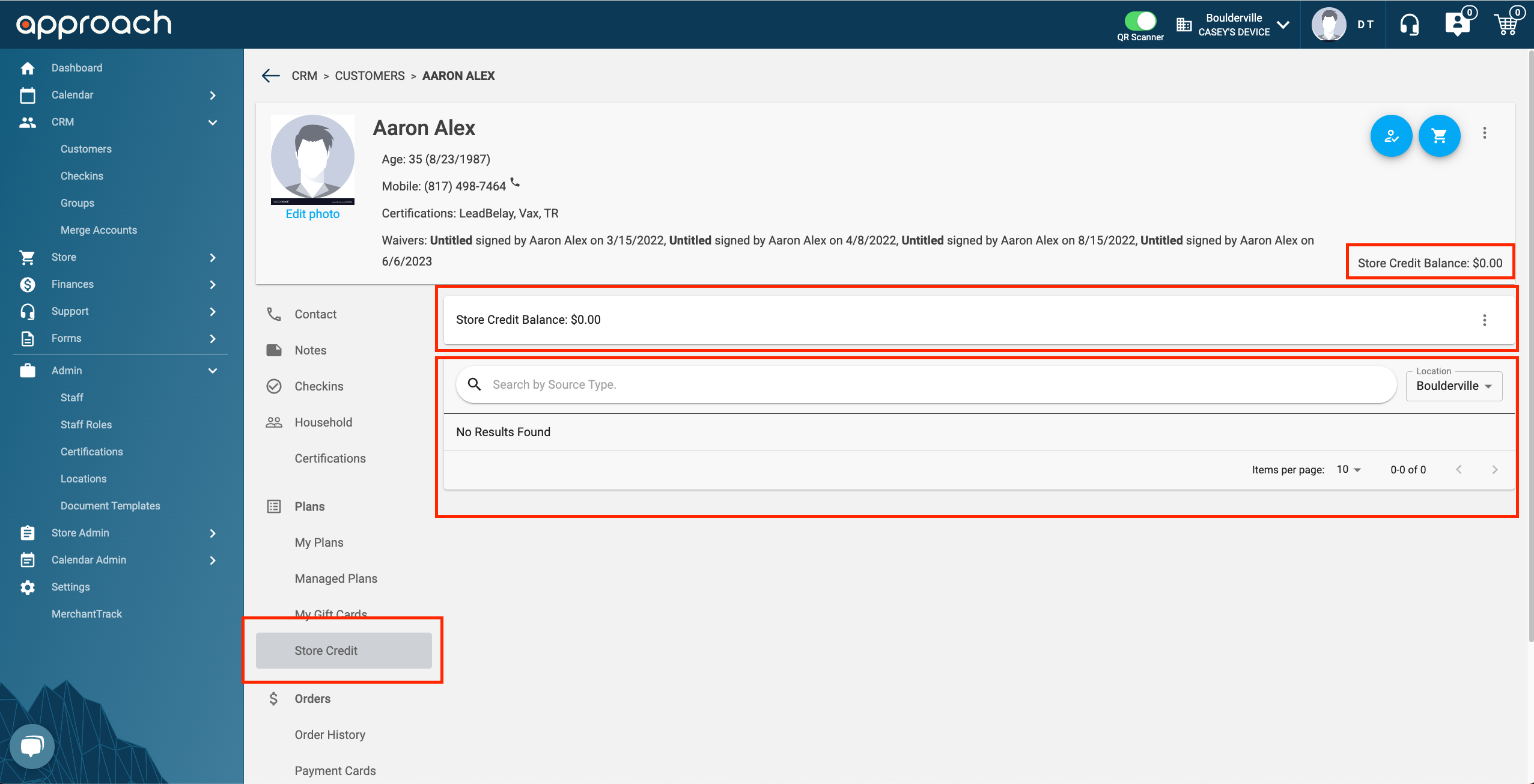
Manual Adjustment
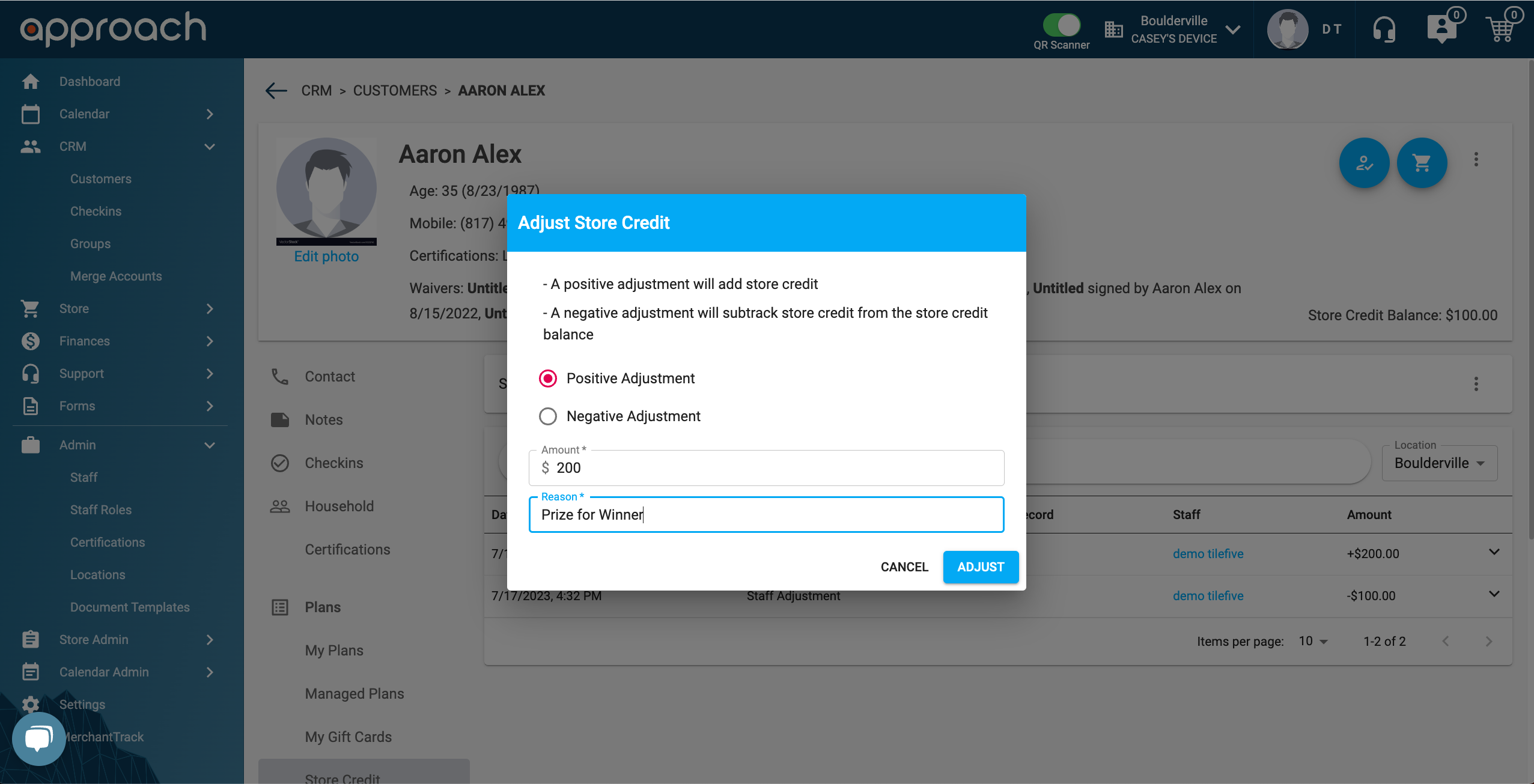
You can manually adjust store credit.
- Click on the "hamburger" on the top bar of the store credit tab on the customer profile. This will reveal two buttons: "Adjust Store Credit" and "Convert Gift Card."
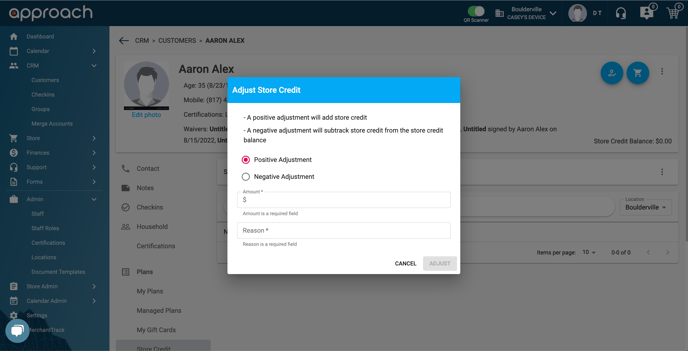
Positive adjustments add store credit, while negative adjustments subtract store credit from the store credit balance
- Customers can have negative store credit balance
- No store credit adjustments can exceed $10,000
- Store credit balance cannot exceed $20,000
For adjusting store credit, a reason is required.
Convert Gift Cards to Store Credit
-
-
-
To convert gift cards, click the button in the dropdown. A dialog will appear that looks like this:
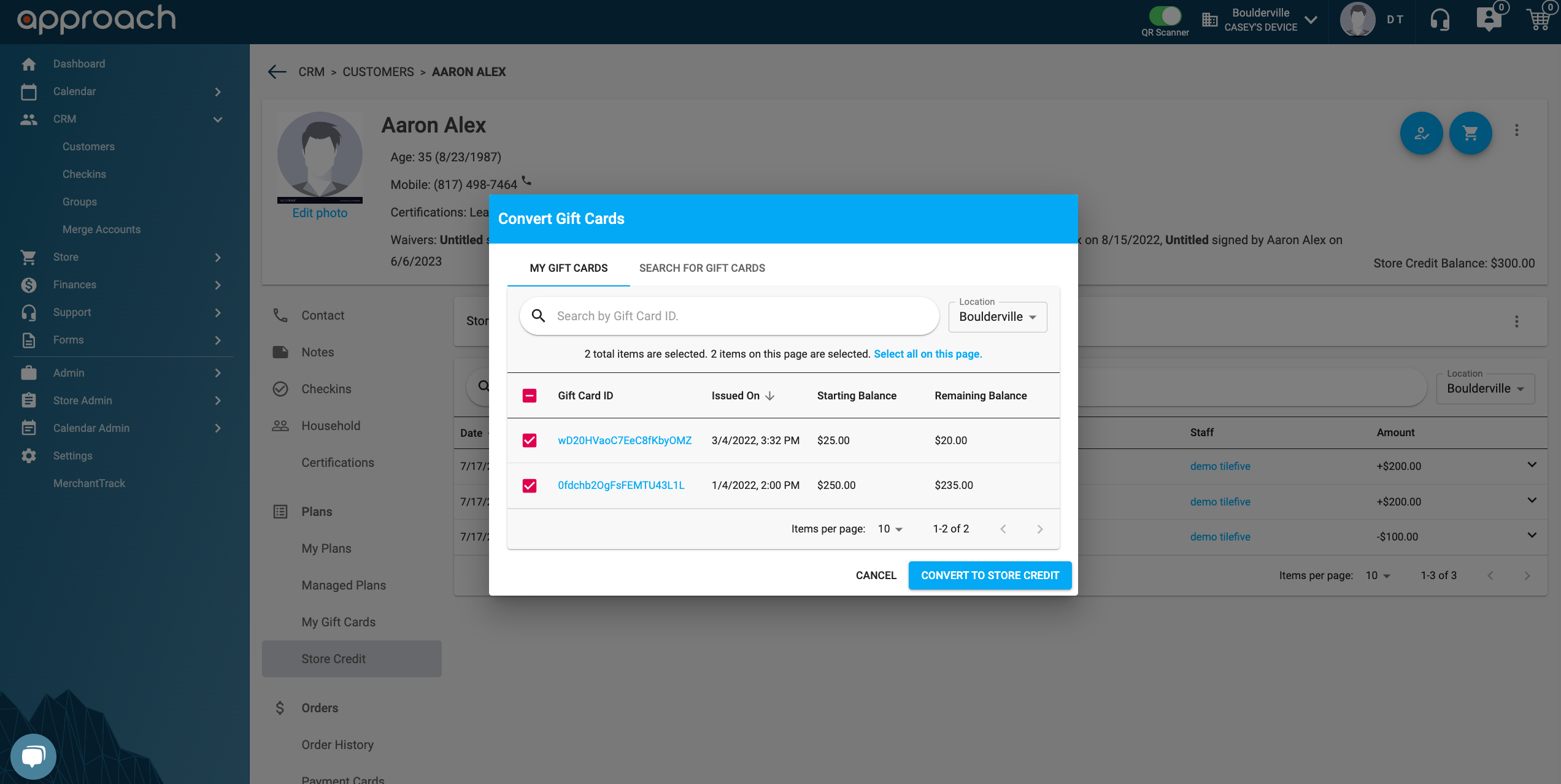
- You can convert any gift cards that a customer already has or scan for a gift card. If you select multiple gift cards to convert, those will show up individually on the list view in the store credit tab and the customer's store credit balance will update.
-
-
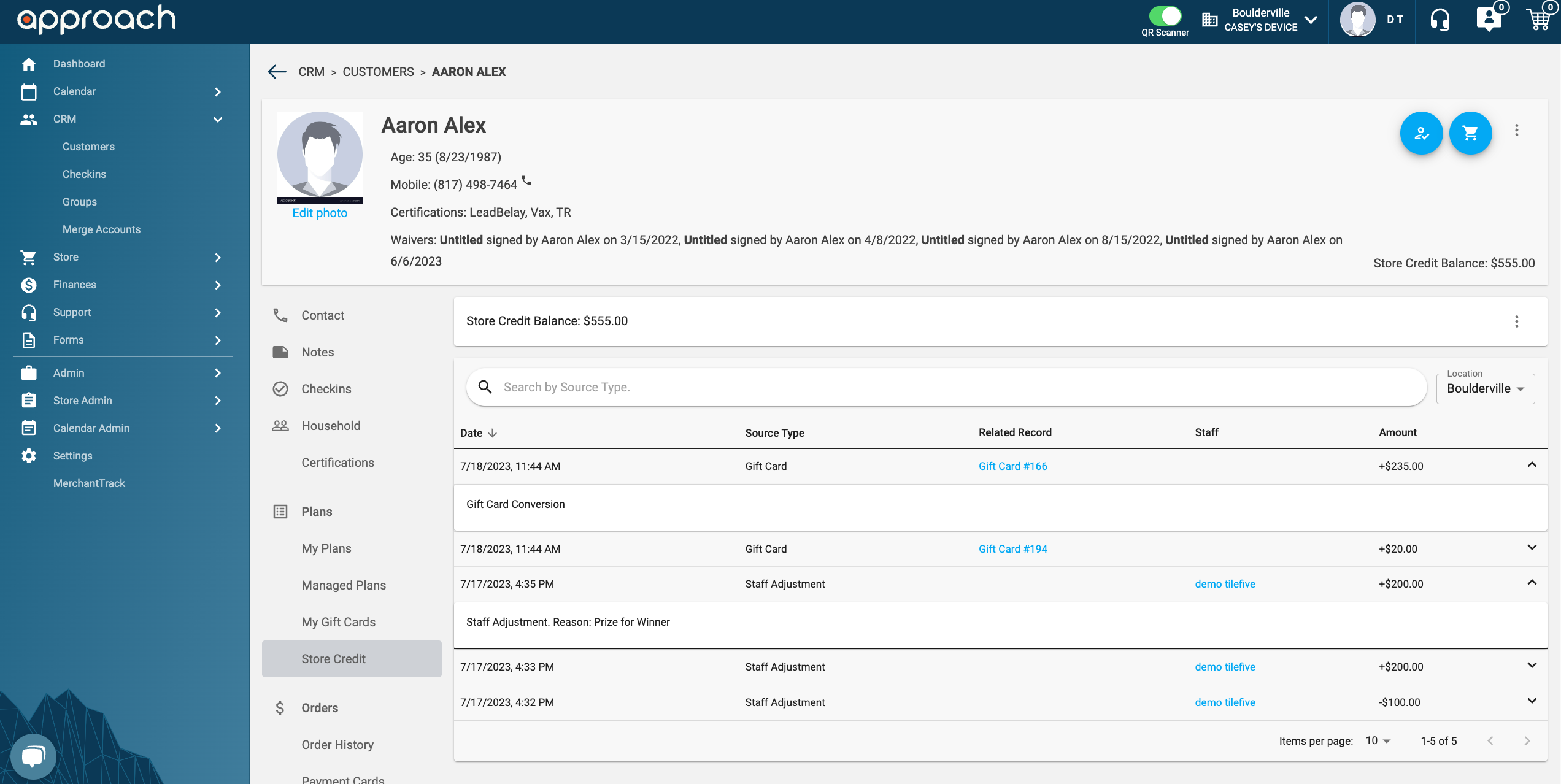
View Store Credit History
Use the list view to see the history of store credit transactions of a customer.
-
-
- Note: the transactions table under finance includes "Store Credit" as a payment option to filter by
- Note: the transactions table under finance includes "Store Credit" as a payment option to filter by
-
Note: The transactions table under finance includes "Store Credit" as a payment option to filter by.
Checkout Sequence
If a customer has store credit, it will be preselected when a manager/staff is in the checkout sequence. To adjust store credit, simply hit the remove button, click the store credit button and adjust via a dialog, similar to the cash button.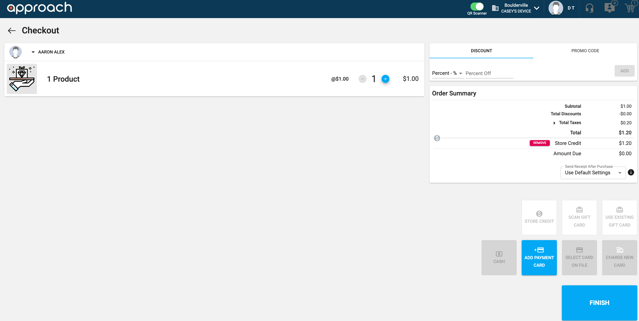
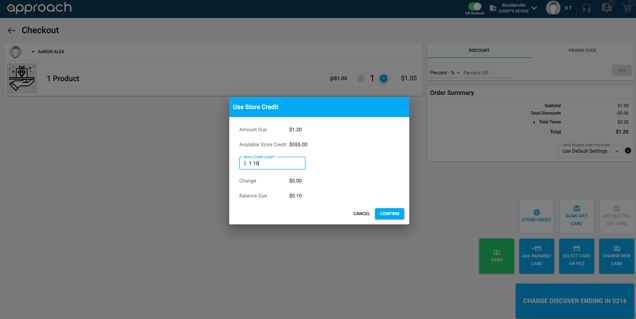
Can I refund to store credit? Yes you can! Across the main app. where staff have the ability to refund orders for customers, there is now an option to refund to store credit.
QuickBooks Fields & Revenue Category Reports
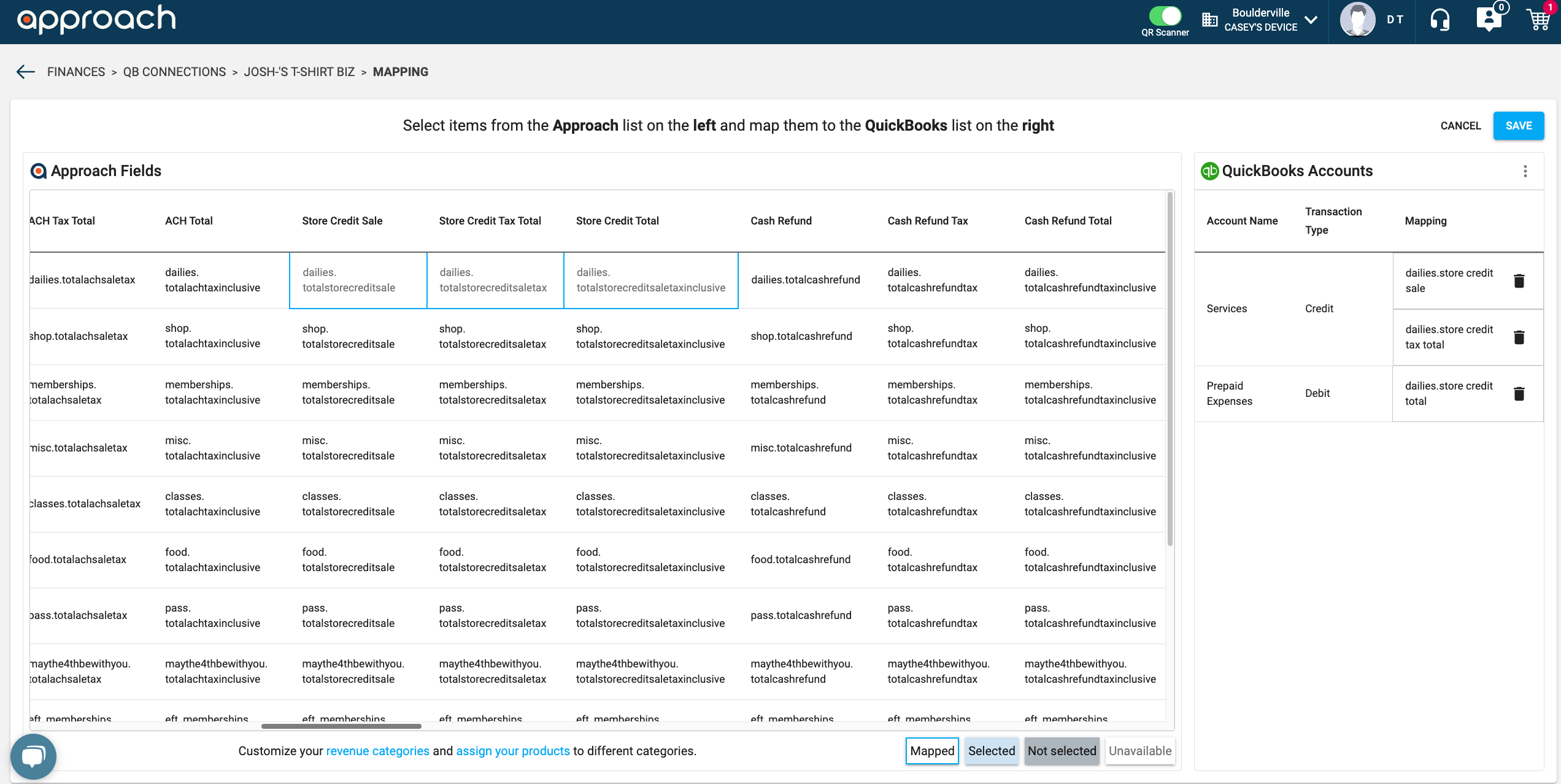
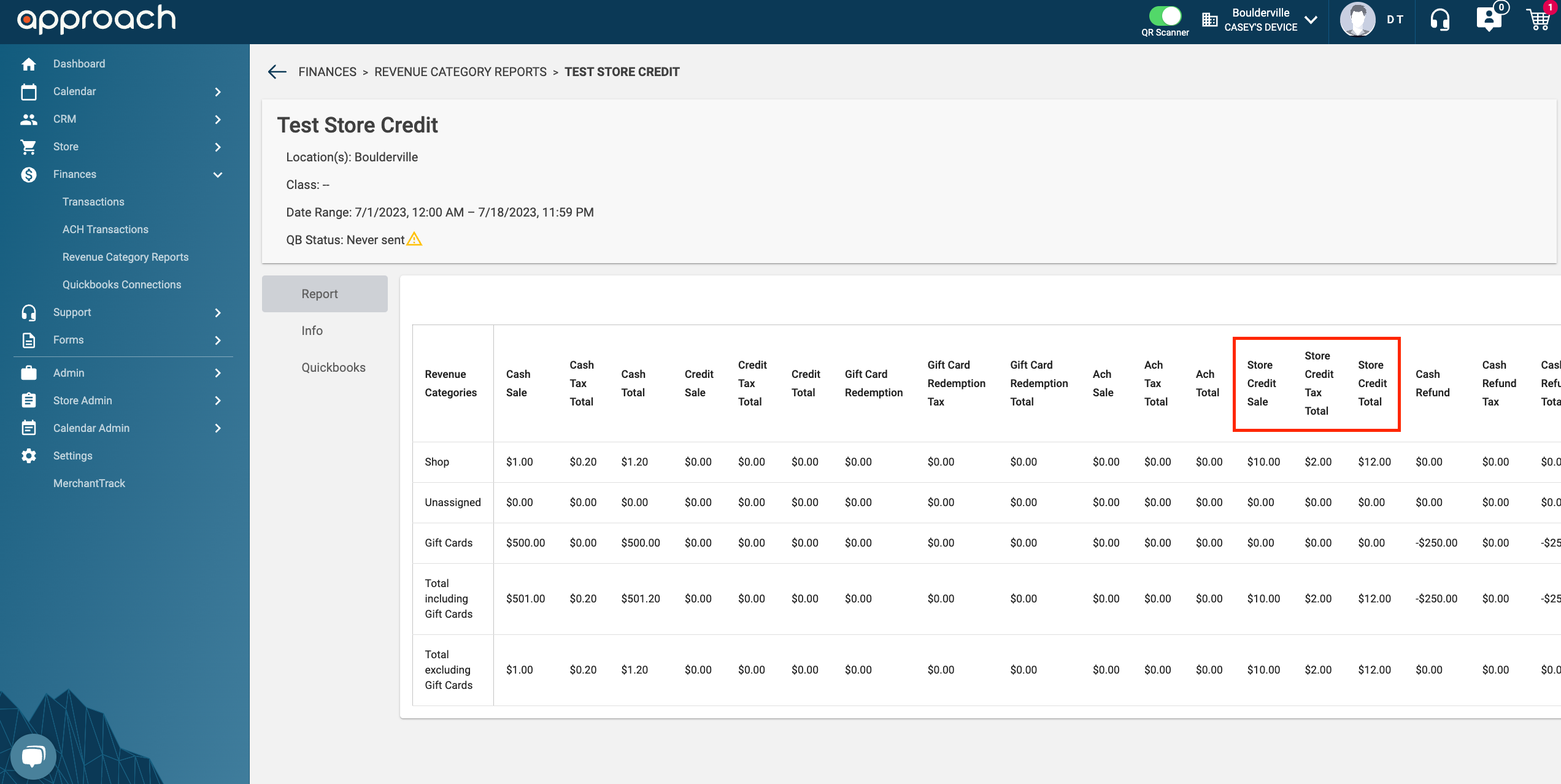
Store Credit Cron Billing
A question we often get is wether or not store credit applies to billing. The answer is it can be! By default, store credit does not affect billing and when billing runs, store credit will remain the same. However, We can enable this on the back end so that when billing runs, store credit will first be accounted for. Ex. A member has $20 in store credit and their monthly billing is $100. If store credit cron billing is enabled, when their billing runs, the $20 will go towards their membership and they will be charged $80, bringing their store credit to $0.
There is one caveat to enabling this back end feature. This can only be done for all customers and cannot be enabled for individual customers. It is an all or nothing feature.
It is up to you as a gym operator to determine the experience you want your customers to experience with store credit. If you would like us to enable the store credit cron billing, please fill out the data request form linked here for convenience. This form can also be found in the Approach support chat of the main app.
Have more questions about store credit? Email us at CXM@approach.app or fill out the questions form in the main app Approach support chat.